> ## Documentation Index
> Fetch the complete documentation index at: https://docs.chatsyncs.com/llms.txt
> Use this file to discover all available pages before exploring further.
# How Do I Configure Shared Inbox Settings for My Bot with ChatSyncs?
> The Shared Inbox tab in Bot Settings — an agent signature message, disabling the bot or AI Agent, session expiry times, and auto-labeling failed message deliveries.
The **Shared Inbox** tab in [Bot Settings](/learn/chatsyncs-bot-settings/introduction) configures
human-agent chat settings for this bot — separate from the [Shared
Inbox](/learn/chatsyncs-shared-inbox/introduction) feature pages, which cover using the inbox itself.
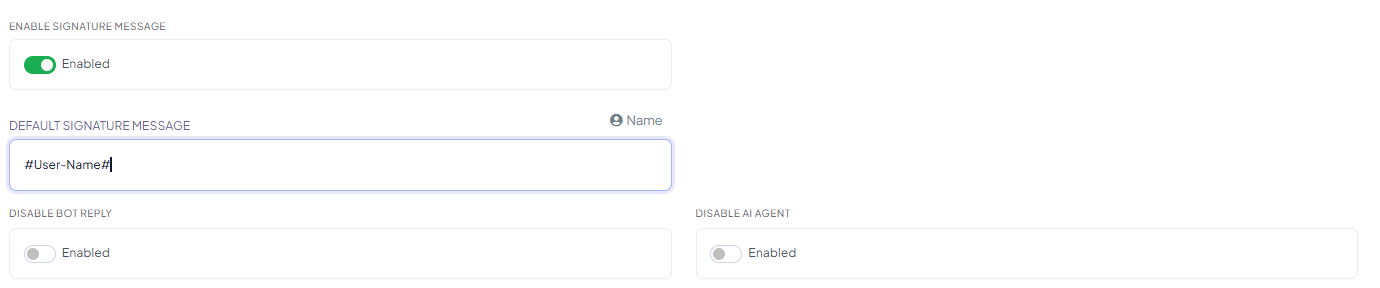 ## Enable Signature Message and Default Signature Message
**Enable Signature Message** adds a signature to the end of an agent's replies. **Default
Signature Message** is the text used — it supports the same **Name** variable as anywhere else
in ChatSyncs.
**Example**
Default Signature Message:
```text theme={null}
#User-Name#
```
A reply from agent Priya is sent with her name appended automatically, so the customer can see
which team member they're talking to.
## Disable Bot Reply and Disable AI Agent
Two independent toggles that stop the automated bot or AI Agent from replying once a
conversation is being handled in Shared Inbox:
* **Disable Bot Reply** — turns off the Keyword Replies bot for conversations in Shared Inbox.
* **Disable AI Agent** — turns off the AI Agent for conversations in Shared Inbox.
These are separate from **Bot Replies While Agent on Mobile App** in [General
settings](/learn/chatsyncs-bot-settings/configure-general-bot-behavior-with-chatsyncs#bot-replies-while-agent-on-mobile-app), and from the
**Disable bot reply / Disable AI assistant outside business hour** toggles in [How Do I Set Up
Business Hours for My Bot?](/learn/chatsyncs-bot-settings/set-up-business-hours-for-my-bot-with-chatsyncs) — those two control automation by time of day, these
two control it specifically for Shared Inbox conversations.
## Session Expiry Time
## Enable Signature Message and Default Signature Message
**Enable Signature Message** adds a signature to the end of an agent's replies. **Default
Signature Message** is the text used — it supports the same **Name** variable as anywhere else
in ChatSyncs.
**Example**
Default Signature Message:
```text theme={null}
#User-Name#
```
A reply from agent Priya is sent with her name appended automatically, so the customer can see
which team member they're talking to.
## Disable Bot Reply and Disable AI Agent
Two independent toggles that stop the automated bot or AI Agent from replying once a
conversation is being handled in Shared Inbox:
* **Disable Bot Reply** — turns off the Keyword Replies bot for conversations in Shared Inbox.
* **Disable AI Agent** — turns off the AI Agent for conversations in Shared Inbox.
These are separate from **Bot Replies While Agent on Mobile App** in [General
settings](/learn/chatsyncs-bot-settings/configure-general-bot-behavior-with-chatsyncs#bot-replies-while-agent-on-mobile-app), and from the
**Disable bot reply / Disable AI assistant outside business hour** toggles in [How Do I Set Up
Business Hours for My Bot?](/learn/chatsyncs-bot-settings/set-up-business-hours-for-my-bot-with-chatsyncs) — those two control automation by time of day, these
two control it specifically for Shared Inbox conversations.
## Session Expiry Time
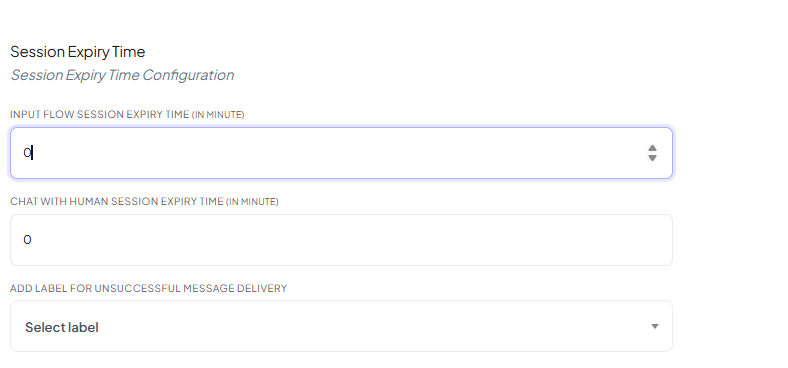 Two separate expiry timers, both in minutes:
* **Input Flow Session Expiry Time** — how long a subscriber's [Input
Flow](/learn/chatsyncs-automation/user-input-flow-in-chatsyncs) session stays active before it resets.
* **Chat with Human Session Expiry Time** — how long a Shared Inbox chat session stays open
after the customer goes quiet, before it's treated as inactive.
**Example**
Chat with Human Session Expiry Time: `60`
If a customer doesn't reply for 60 minutes, that chat session closes automatically — their next
message starts a fresh session. A value of `0` means no automatic expiry.
## Add Label for Unsuccessful Message Delivery
Pick an existing label from **Select label** — ChatSyncs automatically tags a contact with it
whenever a message sent to them fails to deliver, so you can spot invalid numbers or blocked
accounts without manually checking every conversation.
**Example**
A message to `919876543210` fails to deliver → that subscriber is automatically tagged with the
label you selected (e.g. `delivery_failed`), so you can filter and follow up on them later in
[Subscriber Manager](/learn/chatsyncs-subscriber-manager/introduction).
The label must already exist to appear in **Select label** — create it first under [Custom
Fields and Labels](/learn/chatsyncs-subscriber-manager/manage-custom-fields-and-labels-with-chatsyncs#create-a-label) if you
don't have one yet.
## Save your changes
Two separate expiry timers, both in minutes:
* **Input Flow Session Expiry Time** — how long a subscriber's [Input
Flow](/learn/chatsyncs-automation/user-input-flow-in-chatsyncs) session stays active before it resets.
* **Chat with Human Session Expiry Time** — how long a Shared Inbox chat session stays open
after the customer goes quiet, before it's treated as inactive.
**Example**
Chat with Human Session Expiry Time: `60`
If a customer doesn't reply for 60 minutes, that chat session closes automatically — their next
message starts a fresh session. A value of `0` means no automatic expiry.
## Add Label for Unsuccessful Message Delivery
Pick an existing label from **Select label** — ChatSyncs automatically tags a contact with it
whenever a message sent to them fails to deliver, so you can spot invalid numbers or blocked
accounts without manually checking every conversation.
**Example**
A message to `919876543210` fails to deliver → that subscriber is automatically tagged with the
label you selected (e.g. `delivery_failed`), so you can filter and follow up on them later in
[Subscriber Manager](/learn/chatsyncs-subscriber-manager/introduction).
The label must already exist to appear in **Select label** — create it first under [Custom
Fields and Labels](/learn/chatsyncs-subscriber-manager/manage-custom-fields-and-labels-with-chatsyncs#create-a-label) if you
don't have one yet.
## Save your changes
 Click **Publish Changes** in the top-right corner after editing any field on this tab — nothing
goes live until you do.
## Frequently asked
Turn on **Enable Signature Message** and set **Default Signature Message** — it supports the
**Name** variable (`#User-Name#`) to show the agent's name automatically.
Turn on **Disable Bot Reply** (for the Keyword Replies bot) and/or **Disable AI Agent** (for
the AI Agent) on this tab.
**Input Flow Session Expiry Time** resets an [Input Flow](/learn/chatsyncs-automation/user-input-flow-in-chatsyncs)
session. **Chat with Human Session Expiry Time** closes a Shared Inbox conversation session
after inactivity. They're independent and can be set to different values.
Pick a label under **Add Label for Unsuccessful Message Delivery**, then filter [Subscriber
Manager](/learn/chatsyncs-subscriber-manager/introduction) by that label. The label must already exist —
create it first if needed.
Nothing is lost — the conversation history stays intact. The customer's next message simply
starts a new session rather than continuing the old one.
## Related Documentation
* [Bot Settings](/learn/chatsyncs-bot-settings/introduction) — all eight tabs at a glance.
* [Shared Inbox](/learn/chatsyncs-shared-inbox/introduction) — using the inbox itself: filtering,
organizing, and team collaboration.
* [Subscriber Manager](/learn/chatsyncs-subscriber-manager/introduction) — filtering subscribers by label.
* [How Do I Manage Custom Fields and Labels?](/learn/chatsyncs-subscriber-manager/manage-custom-fields-and-labels-with-chatsyncs) — creating a
label before selecting it here.
Click **Publish Changes** in the top-right corner after editing any field on this tab — nothing
goes live until you do.
## Frequently asked
Turn on **Enable Signature Message** and set **Default Signature Message** — it supports the
**Name** variable (`#User-Name#`) to show the agent's name automatically.
Turn on **Disable Bot Reply** (for the Keyword Replies bot) and/or **Disable AI Agent** (for
the AI Agent) on this tab.
**Input Flow Session Expiry Time** resets an [Input Flow](/learn/chatsyncs-automation/user-input-flow-in-chatsyncs)
session. **Chat with Human Session Expiry Time** closes a Shared Inbox conversation session
after inactivity. They're independent and can be set to different values.
Pick a label under **Add Label for Unsuccessful Message Delivery**, then filter [Subscriber
Manager](/learn/chatsyncs-subscriber-manager/introduction) by that label. The label must already exist —
create it first if needed.
Nothing is lost — the conversation history stays intact. The customer's next message simply
starts a new session rather than continuing the old one.
## Related Documentation
* [Bot Settings](/learn/chatsyncs-bot-settings/introduction) — all eight tabs at a glance.
* [Shared Inbox](/learn/chatsyncs-shared-inbox/introduction) — using the inbox itself: filtering,
organizing, and team collaboration.
* [Subscriber Manager](/learn/chatsyncs-subscriber-manager/introduction) — filtering subscribers by label.
* [How Do I Manage Custom Fields and Labels?](/learn/chatsyncs-subscriber-manager/manage-custom-fields-and-labels-with-chatsyncs) — creating a
label before selecting it here.