> ## Documentation Index
> Fetch the complete documentation index at: https://docs.chatsyncs.com/llms.txt
> Use this file to discover all available pages before exploring further.
# How Do I Configure General Bot Behavior with ChatSyncs?
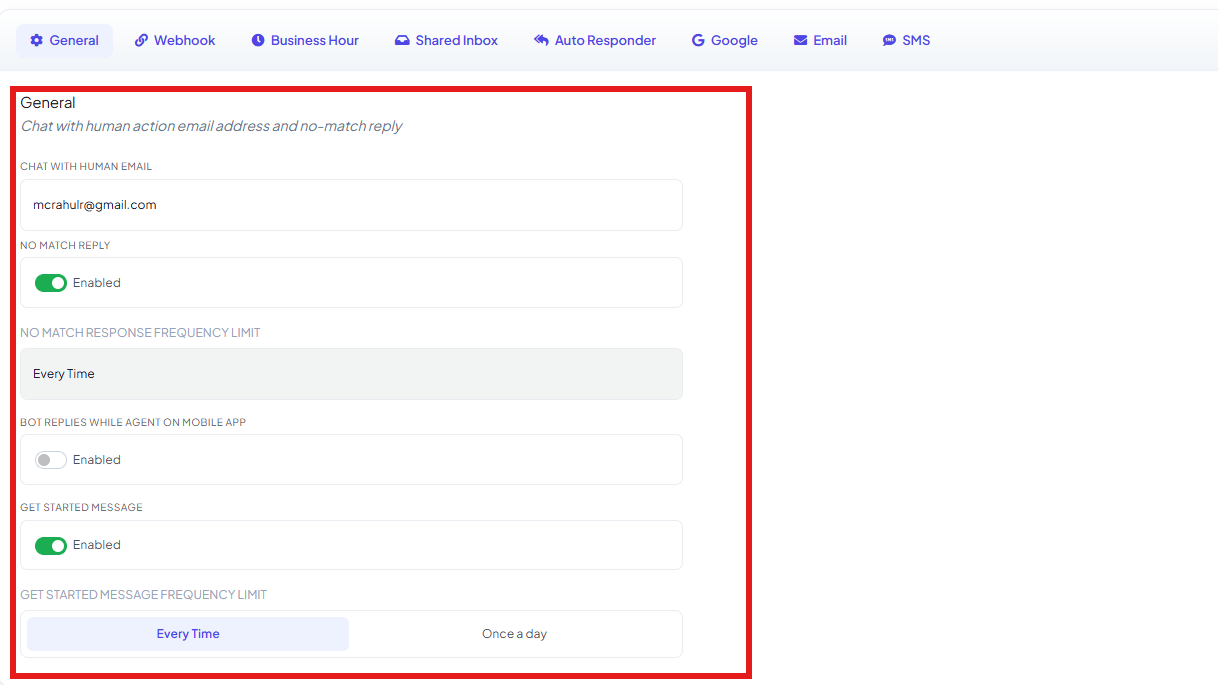
> The General tab in Bot Settings — the Chat with Human notification email, a default No Match reply, and the welcome Get Started Message.
The **General** tab in [Bot Settings](/learn/chatsyncs-bot-settings/introduction) configures the basic,
always-on behavior of a bot — who gets notified, what it says when it doesn't understand
something, and how it greets a new conversation.
 ## Chat with Human Email
Enter the email address that should receive a notification whenever a customer clicks
**Chat with Human**. The button itself is set up as one of the System Default Action Buttons —
see [Chat with Human](/learn/chatsyncs-automation/set-up-quick-actions-no-match-get-started-and-more-in-chatsyncs#chat-with-human) in Quick Actions for
how to wire it into a flow.
**Example**
Email: `support@company.com`
```text theme={null}
Customer: I want to talk with a human.
```
Result: ChatSyncs sends an email notification to `support@company.com`.
## No Match Reply
Enable this to send a default reply when the bot can't find a matching response to a customer's
message.
**Example**
```text theme={null}
Customer: Can you repair my laptop?
Bot: Sorry, I couldn't understand your request. Please contact our support team.
```
**No Match Response Frequency Limit** controls how often that reply repeats to the same
customer:
| Frequency | Behavior |
| ---------------- | -------------------------------------------------------------------------------------------------- |
| **Every Time** | Sends the No Match reply for every unmatched message. |
| **Once a Day** | Sends it once per day to the same customer, even if they send several unmatched messages that day. |
| **Once a Month** | Sends it once per month per customer. |
| **Once a Year** | Sends it once per year per customer. |
## Bot Replies While Agent on Mobile App
Enable this if the bot should keep replying automatically even while a human agent is already
chatting with that customer from the ChatSyncs **mobile app**.
**Example**
```text theme={null}
Customer: What are your business hours?
Bot: Our business hours are 9 AM – 6 PM.
```
The human agent can continue the conversation without interruption — the bot's reply doesn't
block or replace theirs.
## Get Started Message
Shows a welcome message when a customer starts a brand-new conversation with the bot.
**Example**
```text theme={null}
👋 Welcome to ABC Store!
Click Get Started to explore our products.
```
Frequency: **Every Time** or **Once a Day** — Once a Day avoids re-sending the welcome message
to a returning customer who already messaged that day.
## Save your changes
## Chat with Human Email
Enter the email address that should receive a notification whenever a customer clicks
**Chat with Human**. The button itself is set up as one of the System Default Action Buttons —
see [Chat with Human](/learn/chatsyncs-automation/set-up-quick-actions-no-match-get-started-and-more-in-chatsyncs#chat-with-human) in Quick Actions for
how to wire it into a flow.
**Example**
Email: `support@company.com`
```text theme={null}
Customer: I want to talk with a human.
```
Result: ChatSyncs sends an email notification to `support@company.com`.
## No Match Reply
Enable this to send a default reply when the bot can't find a matching response to a customer's
message.
**Example**
```text theme={null}
Customer: Can you repair my laptop?
Bot: Sorry, I couldn't understand your request. Please contact our support team.
```
**No Match Response Frequency Limit** controls how often that reply repeats to the same
customer:
| Frequency | Behavior |
| ---------------- | -------------------------------------------------------------------------------------------------- |
| **Every Time** | Sends the No Match reply for every unmatched message. |
| **Once a Day** | Sends it once per day to the same customer, even if they send several unmatched messages that day. |
| **Once a Month** | Sends it once per month per customer. |
| **Once a Year** | Sends it once per year per customer. |
## Bot Replies While Agent on Mobile App
Enable this if the bot should keep replying automatically even while a human agent is already
chatting with that customer from the ChatSyncs **mobile app**.
**Example**
```text theme={null}
Customer: What are your business hours?
Bot: Our business hours are 9 AM – 6 PM.
```
The human agent can continue the conversation without interruption — the bot's reply doesn't
block or replace theirs.
## Get Started Message
Shows a welcome message when a customer starts a brand-new conversation with the bot.
**Example**
```text theme={null}
👋 Welcome to ABC Store!
Click Get Started to explore our products.
```
Frequency: **Every Time** or **Once a Day** — Once a Day avoids re-sending the welcome message
to a returning customer who already messaged that day.
## Save your changes
 Click **Publish Changes** in the top-right corner after editing any field on this tab — nothing
goes live until you do.
## Frequently asked
Turn on **Get Started Message** and set its frequency to Every Time or Once a Day, e.g.
`👋 Welcome to ABC Store! Click Get Started to explore our products.`
Whoever's email is entered under **Chat with Human Email** — every click of the **Chat with
Human** button sends that address a notification.
By default, yes. Turn on **Bot Replies While Agent on Mobile App** if you want the bot to
keep responding to matched keywords even while an agent is also chatting with that customer
from the ChatSyncs mobile app.
Set **No Match Response Frequency Limit** to **Once a Day**, **Once a Month**, or **Once a
Year** instead of **Every Time**.
## Related Documentation
* [Bot Settings](/learn/chatsyncs-bot-settings/introduction) — all eight tabs at a glance.
* [How to Set Up Quick Actions (No Match, Get Started, and More)](/learn/chatsyncs-automation/set-up-quick-actions-no-match-get-started-and-more-in-chatsyncs) — the System Default Action Buttons,
including Chat with Human.
* [How Do I Set Up Business Hours for My Bot?](/learn/chatsyncs-bot-settings/set-up-business-hours-for-my-bot-with-chatsyncs) — a separate,
time-based No Match / off-hours behavior.
Click **Publish Changes** in the top-right corner after editing any field on this tab — nothing
goes live until you do.
## Frequently asked
Turn on **Get Started Message** and set its frequency to Every Time or Once a Day, e.g.
`👋 Welcome to ABC Store! Click Get Started to explore our products.`
Whoever's email is entered under **Chat with Human Email** — every click of the **Chat with
Human** button sends that address a notification.
By default, yes. Turn on **Bot Replies While Agent on Mobile App** if you want the bot to
keep responding to matched keywords even while an agent is also chatting with that customer
from the ChatSyncs mobile app.
Set **No Match Response Frequency Limit** to **Once a Day**, **Once a Month**, or **Once a
Year** instead of **Every Time**.
## Related Documentation
* [Bot Settings](/learn/chatsyncs-bot-settings/introduction) — all eight tabs at a glance.
* [How to Set Up Quick Actions (No Match, Get Started, and More)](/learn/chatsyncs-automation/set-up-quick-actions-no-match-get-started-and-more-in-chatsyncs) — the System Default Action Buttons,
including Chat with Human.
* [How Do I Set Up Business Hours for My Bot?](/learn/chatsyncs-bot-settings/set-up-business-hours-for-my-bot-with-chatsyncs) — a separate,
time-based No Match / off-hours behavior.