> ## Documentation Index
> Fetch the complete documentation index at: https://docs.chatsyncs.com/llms.txt
> Use this file to discover all available pages before exploring further.
# How to Collect User Details Without Forms on WhatsApp in ChatSyncs
> How to collect a customer's name, email, or other details through natural conversation instead of a form.
WhatsApp doesn't need a form to collect information — a ChatSyncs **Keyword Replies** flow can
just ask, one question at a time, like a real conversation, and save each answer as it comes in.
**Example:**
```text theme={null}
Bot: What's your name?
Customer: Rahul
Bot: Thanks Rahul! What's your email?
Customer: rahul@gmail.com
```
Each answer gets saved to a **Custom Field** the moment the customer replies — no form, no
extra app, just a chat.
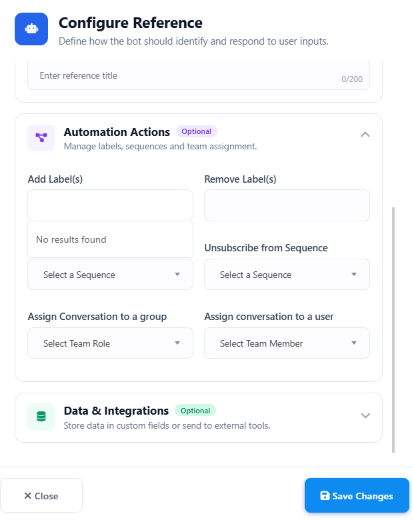 Use a Keyword Replies flow — see [How to Create a Keyword-Based WhatsApp
Chatbot](/learn/chatsyncs-automation/create-a-keyword-based-whatsapp-chatbot-in-chatsyncs) — chaining one message block
per question.
After each question, use a **Save to Custom Field** action so the reply is stored on the
subscriber's profile — see [How Do I Manage Custom Fields and
Labels?](/learn/chatsyncs-subscriber-manager/manage-custom-fields-and-labels-with-chatsyncs) for how fields work.
Reference the saved values in future messages, e.g. `Hi #name#`, or use them to personalize
a broadcast.
Need strict, one-question-at-a-time validation (e.g. reject a reply until it looks like a valid
email)? Use a [User Input Flow](/learn/chatsyncs-automation/user-input-flow-in-chatsyncs) instead — it's built specifically
for structured data collection with reply validation.
## Frequently asked
A Keyword Replies flow with Save to Custom Field feels like a normal chat and is easy to
build. A [User Input Flow](/learn/chatsyncs-automation/user-input-flow-in-chatsyncs) is built specifically for structured
data collection — with reply validation and a dedicated question-by-question structure.
On the subscriber's profile as custom fields — see [How Do I Manage Custom Fields and
Labels?](/learn/chatsyncs-subscriber-manager/manage-custom-fields-and-labels-with-chatsyncs) — visible in Subscriber Manager and usable in future messages or broadcasts.
Use a Keyword Replies flow — see [How to Create a Keyword-Based WhatsApp
Chatbot](/learn/chatsyncs-automation/create-a-keyword-based-whatsapp-chatbot-in-chatsyncs) — chaining one message block
per question.
After each question, use a **Save to Custom Field** action so the reply is stored on the
subscriber's profile — see [How Do I Manage Custom Fields and
Labels?](/learn/chatsyncs-subscriber-manager/manage-custom-fields-and-labels-with-chatsyncs) for how fields work.
Reference the saved values in future messages, e.g. `Hi #name#`, or use them to personalize
a broadcast.
Need strict, one-question-at-a-time validation (e.g. reject a reply until it looks like a valid
email)? Use a [User Input Flow](/learn/chatsyncs-automation/user-input-flow-in-chatsyncs) instead — it's built specifically
for structured data collection with reply validation.
## Frequently asked
A Keyword Replies flow with Save to Custom Field feels like a normal chat and is easy to
build. A [User Input Flow](/learn/chatsyncs-automation/user-input-flow-in-chatsyncs) is built specifically for structured
data collection — with reply validation and a dedicated question-by-question structure.
On the subscriber's profile as custom fields — see [How Do I Manage Custom Fields and
Labels?](/learn/chatsyncs-subscriber-manager/manage-custom-fields-and-labels-with-chatsyncs) — visible in Subscriber Manager and usable in future messages or broadcasts.