> ## Documentation Index
> Fetch the complete documentation index at: https://docs.chatsyncs.com/llms.txt
> Use this file to discover all available pages before exploring further.
# How to Add Clickable CTA Buttons in ChatSyncs
> How to add a clickable CTA URL Button to a WhatsApp message in ChatSyncs — in a flow or template — so a tap opens a website instead of a text reply.
In ChatSyncs, a **CTA (Call-to-Action) button** is a tappable button on a WhatsApp message that
opens a website — unlike a reply button, which just sends text back to the bot.
**Example:** A message says "Your order has shipped!" with a button labeled **Track Order**.
Tapping it opens the tracking page directly — no copying a link, no typing.
## Add one in a Keyword Replies flow
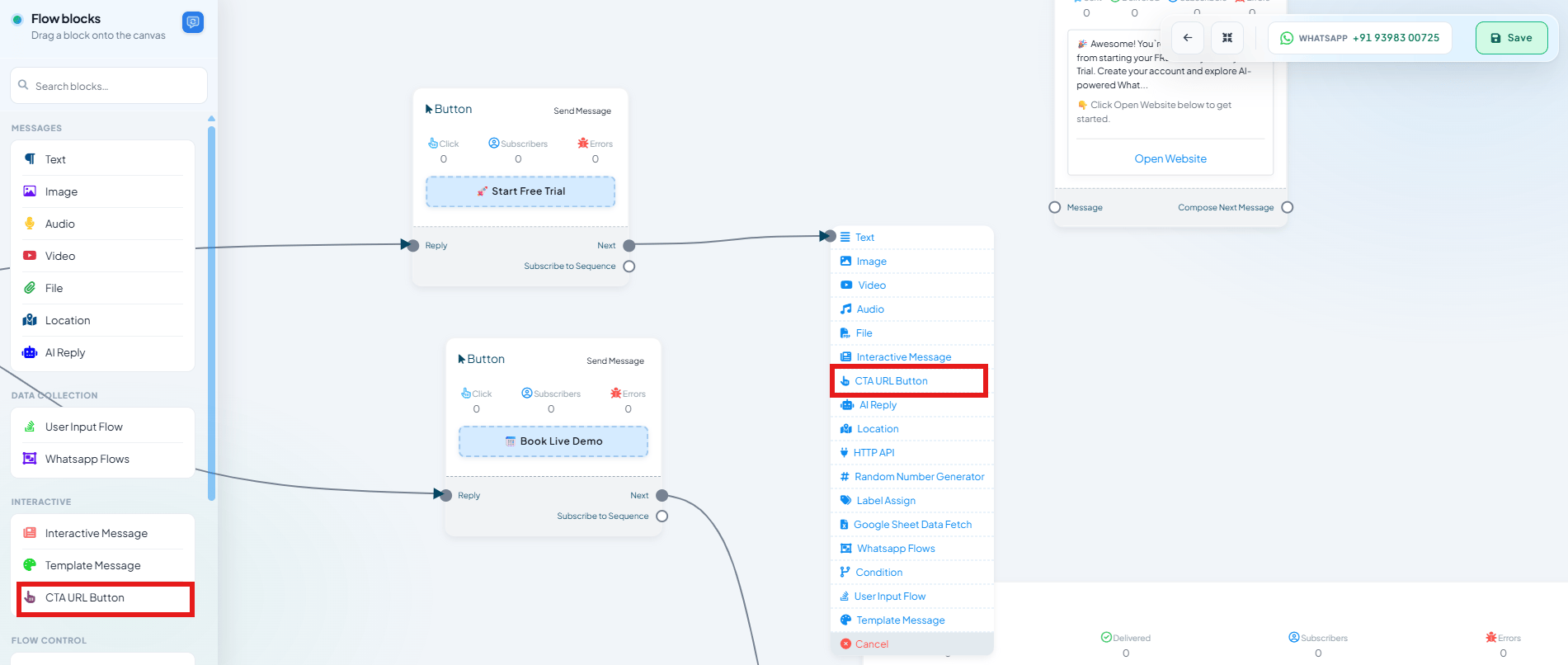 On the flow canvas, drag a connector out from wherever the button should appear (e.g. after
a Button or Reply node) to open the list of components you can chain next.
Select **CTA URL Button** under the **Interactive** section.
On the flow canvas, drag a connector out from wherever the button should appear (e.g. after
a Button or Reply node) to open the list of components you can chain next.
Select **CTA URL Button** under the **Interactive** section.
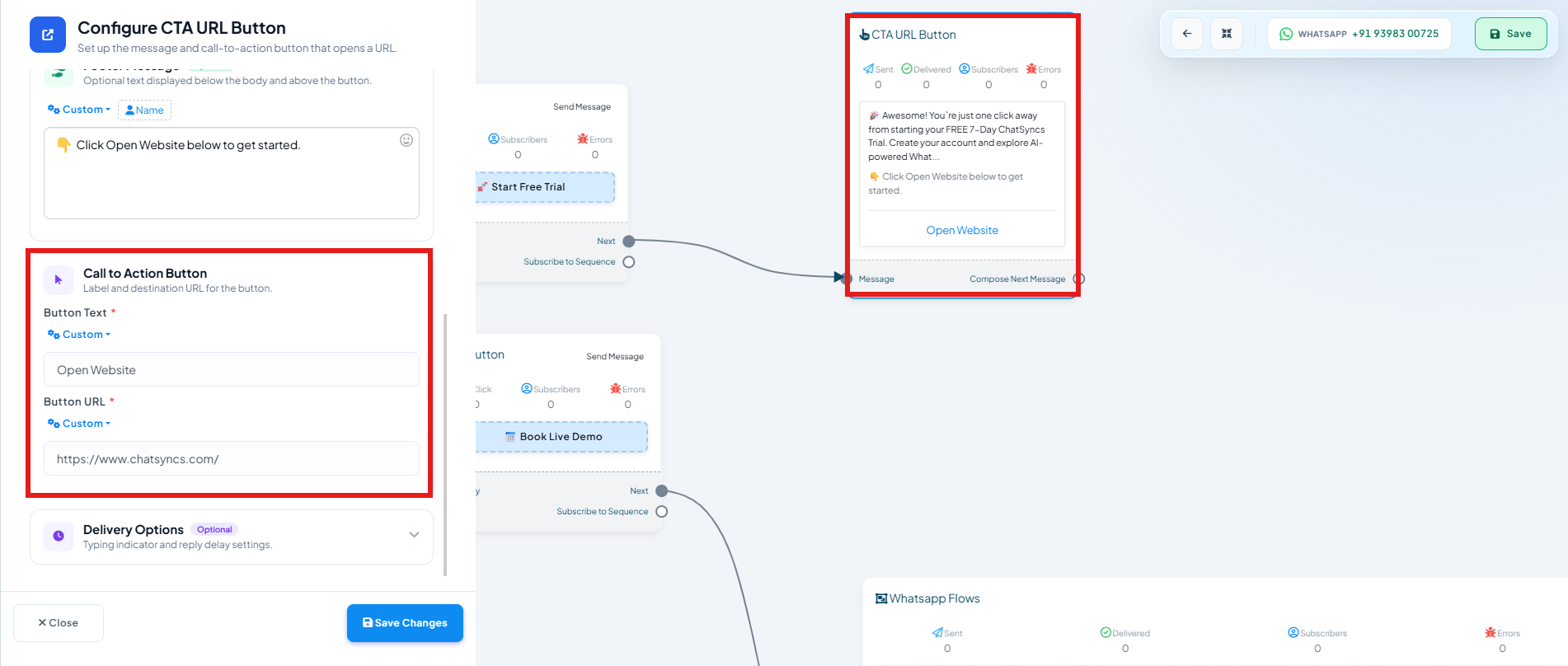 Under **Call to Action Button**, set:
* **Button Text** — what the button says, e.g. `Open Website`.
* **Button URL** — the page it opens, e.g. `https://www.chatsyncs.com/`.
The button appears in the message preview, and the flow's **CTA URL Button** node tracks
**Sent**, **Delivered**, **Subscribers**, and **Errors** once it's live.
## Add one in a Message Template
The [Message Template builder](/learn/chatsyncs-message-templates/creating-a-whatsapp-message-template-in-chatsyncs) has a **Call To Action** button type
(e.g. `Visit Website`, `Call Now`, `Book Demo`) for adding the same kind of button to an approved
template message.
## Frequently asked
A CTA button opens a website URL when tapped. A Quick Reply button sends text back to your
bot instead — see [How to Create a Keyword-Based WhatsApp Chatbot](/learn/chatsyncs-automation/create-a-keyword-based-whatsapp-chatbot-in-chatsyncs) for
building flows with either.
Yes — the [Message Template builder](/learn/chatsyncs-message-templates/creating-a-whatsapp-message-template-in-chatsyncs) has a **Call To Action**
button field for exactly this.
The CTA URL Button node on the flow canvas tracks **Sent**, **Delivered**, **Subscribers**,
and **Errors** counts once the flow is live.
Under **Call to Action Button**, set:
* **Button Text** — what the button says, e.g. `Open Website`.
* **Button URL** — the page it opens, e.g. `https://www.chatsyncs.com/`.
The button appears in the message preview, and the flow's **CTA URL Button** node tracks
**Sent**, **Delivered**, **Subscribers**, and **Errors** once it's live.
## Add one in a Message Template
The [Message Template builder](/learn/chatsyncs-message-templates/creating-a-whatsapp-message-template-in-chatsyncs) has a **Call To Action** button type
(e.g. `Visit Website`, `Call Now`, `Book Demo`) for adding the same kind of button to an approved
template message.
## Frequently asked
A CTA button opens a website URL when tapped. A Quick Reply button sends text back to your
bot instead — see [How to Create a Keyword-Based WhatsApp Chatbot](/learn/chatsyncs-automation/create-a-keyword-based-whatsapp-chatbot-in-chatsyncs) for
building flows with either.
Yes — the [Message Template builder](/learn/chatsyncs-message-templates/creating-a-whatsapp-message-template-in-chatsyncs) has a **Call To Action**
button field for exactly this.
The CTA URL Button node on the flow canvas tracks **Sent**, **Delivered**, **Subscribers**,
and **Errors** counts once the flow is live.