> ## Documentation Index
> Fetch the complete documentation index at: https://docs.chatsyncs.com/llms.txt
> Use this file to discover all available pages before exploring further.
# How to Add ChatSyncs Chat Widget to WordPress
> How to paste the ChatSyncs Chat Widget's embed code into a WordPress site, so the WhatsApp chat button appears on your pages.
Adding the ChatSyncs Chat Widget to WordPress uses the same **JavaScript Embed Code** as any
other website — just pasted in through WordPress instead of directly editing HTML.
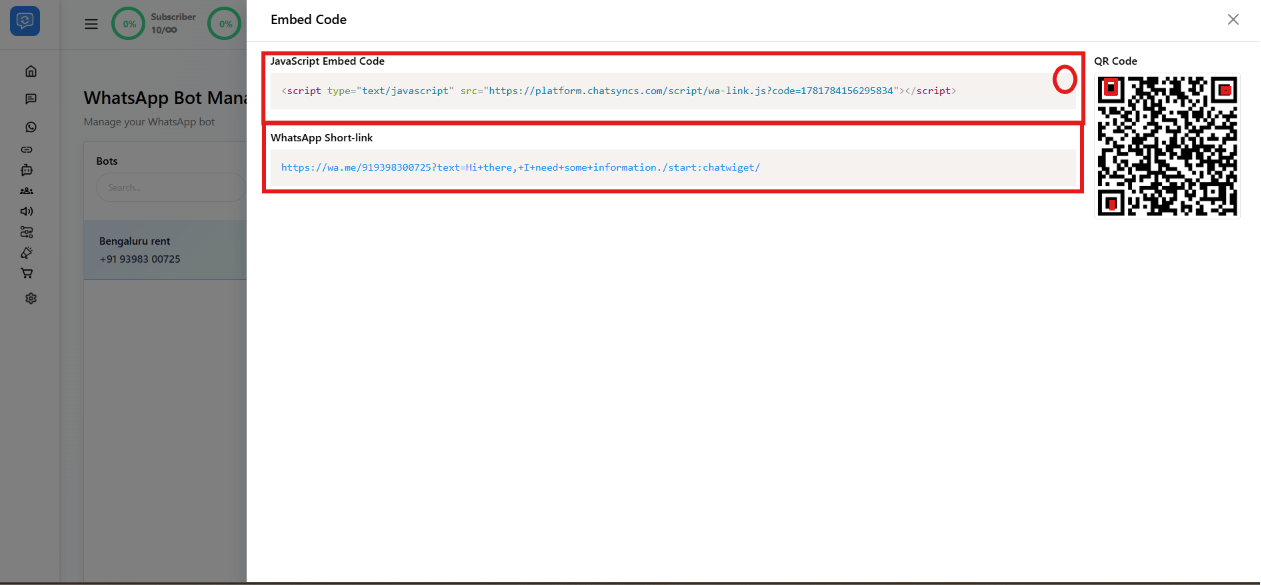 Follow [Chat Widget](/learn/chatsyncs-automation/chat-widget-in-chatsyncs) to create the widget and copy its
**JavaScript Embed Code**.
Pick whichever fits your site:
* **Theme editor** — Appearance → Theme File Editor → `header.php`, paste the code just
before ``. Best if you're comfortable editing theme files, since a typo can break
the page.
* **A header/footer plugin** — install a plugin like *Insert Headers and Footers*, paste the
code into its header field, and save. Safer than editing theme files directly.
* **A Custom HTML block** — in the block editor (Gutenberg), add a **Custom HTML** block to
the page or template and paste the code in. Simplest if you only want the widget on one
page.
Reload the page and confirm the floating WhatsApp button appears.
If you're not comfortable editing theme files, a header/footer plugin is the safest option —
it avoids touching your theme's code directly, so a typo can't take your site down.
## Frequently asked
Build the widget first — see [Chat Widget](/learn/chatsyncs-automation/chat-widget-in-chatsyncs) for creating it and
opening its **Embed Code** dialog.
Yes — use a header/footer plugin (e.g. *Insert Headers and Footers*) or a **Custom HTML**
block instead of editing `header.php` directly.
Yes — add the embed code as a **Custom HTML** block on that specific page or template,
instead of pasting it site-wide in the header.
Follow [Chat Widget](/learn/chatsyncs-automation/chat-widget-in-chatsyncs) to create the widget and copy its
**JavaScript Embed Code**.
Pick whichever fits your site:
* **Theme editor** — Appearance → Theme File Editor → `header.php`, paste the code just
before ``. Best if you're comfortable editing theme files, since a typo can break
the page.
* **A header/footer plugin** — install a plugin like *Insert Headers and Footers*, paste the
code into its header field, and save. Safer than editing theme files directly.
* **A Custom HTML block** — in the block editor (Gutenberg), add a **Custom HTML** block to
the page or template and paste the code in. Simplest if you only want the widget on one
page.
Reload the page and confirm the floating WhatsApp button appears.
If you're not comfortable editing theme files, a header/footer plugin is the safest option —
it avoids touching your theme's code directly, so a typo can't take your site down.
## Frequently asked
Build the widget first — see [Chat Widget](/learn/chatsyncs-automation/chat-widget-in-chatsyncs) for creating it and
opening its **Embed Code** dialog.
Yes — use a header/footer plugin (e.g. *Insert Headers and Footers*) or a **Custom HTML**
block instead of editing `header.php` directly.
Yes — add the embed code as a **Custom HTML** block on that specific page or template,
instead of pasting it site-wide in the header.