> ## Documentation Index
> Fetch the complete documentation index at: https://docs.chatsyncs.com/llms.txt
> Use this file to discover all available pages before exploring further.
# How to Train Your AI Chatbot in ChatSyncs
> How to attach Knowledge Sources — Content, URL, File, Media, Google Sheet, or HTTP API — to an AI agent so its replies stay accurate to your business.
An AI agent with no training data has nothing to answer from beyond its System Prompt.
**Knowledge Sources** are how you give it real business content — FAQs, product information,
internal docs — so its replies stay accurate to your business instead of sounding generic. This
is configured directly on the agent, as part of [creating or editing
it](/learn/chatsyncs-ai-agents/create-your-first-ai-agent-in-chatsyncs#create-your-first-ai-agent).
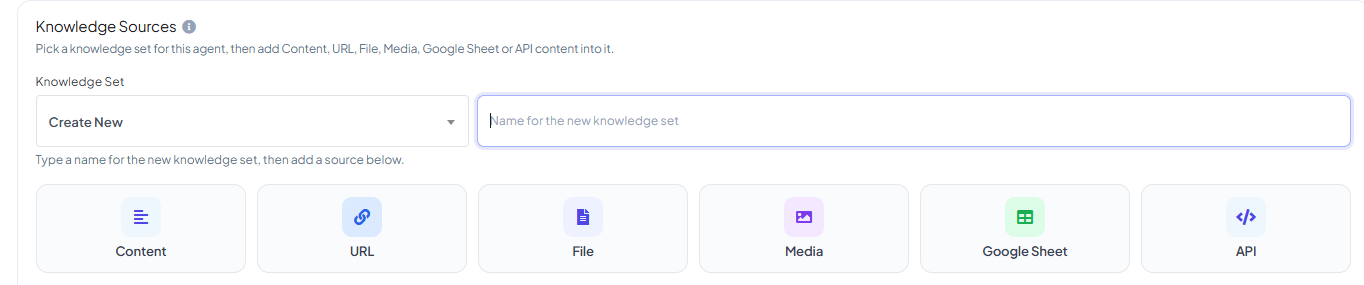 Under **Knowledge Sources** on the agent's form, open **Knowledge Set** and either select an
existing one or create a new one. A Knowledge Set is the container multiple pieces of
content get added into.
Click a type button to add content into the Knowledge Set: **Content**, **URL**, **File**,
**Media**, **Google Sheet**, or **API**. Unlike an agent's System Prompt, a Knowledge Set can
hold **multiple sources together** — the agent uses all of them to answer.
Everything you've added shows up in the **Attached Knowledge** list on the same panel, with a
count next to the section title.
## Content
Under **Knowledge Sources** on the agent's form, open **Knowledge Set** and either select an
existing one or create a new one. A Knowledge Set is the container multiple pieces of
content get added into.
Click a type button to add content into the Knowledge Set: **Content**, **URL**, **File**,
**Media**, **Google Sheet**, or **API**. Unlike an agent's System Prompt, a Knowledge Set can
hold **multiple sources together** — the agent uses all of them to answer.
Everything you've added shows up in the **Attached Knowledge** list on the same panel, with a
count next to the section title.
## Content
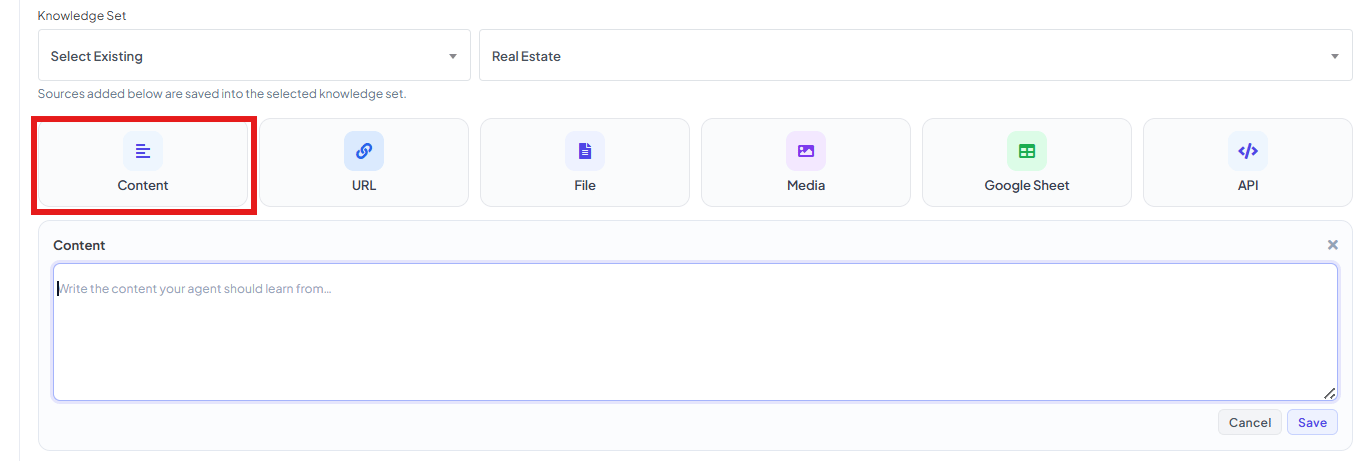 The simplest source — just type or paste text the agent should learn from, then click **Save**.
**Example:**
```text theme={null}
We're open Monday to Saturday, 10 AM to 8 PM. We're closed on Sundays and public holidays.
Standard delivery takes 3-5 business days across India. Returns are accepted within 7 days of
delivery, as long as the product is unused and in its original packaging.
```
With this saved, a customer asking *"Are you open on Sunday?"* or *"What's your return policy?"*
gets an answer pulled straight from this text — no need to write those replies yourself.
## URL
The simplest source — just type or paste text the agent should learn from, then click **Save**.
**Example:**
```text theme={null}
We're open Monday to Saturday, 10 AM to 8 PM. We're closed on Sundays and public holidays.
Standard delivery takes 3-5 business days across India. Returns are accepted within 7 days of
delivery, as long as the product is unused and in its original packaging.
```
With this saved, a customer asking *"Are you open on Sunday?"* or *"What's your return policy?"*
gets an answer pulled straight from this text — no need to write those replies yourself.
## URL
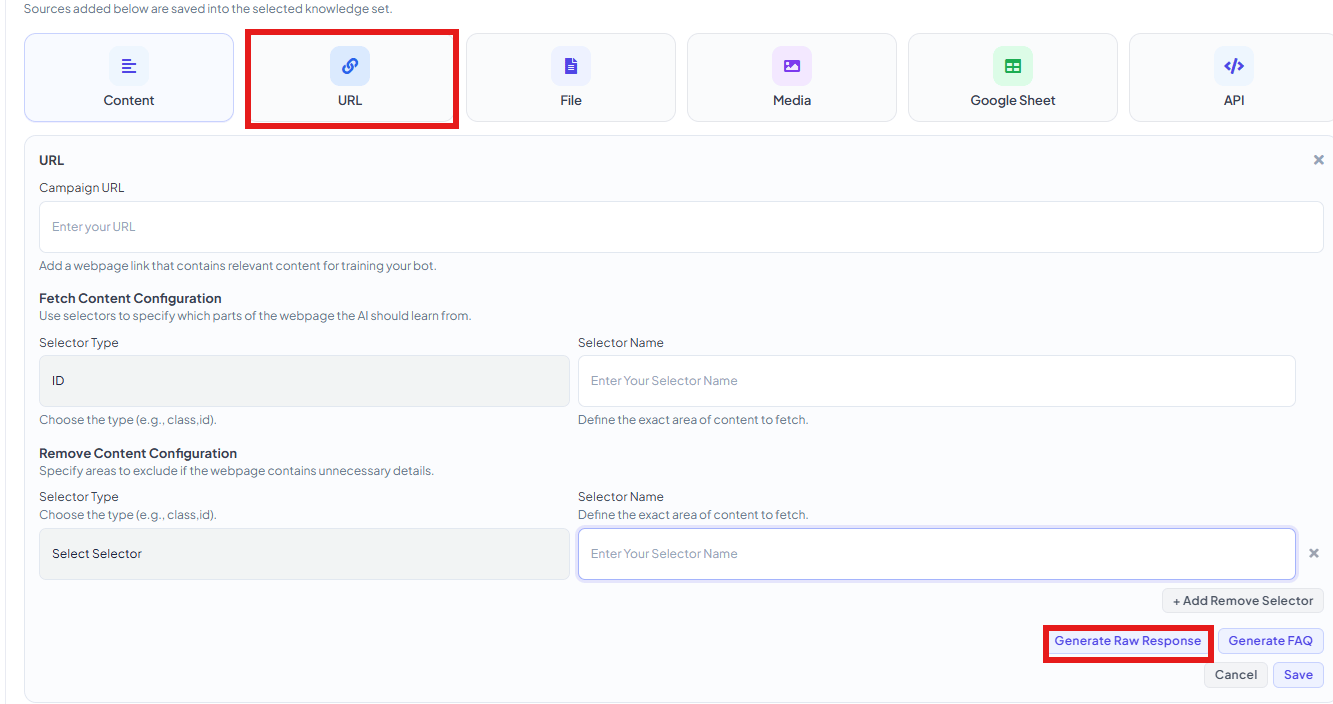 Paste in a page's URL — a pricing page, an FAQ page, an about page — and ChatSyncs reads its
content for the agent to learn from.
**Example:** paste `https://mystore.com/faq` and the agent can now answer questions straight
from that page, without you copying anything into ChatSyncs by hand.
The two optional sections below the URL field let you fine-tune exactly what gets read:
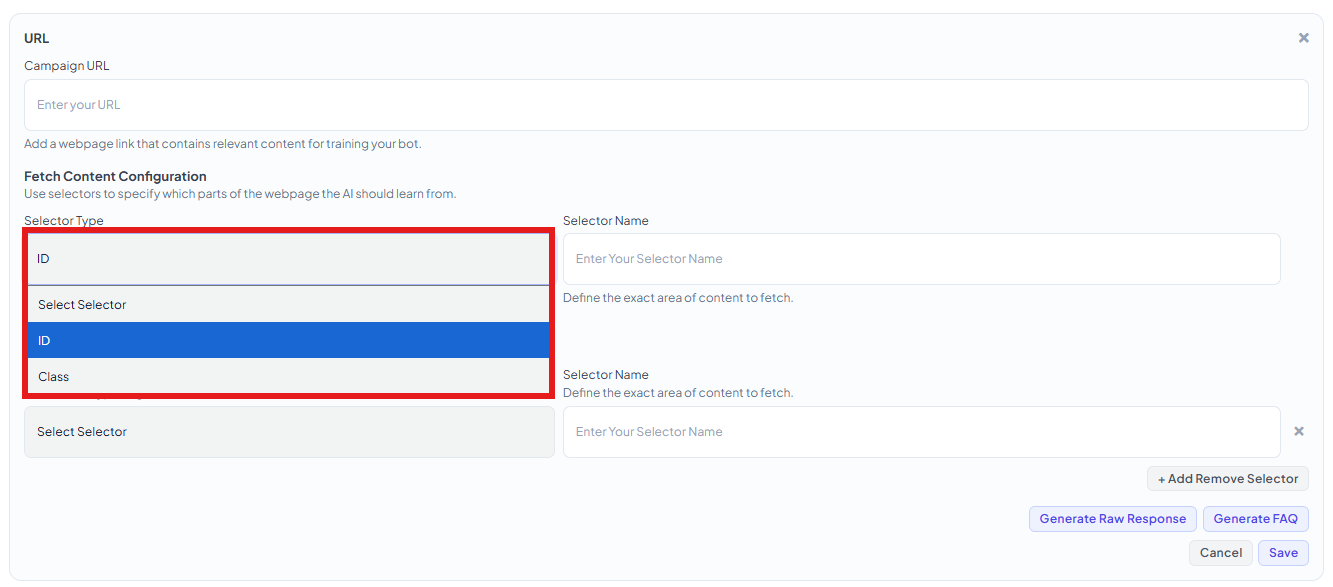
* **Fetch Content Configuration** — only pull content from one specific part of the page,
instead of the whole thing. Pick a **Selector Type** (`ID` or `Class`) and enter the
**Selector Name** — the exact ID or class name from the page's HTML for the section you want.
Paste in a page's URL — a pricing page, an FAQ page, an about page — and ChatSyncs reads its
content for the agent to learn from.
**Example:** paste `https://mystore.com/faq` and the agent can now answer questions straight
from that page, without you copying anything into ChatSyncs by hand.
The two optional sections below the URL field let you fine-tune exactly what gets read:
* **Fetch Content Configuration** — only pull content from one specific part of the page,
instead of the whole thing. Pick a **Selector Type** (`ID` or `Class`) and enter the
**Selector Name** — the exact ID or class name from the page's HTML for the section you want.
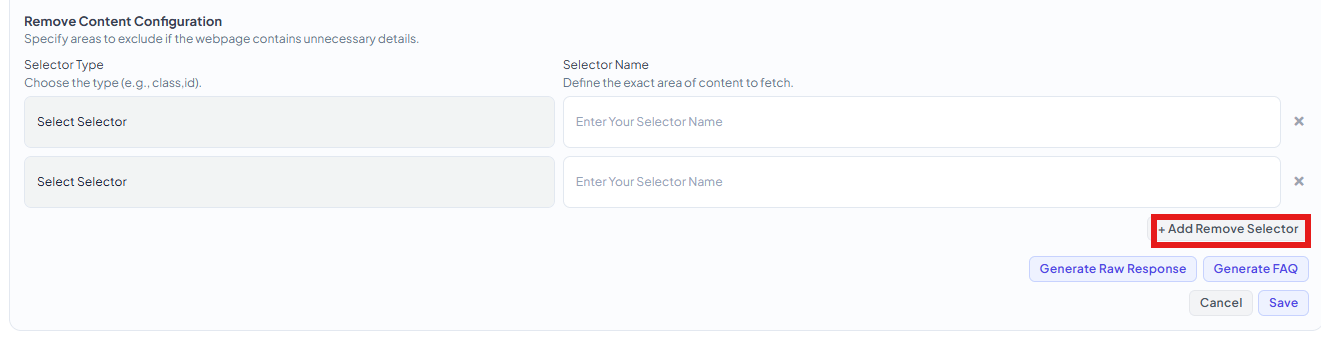
 * **Remove Content Configuration** — the opposite: exclude specific sections (like a header,
footer, or navigation menu) that would otherwise clutter the training data. Click **+ Add
Remove Selector** to exclude more than one section.
* **Remove Content Configuration** — the opposite: exclude specific sections (like a header,
footer, or navigation menu) that would otherwise clutter the training data. Click **+ Add
Remove Selector** to exclude more than one section.
 Once the page is fetched, choose how it's stored:
* **Generate Raw Response** — keeps it as one detailed block of content. More thorough, but
uses more tokens per reply.
* **Generate FAQ** — automatically breaks the page into short Question/Answer pairs instead.
More efficient, since the agent only pulls in the exact pair it needs.
## File
Once the page is fetched, choose how it's stored:
* **Generate Raw Response** — keeps it as one detailed block of content. More thorough, but
uses more tokens per reply.
* **Generate FAQ** — automatically breaks the page into short Question/Answer pairs instead.
More efficient, since the agent only pulls in the exact pair it needs.
## File
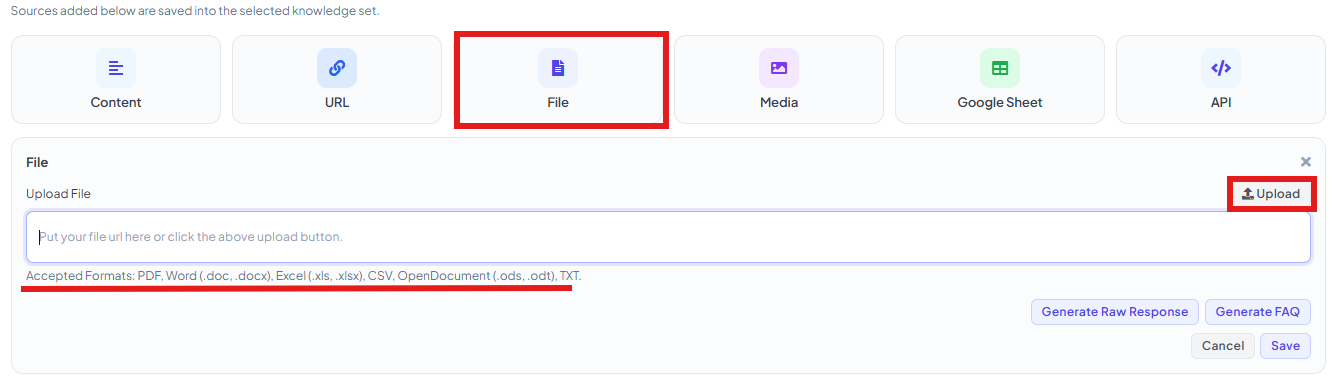 Upload training manuals, product guides, or FAQs as **PDF**, **Word** (`.doc`/`.docx`), **Excel**
(`.xls`/`.xlsx`), **CSV**, **OpenDocument** (`.ods`/`.odt`), or **TXT**. The same **Generate Raw
Response** / **Generate FAQ** choice from URL applies here too, once the file is uploaded.
## Media
Upload training manuals, product guides, or FAQs as **PDF**, **Word** (`.doc`/`.docx`), **Excel**
(`.xls`/`.xlsx`), **CSV**, **OpenDocument** (`.ods`/`.odt`), or **TXT**. The same **Generate Raw
Response** / **Generate FAQ** choice from URL applies here too, once the file is uploaded.
## Media
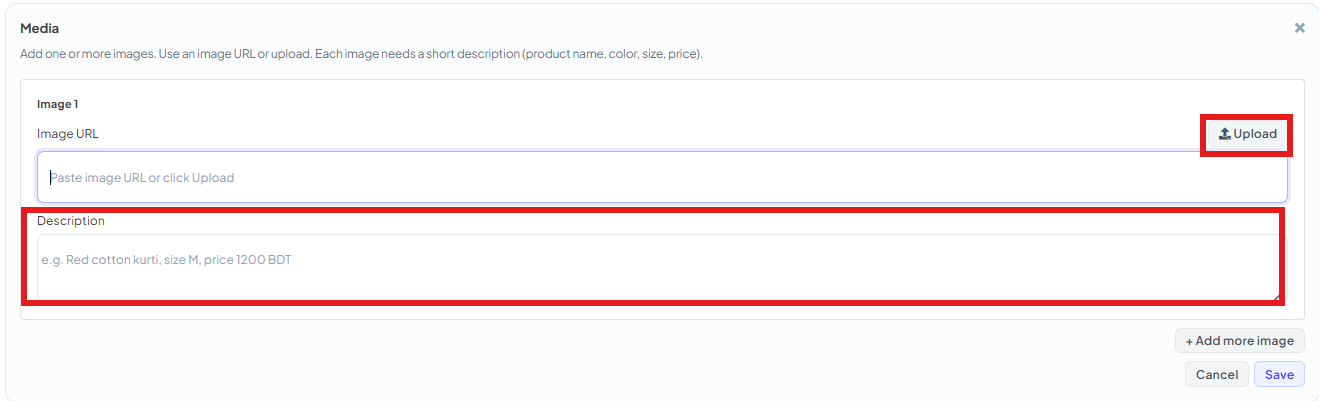 Add product photos or gallery images the agent can send when a customer asks for them. For each
image, paste an **Image URL** (or click **Upload**) and write a short **Description** — this is
what tells the agent *when* to send that photo, so be specific: name, and anything that
distinguishes it (color, size, price).
**Example:**
```text theme={null}
Red cotton kurti, size M, price 1200 BDT
```
With this saved, a customer asking *"Do you have this in red?"* or *"Show me the kurti"* gets
that exact photo sent back automatically. Click **+ Add more image** to attach more than one.
**Don't put image URLs directly in the System Prompt.** Add them here, under Media, instead —
the agent only sends a photo from Knowledge Sources when a customer's question matches its
description.
## Google Sheet
Add product photos or gallery images the agent can send when a customer asks for them. For each
image, paste an **Image URL** (or click **Upload**) and write a short **Description** — this is
what tells the agent *when* to send that photo, so be specific: name, and anything that
distinguishes it (color, size, price).
**Example:**
```text theme={null}
Red cotton kurti, size M, price 1200 BDT
```
With this saved, a customer asking *"Do you have this in red?"* or *"Show me the kurti"* gets
that exact photo sent back automatically. Click **+ Add more image** to attach more than one.
**Don't put image URLs directly in the System Prompt.** Add them here, under Media, instead —
the agent only sends a photo from Knowledge Sources when a customer's question matches its
description.
## Google Sheet
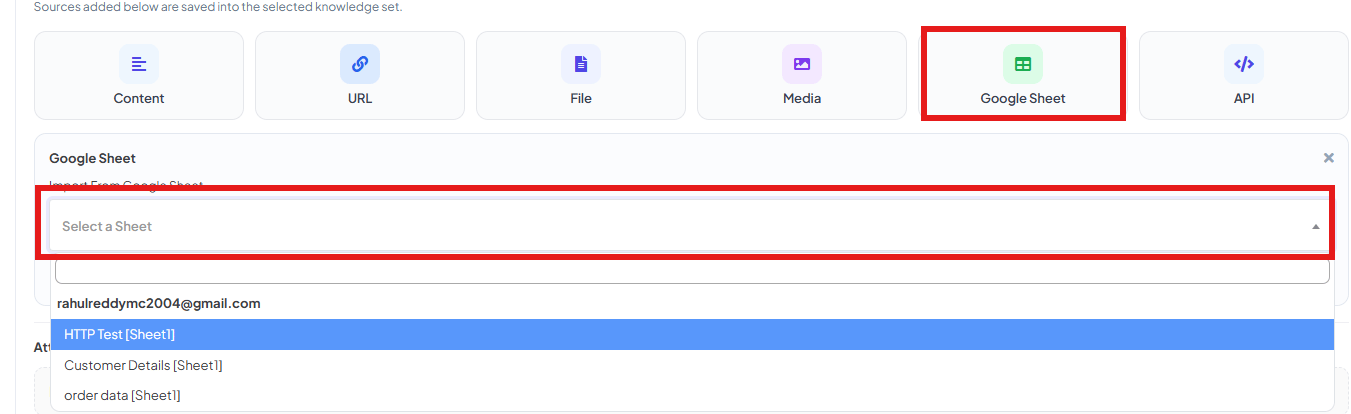 Pick a sheet already connected — see
[How to Connect Google to ChatSyncs](/learn/chatsyncs-integrations/connect-google-to-chatsyncs) — the dropdown lists every sheet available to
that account.
Pick a sheet already connected — see
[How to Connect Google to ChatSyncs](/learn/chatsyncs-integrations/connect-google-to-chatsyncs) — the dropdown lists every sheet available to
that account.
 **Example:** picking a **Customer Details** sheet lets the agent answer questions using whatever
that sheet contains — e.g. order history or account info — without you re-typing it anywhere.
## API
**Example:** picking a **Customer Details** sheet lets the agent answer questions using whatever
that sheet contains — e.g. order history or account info — without you re-typing it anywhere.
## API
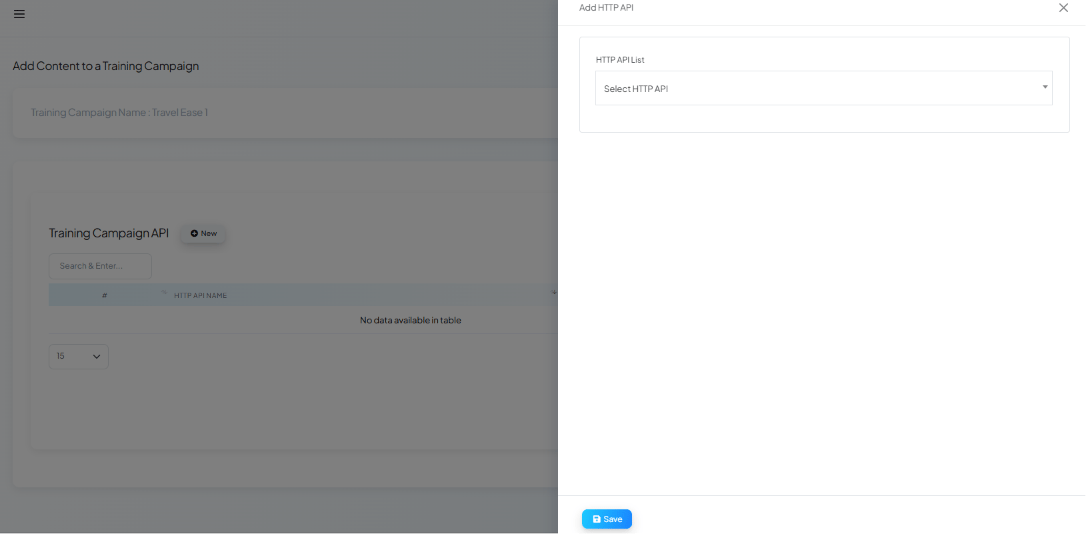 Pick one of your configured [HTTP APIs](/learn/chatsyncs-integrations/http-api-integration-in-chatsyncs) — content is
pulled dynamically from that endpoint's response rather than stored statically.
## Google account permissions this needs
If you plan to use **Google Sheet** as a training source, or want subscriber contacts synced
alongside it, make sure the Google account connected via
[How to Connect Google to ChatSyncs](/learn/chatsyncs-integrations/connect-google-to-chatsyncs)
granted **both** the Sheets and Contacts permissions during sign-in — granting only Sheets
access leaves contact-dependent features without data.
## Use cases
* **Customer support** — answer common questions the way a trained support agent would, in the
business's own voice.
* **Product information** — ground answers in the business's actual catalog or specs instead of
generic AI guesses, with real product photos via Media.
* **Internal documentation** — let staff-facing agents answer from internal wikis or SOPs.
* **Business FAQs** — turn an existing FAQ page or document directly into training content.
## Frequently asked
Open the agent under **Chatbot Manager → AI → Agents**, go to its **Knowledge Sources**, pick
or create a Knowledge Set, and add content — Content, URL, File, Media, Google Sheet, or
API.
Yes — unlike the old single-source-per-campaign model, a Knowledge Set can hold multiple
sources together, and the agent uses all of them to answer.
Add it under **Media** in Knowledge Sources — not as a URL pasted into the System Prompt. The
agent can then send it when a customer asks for photos.
Check that its Knowledge Set actually has content added — an empty Knowledge Set (or an agent
with none selected) has nothing to answer from beyond its System Prompt.
* **An agent with no Knowledge Sources attached has nothing to answer from** beyond its System
Prompt.
* **Put images under Media, never as a URL in the System Prompt.**
## Learn From a Use Case
* [Travel Assistant](/learn/travel-agency-ai-assistant-with-chatsyncs-business-problem) — stores the business's company
info, destinations, pricing, and FAQs the AI Agent answers from.
Pick one of your configured [HTTP APIs](/learn/chatsyncs-integrations/http-api-integration-in-chatsyncs) — content is
pulled dynamically from that endpoint's response rather than stored statically.
## Google account permissions this needs
If you plan to use **Google Sheet** as a training source, or want subscriber contacts synced
alongside it, make sure the Google account connected via
[How to Connect Google to ChatSyncs](/learn/chatsyncs-integrations/connect-google-to-chatsyncs)
granted **both** the Sheets and Contacts permissions during sign-in — granting only Sheets
access leaves contact-dependent features without data.
## Use cases
* **Customer support** — answer common questions the way a trained support agent would, in the
business's own voice.
* **Product information** — ground answers in the business's actual catalog or specs instead of
generic AI guesses, with real product photos via Media.
* **Internal documentation** — let staff-facing agents answer from internal wikis or SOPs.
* **Business FAQs** — turn an existing FAQ page or document directly into training content.
## Frequently asked
Open the agent under **Chatbot Manager → AI → Agents**, go to its **Knowledge Sources**, pick
or create a Knowledge Set, and add content — Content, URL, File, Media, Google Sheet, or
API.
Yes — unlike the old single-source-per-campaign model, a Knowledge Set can hold multiple
sources together, and the agent uses all of them to answer.
Add it under **Media** in Knowledge Sources — not as a URL pasted into the System Prompt. The
agent can then send it when a customer asks for photos.
Check that its Knowledge Set actually has content added — an empty Knowledge Set (or an agent
with none selected) has nothing to answer from beyond its System Prompt.
* **An agent with no Knowledge Sources attached has nothing to answer from** beyond its System
Prompt.
* **Put images under Media, never as a URL in the System Prompt.**
## Learn From a Use Case
* [Travel Assistant](/learn/travel-agency-ai-assistant-with-chatsyncs-business-problem) — stores the business's company
info, destinations, pricing, and FAQs the AI Agent answers from.