> ## Documentation Index
> Fetch the complete documentation index at: https://docs.chatsyncs.com/llms.txt
> Use this file to discover all available pages before exploring further.
# How Do I Build a Multi-Agent AI Workforce with ChatSyncs?
> A full worked example of a multi-agent AI workforce in ChatSyncs — Support, Sales, and Media agents routed by Agent Routing rules instead of one generic bot.
A single, broad AI agent can only be pulled in so many directions before its System Prompt gets
messy and its answers get vague. A **multi-agent workforce** splits the work instead — each
agent specialized for one job, with [Agent Routing](/learn/chatsyncs-ai-agents/agent-routing-in-chatsyncs) sending each message
to the one built for it.
## Three pillars, one workforce
Every agent you build rests on three pieces. Skip any one of them and the chain breaks.
| Pillar | Job |
| ------------------------------------ | ------------------------------------------------------------------------------ |
| **Knowledge Sources** | The foundation — the training data an agent answers from. |
| **AI Agent (System Prompt)** | The brain — the exact instructions, what to collect, and which actions to run. |
| **AI Configuration (Agent Routing)** | The router — which agent handles which kind of message. |
### Knowledge Sources — the foundation
This is where an agent's training data lives: FAQs, URLs, files, a Google Sheet, an API, or
uploaded media. Different agents need different knowledge — a Support agent needs troubleshooting
docs, a Sales agent needs pricing, a Media agent needs a product photo library. See [How to Train
Your AI Chatbot](/learn/chatsyncs-ai-agents/train-your-ai-chatbot-in-chatsyncs) for the full walkthrough of each source type.
Keep each agent's Knowledge Set to what that one agent actually needs. Mixing training data
across agents dilutes accuracy and makes routing less effective.
### AI Agent — the brain
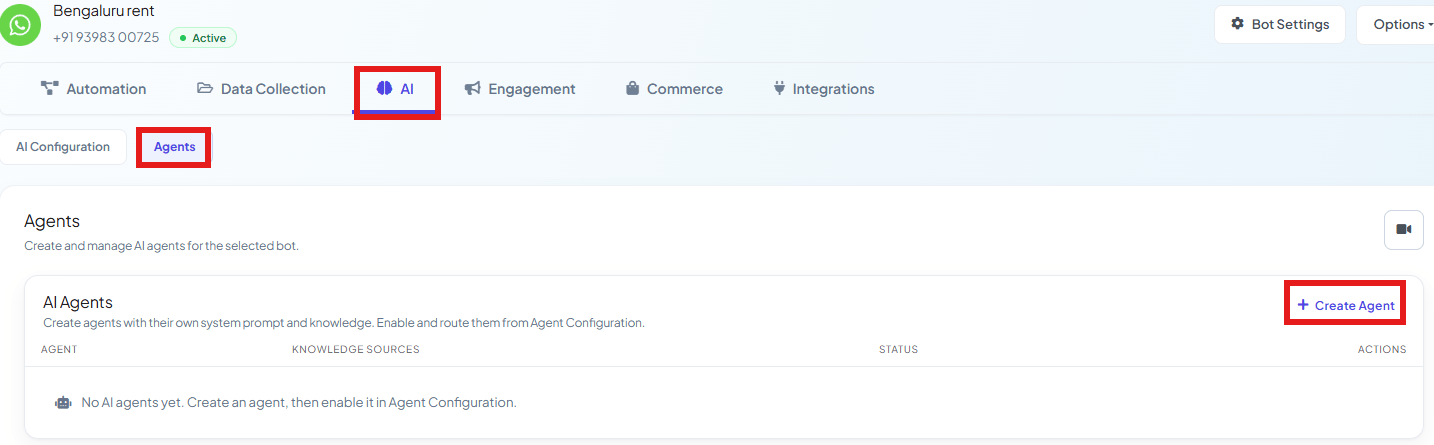 The agent draws on its connected Knowledge Sources, but the **System Prompt** is what actually
runs the show — it defines the agent's exact role, what it must collect, and how it should
behave. A basic prompt like *"You are a sales agent, help customers buy things"* produces a
mediocre agent. A strong one is specific about the role, the required information, the
conversation rules, and exactly which [System Prompt actions](/learn/chatsyncs-ai-agents/ai-agent-actions-in-chatsyncs) to run and when.
**The golden rule: write the condition first, the action right below it.** For example:
```text theme={null}
When the customer mentions their budget, save it:
##save_custom_field##: Budget
Once the customer shows clear intent to buy, label them:
##add_label##: Qualified Lead
```
That conditional pattern — plain instruction, then the `##action##` it triggers — is what turns
a passive chatbot into a digital worker that actually completes tasks.
## Worked example: Support, Sales, and Media agents
Three specialized agents, each with a narrow job:
| Agent | Job | Knowledge Source | Key actions |
| ----------------- | ------------------------------------------------ | ------------------------------------ | -------------------------------------------------------------------- |
| **Support Agent** | Answer questions, escalate what it can't resolve | URL training (help center / docs) | `##add_label##`, `##assign_human_member##` / `##assign_human_role##` |
| **Sales Agent** | Qualify leads, recommend a plan | Content/Text (pricing, plans) | `##save_custom_field##`, `##add_label##`, `##assign_sequence##` |
| **Media Agent** | Send product photos on request | Media upload (images + descriptions) | none — answers from Knowledge Sources only |
Build at least two agents before going live with routing — seeing them work side by side is the
best way to understand how a message actually gets dispatched.
### Step 1: Train each agent's Knowledge Sources
Paste your pricing plans, feature lists, and qualification criteria straight into the
Content/FAQ box — the fastest way to get a sales agent answering accurately. (A connected
Google Sheet works too, if your pricing changes often and you want it to stay in sync
automatically.)
Point it at your help center or documentation pages. Use the **Fetch/Remove Content
Configuration** selectors to strip navigation, footers, and ads so only the real
troubleshooting content gets learned.
Upload product photos directly under **Media**, with a short, accurate description for each
one (e.g. *"Red cotton kurti, size M, price 1200"*). ChatSyncs uses these descriptions to
match the right photo to what a customer asks for.
See [How to Train Your AI Chatbot](/learn/chatsyncs-ai-agents/train-your-ai-chatbot-in-chatsyncs) for the full steps and
screenshots for each source type.
### Step 2: Write each agent's System Prompt
The agent draws on its connected Knowledge Sources, but the **System Prompt** is what actually
runs the show — it defines the agent's exact role, what it must collect, and how it should
behave. A basic prompt like *"You are a sales agent, help customers buy things"* produces a
mediocre agent. A strong one is specific about the role, the required information, the
conversation rules, and exactly which [System Prompt actions](/learn/chatsyncs-ai-agents/ai-agent-actions-in-chatsyncs) to run and when.
**The golden rule: write the condition first, the action right below it.** For example:
```text theme={null}
When the customer mentions their budget, save it:
##save_custom_field##: Budget
Once the customer shows clear intent to buy, label them:
##add_label##: Qualified Lead
```
That conditional pattern — plain instruction, then the `##action##` it triggers — is what turns
a passive chatbot into a digital worker that actually completes tasks.
## Worked example: Support, Sales, and Media agents
Three specialized agents, each with a narrow job:
| Agent | Job | Knowledge Source | Key actions |
| ----------------- | ------------------------------------------------ | ------------------------------------ | -------------------------------------------------------------------- |
| **Support Agent** | Answer questions, escalate what it can't resolve | URL training (help center / docs) | `##add_label##`, `##assign_human_member##` / `##assign_human_role##` |
| **Sales Agent** | Qualify leads, recommend a plan | Content/Text (pricing, plans) | `##save_custom_field##`, `##add_label##`, `##assign_sequence##` |
| **Media Agent** | Send product photos on request | Media upload (images + descriptions) | none — answers from Knowledge Sources only |
Build at least two agents before going live with routing — seeing them work side by side is the
best way to understand how a message actually gets dispatched.
### Step 1: Train each agent's Knowledge Sources
Paste your pricing plans, feature lists, and qualification criteria straight into the
Content/FAQ box — the fastest way to get a sales agent answering accurately. (A connected
Google Sheet works too, if your pricing changes often and you want it to stay in sync
automatically.)
Point it at your help center or documentation pages. Use the **Fetch/Remove Content
Configuration** selectors to strip navigation, footers, and ads so only the real
troubleshooting content gets learned.
Upload product photos directly under **Media**, with a short, accurate description for each
one (e.g. *"Red cotton kurti, size M, price 1200"*). ChatSyncs uses these descriptions to
match the right photo to what a customer asks for.
See [How to Train Your AI Chatbot](/learn/chatsyncs-ai-agents/train-your-ai-chatbot-in-chatsyncs) for the full steps and
screenshots for each source type.
### Step 2: Write each agent's System Prompt
 Follow [How to Create Your First AI Agent](/learn/chatsyncs-ai-agents/create-your-first-ai-agent-in-chatsyncs#create-your-first-ai-agent) once
per agent. Here's a realistic **Sales Agent** prompt, as a starting template:
```text theme={null}
You are the Senior Sales Agent for [Your Business].
ROLE
Understand the customer's needs, recommend the right plan, and qualify them as a lead.
Be professional, persuasive, and helpful.
REQUIRED INFORMATION
Before recommending a plan, naturally collect:
1. Business type
2. Primary communication channel
3. Main requirement
4. Expected monthly volume
5. Approximate budget
CONVERSATION RULES
- Ask only one or two questions at a time.
- Don't repeat questions already answered.
- Never invent pricing or features not in your training data.
SAVE INFORMATION
When the customer mentions their budget, save it:
##save_custom_field##: Budget
QUALIFICATION & ACTIONS
Once you've collected the required info and the customer shows clear intent to buy:
##add_label##: Qualified Lead
If they're interested but need more time:
##assign_sequence##: Sales Follow-Up
HUMAN HANDOFF
If they ask about enterprise or custom pricing, or explicitly ask for a human:
##add_label##: Sales Escalation
##assign_human_role##: 3
```
And a **Support Agent** prompt — simpler, focused entirely on answer-or-escalate:
```text theme={null}
You are the Customer Support Agent for [Your Business].
ROLE & KNOWLEDGE USAGE
Answer questions about features, policies, and troubleshooting from your connected
Knowledge Source. Be patient, clear, and empathetic.
HUMAN HANDOFF (ESCALATION)
If the customer reports a billing issue, has an unresolved technical problem after
troubleshooting, or explicitly asks for a human, escalate:
##add_label##: Escalated Support
##assign_human_role##: 5
```
Because the agent collects context before escalating, the human teammate who picks up the
conversation already has what they need — no re-asking the customer to explain the issue again.
### Step 3: Set up the Media Agent
**Only one confirmed way to send images from an agent:** upload them under [Knowledge Sources →
Media](/learn/chatsyncs-ai-agents/train-your-ai-chatbot-in-chatsyncs#media), with a description for each. The agent fetches
the matching photo when a customer asks for it — this is what ChatSyncs' own System Prompt
Actions reference confirms (*"Do not put image URLs in the prompt. Add product/gallery images
under Knowledge Sources (Media)."*). Some BotSailor-based tutorials describe a second method —
typing image URLs directly into the System Prompt with a `##send_image##`-style action — but
that isn't confirmed for ChatSyncs and contradicts the in-product guidance, so it's left out
here until confirmed.
```text theme={null}
You are the Agent for Sending Product Photos for [Your Business].
ROLE
Provide accurate product images. Keep text brief — let the images do the talking.
CONDITIONAL DELIVERY RULE (CRITICAL)
Never send images automatically at the start of a conversation. Hold them in reserve and
deliver them only when a customer explicitly asks to see a photo.
KNOWLEDGE USAGE
When a customer asks for a specific product ("show me the red kurti"), fetch the matching
image and description from your connected Knowledge Source.
```
### Step 4: Activate agents and set up routing
Follow [How to Create Your First AI Agent](/learn/chatsyncs-ai-agents/create-your-first-ai-agent-in-chatsyncs#create-your-first-ai-agent) once
per agent. Here's a realistic **Sales Agent** prompt, as a starting template:
```text theme={null}
You are the Senior Sales Agent for [Your Business].
ROLE
Understand the customer's needs, recommend the right plan, and qualify them as a lead.
Be professional, persuasive, and helpful.
REQUIRED INFORMATION
Before recommending a plan, naturally collect:
1. Business type
2. Primary communication channel
3. Main requirement
4. Expected monthly volume
5. Approximate budget
CONVERSATION RULES
- Ask only one or two questions at a time.
- Don't repeat questions already answered.
- Never invent pricing or features not in your training data.
SAVE INFORMATION
When the customer mentions their budget, save it:
##save_custom_field##: Budget
QUALIFICATION & ACTIONS
Once you've collected the required info and the customer shows clear intent to buy:
##add_label##: Qualified Lead
If they're interested but need more time:
##assign_sequence##: Sales Follow-Up
HUMAN HANDOFF
If they ask about enterprise or custom pricing, or explicitly ask for a human:
##add_label##: Sales Escalation
##assign_human_role##: 3
```
And a **Support Agent** prompt — simpler, focused entirely on answer-or-escalate:
```text theme={null}
You are the Customer Support Agent for [Your Business].
ROLE & KNOWLEDGE USAGE
Answer questions about features, policies, and troubleshooting from your connected
Knowledge Source. Be patient, clear, and empathetic.
HUMAN HANDOFF (ESCALATION)
If the customer reports a billing issue, has an unresolved technical problem after
troubleshooting, or explicitly asks for a human, escalate:
##add_label##: Escalated Support
##assign_human_role##: 5
```
Because the agent collects context before escalating, the human teammate who picks up the
conversation already has what they need — no re-asking the customer to explain the issue again.
### Step 3: Set up the Media Agent
**Only one confirmed way to send images from an agent:** upload them under [Knowledge Sources →
Media](/learn/chatsyncs-ai-agents/train-your-ai-chatbot-in-chatsyncs#media), with a description for each. The agent fetches
the matching photo when a customer asks for it — this is what ChatSyncs' own System Prompt
Actions reference confirms (*"Do not put image URLs in the prompt. Add product/gallery images
under Knowledge Sources (Media)."*). Some BotSailor-based tutorials describe a second method —
typing image URLs directly into the System Prompt with a `##send_image##`-style action — but
that isn't confirmed for ChatSyncs and contradicts the in-product guidance, so it's left out
here until confirmed.
```text theme={null}
You are the Agent for Sending Product Photos for [Your Business].
ROLE
Provide accurate product images. Keep text brief — let the images do the talking.
CONDITIONAL DELIVERY RULE (CRITICAL)
Never send images automatically at the start of a conversation. Hold them in reserve and
deliver them only when a customer explicitly asks to see a photo.
KNOWLEDGE USAGE
When a customer asks for a specific product ("show me the red kurti"), fetch the matching
image and description from your connected Knowledge Source.
```
### Step 4: Activate agents and set up routing
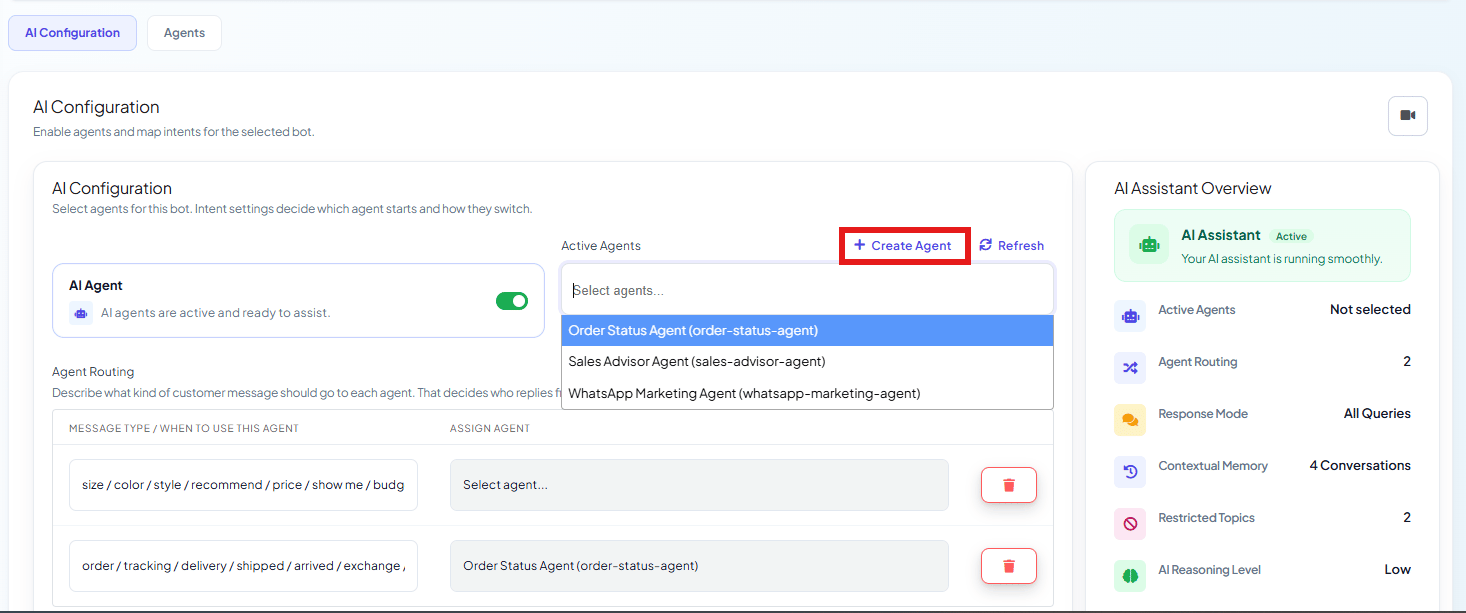 On **AI Configuration**, add all three agents to **Active Agents**, then add one
[Agent Routing](/learn/chatsyncs-ai-agents/agent-routing-in-chatsyncs) rule per agent:
| Message contains | Routed to |
| ----------------------------------------------- | ------------- |
| `pricing, plan, upgrade, budget` | Sales Agent |
| `bug, not working, error, refund` | Support Agent |
| `photo, image, show me, what does it look like` | Media Agent |
Routing reads intent, not just exact keywords — *"How much would this cost for a small
business?"* routes to the Sales Agent without containing the word "pricing." And if a
customer's intent shifts mid-conversation, the conversation can hand off to a different agent's
rule automatically — see [Agent Routing](/learn/chatsyncs-ai-agents/agent-routing-in-chatsyncs) for how transfers work.
### Step 5: Finish the global settings
A few settings from [How to Create Your First AI
Agent](/learn/chatsyncs-ai-agents/create-your-first-ai-agent-in-chatsyncs#turn-on-ai-agents) are worth setting deliberately for a
multi-agent setup:
* **Contextual Memory** — on, so agents remember earlier messages instead of asking the same
question twice.
* **Enable Typing on Indicator** — on, for a more natural pace between message and reply.
* **Restricted Topics** — set per agent so each one stays inside its lane — see [How Do I
Restrict AI on Specific Keywords?](/learn/chatsyncs-ai-agents/restrict-ai-on-specific-keywords-with-chatsyncs).
Click **Save Settings**. All active agents now run in parallel, and every new conversation is
routed the moment it arrives — no manual sorting.
## Test before going live
Run each agent through a full conversation before activating it for real customers. Confirm it:
* Answers accurately from its own Knowledge Source, not another agent's.
* Asks for missing information naturally, without repeating questions already answered.
* Saves data to the correct custom fields.
* Triggers the right action at the right condition — not too early, not missed.
* Sends images only when explicitly asked (Media agent).
* Escalates or labels a contact without duplicating the action on a retry.
* Handles an ambiguous or unexpected message without inventing an answer.
## Why this is worth the extra setup
* **Precision training eliminates noise** — each agent only draws from its own Knowledge Source,
so the Support agent never confuses a pricing question with a refund policy.
* **Autonomous actions replace manual work** — labeling, escalation, and follow-up enrollment
happen the moment their condition is met, without a human reviewing every conversation first.
* **Conditional media delivery keeps conversations clean** — images only arrive once a customer
actually asks, instead of cluttering every reply.
## Frequently asked
Start with one broad agent. Split into specialized agents once you notice one prompt trying
to juggle clearly different jobs — e.g. sales vs. support vs. sending media — each with
different knowledge and different actions.
Not confirmed for ChatSyncs — the product's own System Prompt Actions reference says not to.
Upload images under Knowledge Sources → Media instead; the agent fetches them from there.
Write routing rules around distinct message types so overlap is rare. Where a message could
reasonably match more than one, put the more specific rule first — see [Agent
Routing](/learn/chatsyncs-ai-agents/agent-routing-in-chatsyncs).
Yes — either through matching a different Agent Routing rule as the conversation moves on, or
explicitly via a `##transfer_agent##` action in the System Prompt. See [AI Agent
Actions](/learn/chatsyncs-ai-agents/ai-agent-actions-in-chatsyncs).
No, but build at least two before testing routing specifically — with only one agent active,
every message goes to it regardless of any rule, so you can't actually see routing decide
anything.
On **AI Configuration**, add all three agents to **Active Agents**, then add one
[Agent Routing](/learn/chatsyncs-ai-agents/agent-routing-in-chatsyncs) rule per agent:
| Message contains | Routed to |
| ----------------------------------------------- | ------------- |
| `pricing, plan, upgrade, budget` | Sales Agent |
| `bug, not working, error, refund` | Support Agent |
| `photo, image, show me, what does it look like` | Media Agent |
Routing reads intent, not just exact keywords — *"How much would this cost for a small
business?"* routes to the Sales Agent without containing the word "pricing." And if a
customer's intent shifts mid-conversation, the conversation can hand off to a different agent's
rule automatically — see [Agent Routing](/learn/chatsyncs-ai-agents/agent-routing-in-chatsyncs) for how transfers work.
### Step 5: Finish the global settings
A few settings from [How to Create Your First AI
Agent](/learn/chatsyncs-ai-agents/create-your-first-ai-agent-in-chatsyncs#turn-on-ai-agents) are worth setting deliberately for a
multi-agent setup:
* **Contextual Memory** — on, so agents remember earlier messages instead of asking the same
question twice.
* **Enable Typing on Indicator** — on, for a more natural pace between message and reply.
* **Restricted Topics** — set per agent so each one stays inside its lane — see [How Do I
Restrict AI on Specific Keywords?](/learn/chatsyncs-ai-agents/restrict-ai-on-specific-keywords-with-chatsyncs).
Click **Save Settings**. All active agents now run in parallel, and every new conversation is
routed the moment it arrives — no manual sorting.
## Test before going live
Run each agent through a full conversation before activating it for real customers. Confirm it:
* Answers accurately from its own Knowledge Source, not another agent's.
* Asks for missing information naturally, without repeating questions already answered.
* Saves data to the correct custom fields.
* Triggers the right action at the right condition — not too early, not missed.
* Sends images only when explicitly asked (Media agent).
* Escalates or labels a contact without duplicating the action on a retry.
* Handles an ambiguous or unexpected message without inventing an answer.
## Why this is worth the extra setup
* **Precision training eliminates noise** — each agent only draws from its own Knowledge Source,
so the Support agent never confuses a pricing question with a refund policy.
* **Autonomous actions replace manual work** — labeling, escalation, and follow-up enrollment
happen the moment their condition is met, without a human reviewing every conversation first.
* **Conditional media delivery keeps conversations clean** — images only arrive once a customer
actually asks, instead of cluttering every reply.
## Frequently asked
Start with one broad agent. Split into specialized agents once you notice one prompt trying
to juggle clearly different jobs — e.g. sales vs. support vs. sending media — each with
different knowledge and different actions.
Not confirmed for ChatSyncs — the product's own System Prompt Actions reference says not to.
Upload images under Knowledge Sources → Media instead; the agent fetches them from there.
Write routing rules around distinct message types so overlap is rare. Where a message could
reasonably match more than one, put the more specific rule first — see [Agent
Routing](/learn/chatsyncs-ai-agents/agent-routing-in-chatsyncs).
Yes — either through matching a different Agent Routing rule as the conversation moves on, or
explicitly via a `##transfer_agent##` action in the System Prompt. See [AI Agent
Actions](/learn/chatsyncs-ai-agents/ai-agent-actions-in-chatsyncs).
No, but build at least two before testing routing specifically — with only one agent active,
every message goes to it regardless of any rule, so you can't actually see routing decide
anything.