

This guide is only for numbers connected through the official WhatsApp Business API — the
channel ChatSyncs runs on. If you were using the WhatsApp Business App on your phone, an
unofficial or modified WhatsApp client, or a different provider, these steps won’t apply.
Step 1: Open the Phone Numbers page in Meta
Go directly to Meta’s WhatsApp Manager phone numbers page:https://business.facebook.com/wa/manage/phone-numbers/
Meta opens the phone numbers list for your current Business Portfolio. If you have more than one
portfolio, use the account switcher at the top right and select the one that owns the banned
number — if your number doesn’t appear in the list, you’re on the wrong portfolio.
Step 2: Open Business Support Home
Once you find the banned number, Meta shows a red Account Disabled banner above the list, naming which policy the account was flagged against (Commerce Policy, Terms of Service, and so on). Click View details in Business Support Home in that banner — it’s the only page where Meta lets you request a review.Step 3: Click Request Review and write your case
The Business Support Home page shows your account details, the exact disable reason from Meta, and a What you can do card with a Request Review button. Click Request Review. Take 10–15 minutes to write a thoughtful, honest explanation before you submit — what to include is below.What to write in the review request
Meta reviewers read a lot of appeals every day. A rushed one-line reply almost never wins; a clear, specific, evidence-based one often does. Cover these four things in your own words:- What your business actually does. One or two lines about your product, your customers, and how WhatsApp fits into your customer service or notifications.
- How you collect consent. Show that customers actively opted in to receive WhatsApp messages (form fill, checkout consent, in-person signup, previous conversation). Vague statements like “our customers agreed” are weak. Specific ones like “customers opt in through the checkbox on our checkout page and confirm again in the order confirmation email” are strong.
- What kind of messages you send. Focus on Utility and Service messages (order confirmations, appointment reminders, support replies) and be honest about your marketing volume. Meta wants to see a real business, not a bulk marketing operation.
- Why you believe the ban was a mistake. If you didn’t violate the policy Meta cited, say so directly and give the reasons. If there was a spike in reports, explain what caused it and what you’ve already changed.
What happens after you submit
Meta usually responds within 24–48 hours. The answer arrives in Business Support Home and in Business Manager’s notifications area. Three outcomes are possible:- Approved — your number is reinstated and you can resume sending. Your messaging limit and quality rating usually reset to a lower state, so warm the number back up gradually — see WhatsApp Account Bans for the safe warmup schedule.
- Rejected — the ban stays. Read the reason Meta gives, then decide whether to escalate through ChatSyncs (next section) or start a new Business Portfolio with a fresh number.
- No response after 48 hours — wait one more business day, then use the escalation path below.
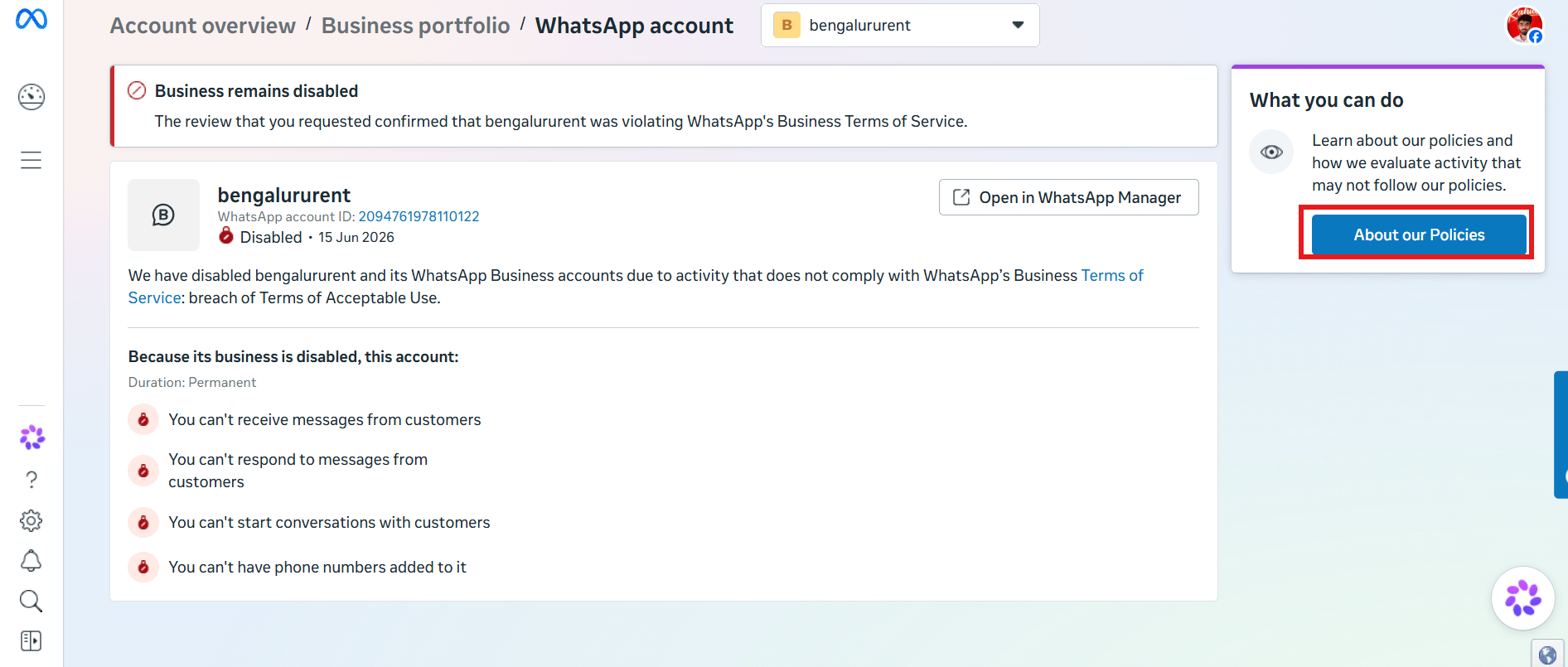
If the appeal is rejected: the ChatSyncs escalation path
As a Verified Meta Business Solution Provider, ChatSyncs has a direct escalation channel to Meta that isn’t available to individual businesses. If you’re a ChatSyncs customer and your self-appeal was rejected — or Meta hasn’t replied within 48 hours — ChatSyncs can raise the case through its BSP support channel on your behalf.1
Open a ChatSyncs Support ticket
Raise a ticket with ChatSyncs Support from your dashboard.
2
Include the key details
Your Business Portfolio ID, the disabled WhatsApp Account ID, the date you submitted the Meta
appeal, the reason Meta cited on the disable page, and Meta’s reply (if any).
3
Wait for the escalation
The ChatSyncs team escalates the case through WABA Direct Support and updates you as they
hear back.
If nothing works
If both the self-appeal and the ChatSyncs escalation come back rejected, the realistic path is to start fresh: a new Business Portfolio and a clean phone number, following the warmup and safety rules strictly so the same thing doesn’t happen again. See WhatsApp Account Bans for the full playbook on setting up a new number safely.Tips
Frequently asked
Where do I actually go to request a Meta review?
Where do I actually go to request a Meta review?
Meta’s WhatsApp Manager phone numbers page (
business.facebook.com/wa/manage/phone-numbers/)
→ the red Account Disabled banner → View details in Business Support Home → Request
Review.How long does Meta take to respond to an appeal?
How long does Meta take to respond to an appeal?
Usually 24–48 hours. If there’s still no response after that, wait one more business day
before escalating through ChatSyncs.
My appeal was rejected — is there anything else I can do?
My appeal was rejected — is there anything else I can do?
Yes, if you’re a ChatSyncs customer — raise a support ticket with your Business Portfolio ID,
disabled WhatsApp Account ID, and Meta’s response so far, and ChatSyncs can escalate through
its BSP channel. If that’s also rejected, the realistic path is a fresh Business Portfolio and
number — see WhatsApp Account Bans.
Should I keep sending messages while my appeal is pending?
Should I keep sending messages while my appeal is pending?
No — avoid marketing sends from any linked number until you get an outcome. New activity
during a pending review can hurt your case.
Is this the right guide if I was using the WhatsApp Business App, not the API?
Is this the right guide if I was using the WhatsApp Business App, not the API?
No — this guide is only for numbers on the official WhatsApp Business API. A different
provider, an unofficial client, or the consumer Business App follows different rules.