> ## Documentation Index
> Fetch the complete documentation index at: https://docs.chatsyncs.com/llms.txt
> Use this file to discover all available pages before exploring further.
# Keyword Replies: Real Estate Property Showcase
> A full worked example of ChatSyncs Keyword Replies — combining Interactive Messages, Reply Buttons, Image/Video Messages, and CTA URL Buttons into one flow, using a real estate apartment showcase (SkyView Properties) as the sample project. Use this when a customer asks how to showcase products or properties on WhatsApp, or wants a template to adapt for their own industry.
This walks through one complete **Keyword Replies** flow end to end — not just what each block does
(see [Keyword Replies](/learn/whatsapp-keyword-replies) for that), but how several blocks combine into a
real, working customer journey. The example business is **SkyView Properties**, a real estate
company, but the same structure works for a car dealership, hospital, school, restaurant, or
hotel — only the products and messages change.
## Project overview
Imagine a customer, say **Rahul**, messages a real estate company's WhatsApp number to ask
about apartments. Instead of a person typing a reply, this bot answers instantly:
1. Rahul sends **"Hi"**.
2. The bot greets him with a property banner and three buttons: **View Apartments**, **Project
Location**, **Contact Sales**.
3. Rahul taps **View Apartments**, then picks **1 BHK**, **2 BHK**, or **3 BHK**.
4. The bot sends a photo or walkthrough video of that apartment type, followed by a button that
opens the project's location on Google Maps.
5. If Rahul instead taps **Contact Sales**, the bot shares the sales team's name and number, plus
the same map button.
No one on the sales team had to type any of this — the bot did it automatically, and it works
the same way for every customer who messages "Hi", any time of day.
## How the pieces fit together
```
Customer
│
▼
Sends "Hi"
│
▼
Keyword Replies (trigger + flow)
│
▼
Interactive Message (Welcome + 3 Reply Buttons)
──────────────────────────────
🏢 View Apartments
📍 Project Location
📞 Contact Sales
──────────────────────────────
│
├── View Apartments → 1 BHK / 2 BHK / 3 BHK → Image or Video → CTA URL Button (Google Maps)
├── Project Location → CTA URL Button (Google Maps)
└── Contact Sales → CTA URL Button (Google Maps)
```
| Feature | Purpose | SkyView Properties example |
| ------------------- | ---------------------------------- | ------------------------------------------------ |
| Keyword Replies | Builds the whole conversation flow | Property Showcase Bot |
| Interactive Message | Sends the welcome banner + buttons | "Welcome to SkyView Properties!" |
| Reply Buttons | Let the customer navigate | View Apartments, Project Location, Contact Sales |
| Image Message | Shows an apartment photo | 1 BHK apartment image |
| Video Message | Shows a walkthrough | 2 BHK / 3 BHK walkthrough videos |
| CTA URL Button | Opens an external link | Google Maps project location |
## Option 1 — Keyword Replies
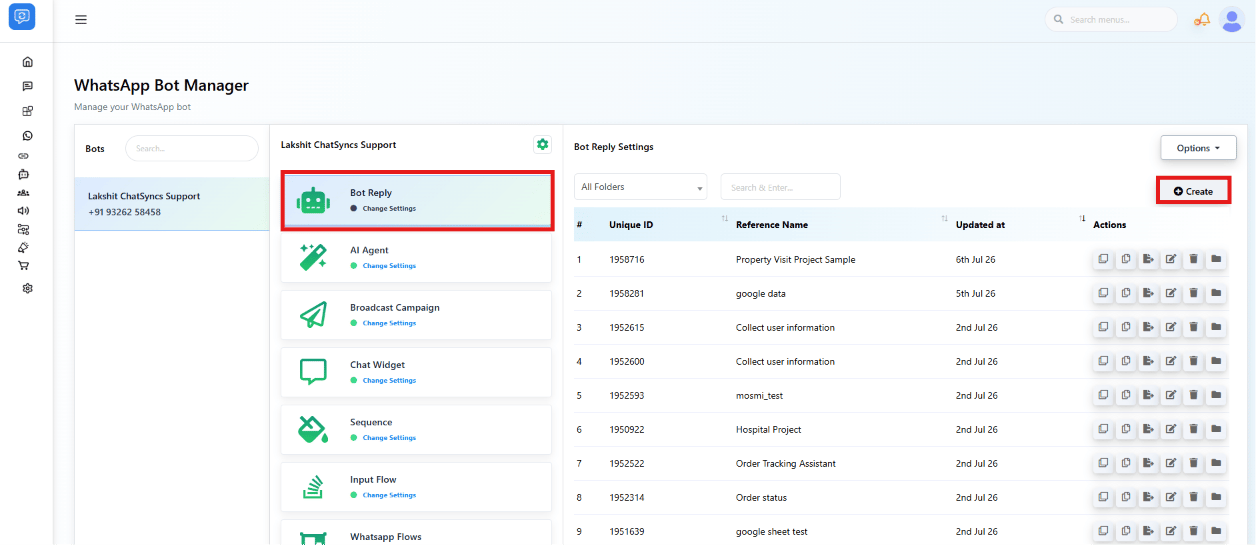 **Keyword Replies** is the flow builder that runs the whole conversation — see
[Keyword Replies](/learn/whatsapp-keyword-replies) for how to open the builder and drag on blocks. For this
project, only the trigger setup is specific to the business:
**Keyword Replies** is the flow builder that runs the whole conversation — see
[Keyword Replies](/learn/whatsapp-keyword-replies) for how to open the builder and drag on blocks. For this
project, only the trigger setup is specific to the business:
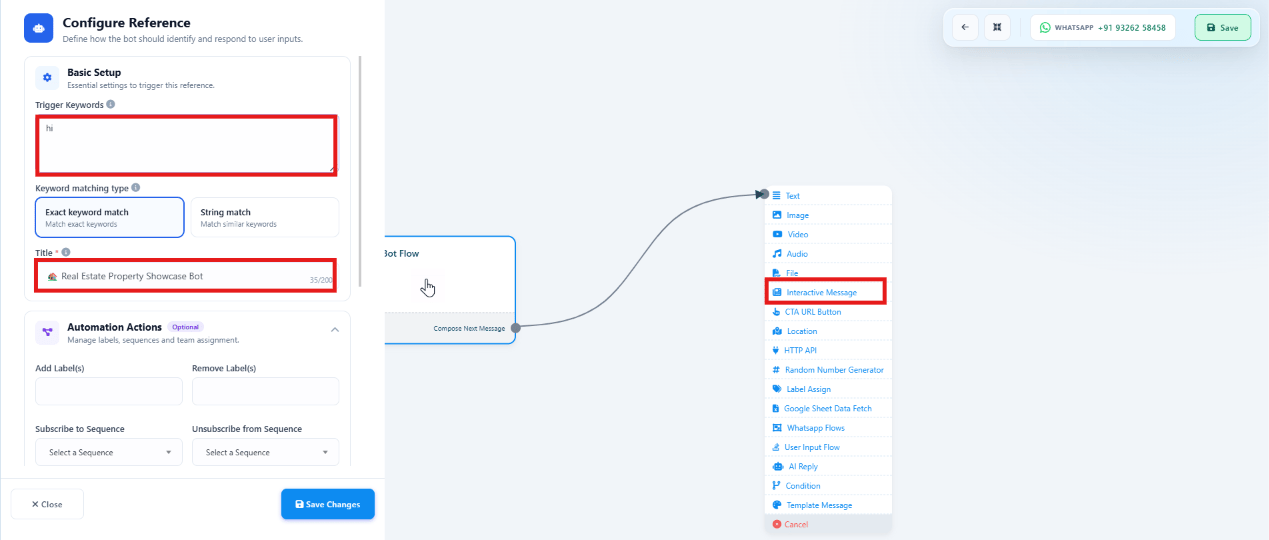 | Setting | Value |
| --------------------- | --------------------------------- |
| Title | Real Estate Property Showcase Bot |
| Trigger Keyword | `hi` |
| Keyword matching type | Exact keyword match |
**Example:** Rahul messages **"Hi"** → the flow starts and sends the welcome message below.
## Option 2 — Interactive Message
The **Interactive Message** block sends the welcome banner together with up to three
**Reply Buttons** in one message — no separate text message needed first.
| Setting | Value |
| --------------------- | --------------------------------- |
| Title | Real Estate Property Showcase Bot |
| Trigger Keyword | `hi` |
| Keyword matching type | Exact keyword match |
**Example:** Rahul messages **"Hi"** → the flow starts and sends the welcome message below.
## Option 2 — Interactive Message
The **Interactive Message** block sends the welcome banner together with up to three
**Reply Buttons** in one message — no separate text message needed first.
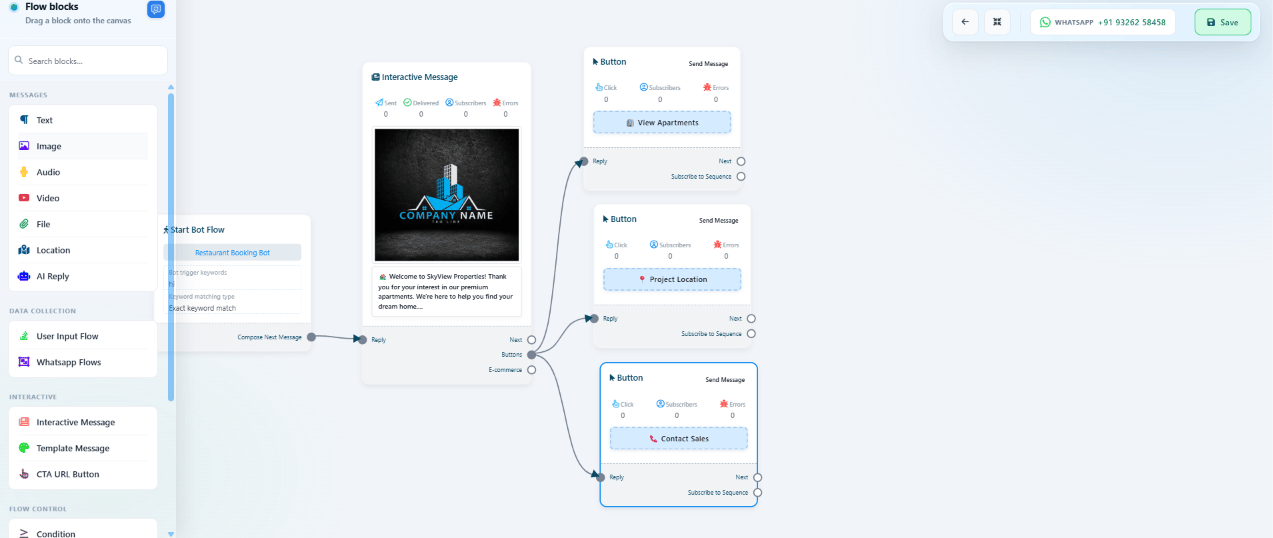 **Header:** a property banner image.
**Body:**
```text theme={null}
🏡 Welcome to SkyView Properties!
Thank you for your interest in our premium apartments.
We're excited to help you find your perfect home.
Explore our modern residential community featuring thoughtfully designed homes, premium
amenities, and an exceptional lifestyle.
Choose one of the options below to get started.
```
**Buttons:**
```
🏢 View Apartments
📍 Project Location
📞 Contact Sales
```
Tapping **View Apartments** opens a second Interactive Message asking the customer to pick
**1 BHK**, **2 BHK**, or **3 BHK** — each button leads to its own Image or Video Message.
Reply Buttons are limited to **3 per message** and short label text. If a project needs more
than 3 apartment types, use a **List Message** instead (see the component table in
[Keyword Replies](/learn/whatsapp-keyword-replies#add-flow-components)) — it supports up to 10 options.
## Option 3 — CTA URL Button
**Header:** a property banner image.
**Body:**
```text theme={null}
🏡 Welcome to SkyView Properties!
Thank you for your interest in our premium apartments.
We're excited to help you find your perfect home.
Explore our modern residential community featuring thoughtfully designed homes, premium
amenities, and an exceptional lifestyle.
Choose one of the options below to get started.
```
**Buttons:**
```
🏢 View Apartments
📍 Project Location
📞 Contact Sales
```
Tapping **View Apartments** opens a second Interactive Message asking the customer to pick
**1 BHK**, **2 BHK**, or **3 BHK** — each button leads to its own Image or Video Message.
Reply Buttons are limited to **3 per message** and short label text. If a project needs more
than 3 apartment types, use a **List Message** instead (see the component table in
[Keyword Replies](/learn/whatsapp-keyword-replies#add-flow-components)) — it supports up to 10 options.
## Option 3 — CTA URL Button
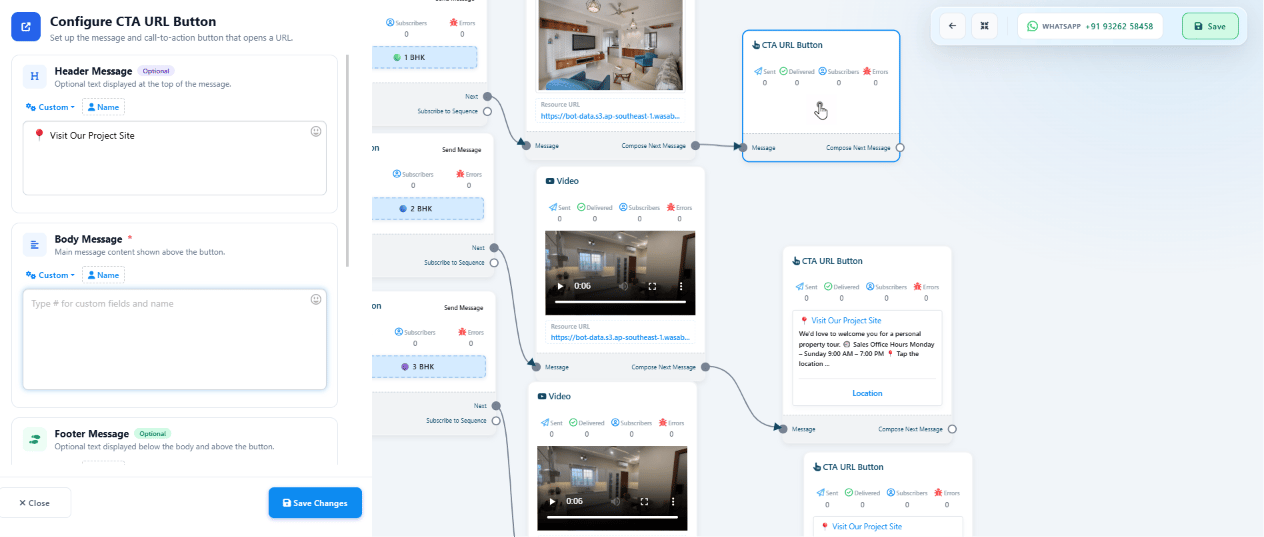 Each apartment type ends the same way: an **Image Message** (1 BHK) or **Video Message** (2 BHK,
3 BHK), followed by a **CTA URL Button** that opens Google Maps.
| Apartment | Message sent | Then |
| --------- | ------------------------------------- | ---------------------------- |
| 1 BHK | Image Message — apartment photo | CTA URL Button → Google Maps |
| 2 BHK | Video Message — walkthrough | CTA URL Button → Google Maps |
| 3 BHK | Video Message — walkthrough (premium) | CTA URL Button → Google Maps |
**CTA Button:**
```
📍 Visit Our Project Site
```
Tapping **Project Location** from the welcome message uses the same CTA URL Button pattern, with
its own header and body:
```text theme={null}
📍 Visit Our Project Site
We'd love to welcome you for a personal property tour.
🕘 Sales Office Hours
Monday – Sunday
9:00 AM – 7:00 PM
Tap the button below to open Google Maps and navigate directly to our sales office.
```
Each apartment type ends the same way: an **Image Message** (1 BHK) or **Video Message** (2 BHK,
3 BHK), followed by a **CTA URL Button** that opens Google Maps.
| Apartment | Message sent | Then |
| --------- | ------------------------------------- | ---------------------------- |
| 1 BHK | Image Message — apartment photo | CTA URL Button → Google Maps |
| 2 BHK | Video Message — walkthrough | CTA URL Button → Google Maps |
| 3 BHK | Video Message — walkthrough (premium) | CTA URL Button → Google Maps |
**CTA Button:**
```
📍 Visit Our Project Site
```
Tapping **Project Location** from the welcome message uses the same CTA URL Button pattern, with
its own header and body:
```text theme={null}
📍 Visit Our Project Site
We'd love to welcome you for a personal property tour.
🕘 Sales Office Hours
Monday – Sunday
9:00 AM – 7:00 PM
Tap the button below to open Google Maps and navigate directly to our sales office.
```
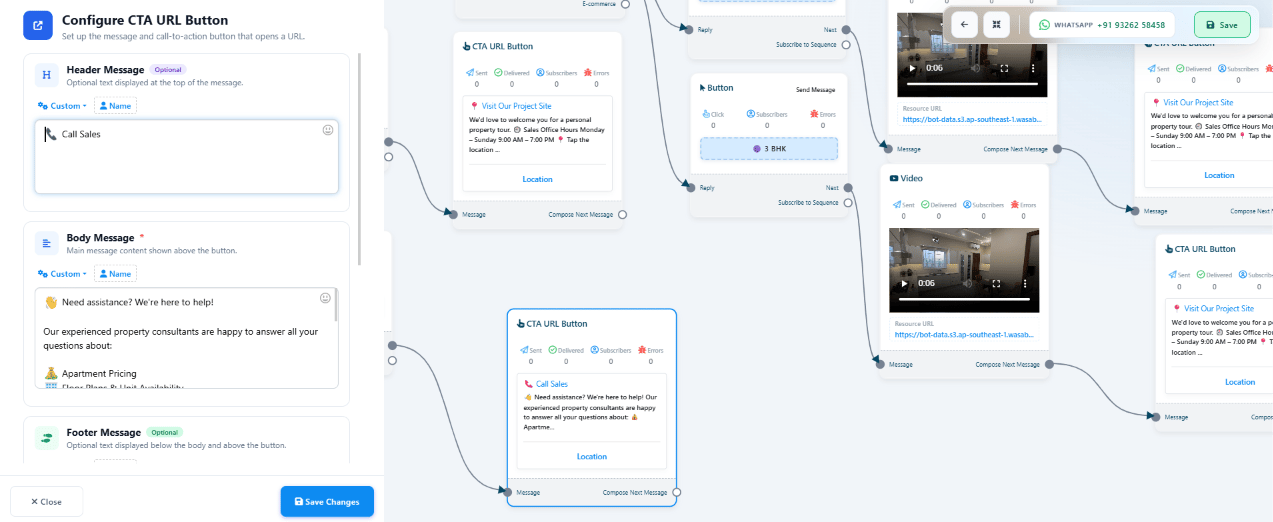 Tapping **Contact Sales** sends the sales team's contact details, then the same map button:
```text theme={null}
👋 Need assistance? We're here to help!
Our experienced property consultants are available to answer all your questions regarding:
💰 Apartment Pricing
🏢 Floor Plans & Availability
🏦 Home Loan Assistance
🎁 Exclusive Offers
✨ Project Amenities
📅 Site Visit Information
━━━━━━━━━━━━━━━━━━━━━━
👤 Rahul Sharma
📱 +91 98765 43210
👤 Priya Reddy
📱 +91 91234 56789
━━━━━━━━━━━━━━━━━━━━━━
🏡 Want to experience the project in person?
You're welcome to visit our property and explore the apartments with our sales experts.
Simply tap the button below to open the project location.
```
```
CTA Button: 📍 Project Location
```
A **CTA URL Button** only opens a link — it can't collect a reply. If the goal is to also
capture the customer's name or phone number for the sales team to call back, add a
[User Input Flow](/learn/whatsapp-keyword-replies#add-flow-components) or a
[WhatsApp Flow](/learn/whatsapp-flows) step before or after it instead.
## A complete conversation
```
Rahul: "Hi"
→ Interactive Message: Welcome to SkyView Properties! (3 buttons)
Rahul taps: "View Apartments"
→ Interactive Message: Choose an apartment type (1 BHK / 2 BHK / 3 BHK)
Rahul taps: "2 BHK"
→ Video Message: 2 BHK walkthrough video
→ CTA URL Button: Visit Our Project Site → opens Google Maps
```
## Adapting this to other industries
The same Keyword Replies structure — Interactive Message, Reply Buttons, Image/Video Message, CTA URL
Button — works for any business that wants to showcase items and route customers to more
information:
| Business | Bot shows |
| --------------- | ------------------------------------------------------- |
| Real Estate | Apartment types, photos/videos, project location |
| Automobile | Car models, images/videos, showroom location |
| Healthcare | Departments, doctor info, hospital location |
| Education | Courses, campus tour videos, admissions office location |
| Restaurants | Menu highlights, ambience videos, restaurant location |
| Hotels | Room types, photos/videos, hotel location |
| E-commerce | Product categories, images/videos, store location |
| Travel Agencies | Holiday packages, destination videos, office location |
## Feature combinations
Keyword Replies rarely runs alone in production — these are the features that pair naturally with
this exact project:
* **Keyword Replies + Quick Actions** — the **No Match** and **Get Started**
[Quick Actions](/learn/whatsapp-quick-actions) catch anything outside the `hi` trigger, so a
mistyped first message or unrecognized reply doesn't dead-end the conversation.
* **Keyword Replies + Audio Message** — a short voice intro after the welcome banner adds a personal
touch before the customer picks a button — see [Audio Message](/learn/whatsapp-audio-message).
* **Keyword Replies + Sequence** — once a customer picks an apartment type, enroll them in a short
follow-up [Follow-up Sequences](/learn/whatsapp-sequence) instead of the conversation ending at the CTA
button.
## Difficulty
* **Beginner** — single trigger → welcome message → 3 Reply Buttons → static info per button, no
apartment-type branching.
* **Intermediate** — this project as built: multi-level navigation into Image/Video/CTA URL
Button chains per apartment type.
* **Advanced** — add a [User Input Flow](/learn/whatsapp-keyword-replies#add-flow-components) to
collect lead details and branch with Condition blocks based on the answer.
* **Enterprise** — Condition-based routing plus
[Webhook Workflow](/learn/whatsapp-webhook-workflow) pushing every lead into a CRM in real
time.
## Next steps
This project intentionally stays inside Keyword Replies so a beginner can see how the components
connect. Once comfortable, extend it with:
* **Document Message** — a property brochure PDF (see the component table in
[Keyword Replies](/learn/whatsapp-keyword-replies#add-flow-components)).
* **Audio Message** — a short voice introduction to the project.
* **AI Agent** — answer open-ended property FAQs instead of fixed buttons; see
[AI Agent](/learn/whatsapp-ai-agent) and the full worked example in
[AI Agent: Travel Agency](/learn/ai-agent-use-case-travel-agency) for how the same
"pick an industry, swap the content" pattern applies there too.
* **WhatsApp Flow** — a structured site-visit booking form (see [WhatsApp Flows](/learn/whatsapp-flows)).
* **User Input Flow** — collect the customer as a lead: **Name**, **Phone Number**, and
**Preferred Apartment Type** (pre-filled from whichever button they tapped) as Custom Fields
(see [Keyword Replies](/learn/whatsapp-keyword-replies#add-flow-components)).
* **Google Sheet Integration** — once a User Input Flow is capturing leads, sync each submission
to a Google Sheet the sales team already uses (see
[Google Sheet Integration](/learn/control-panel-google-sheet-integration)).
* **Email Integration** — notify the sales team by email the moment a customer taps **Contact
Sales**, so follow-up doesn't depend on someone checking the ChatSyncs inbox (see
[Email Integration](/learn/control-panel-email-integration)).
* **Webhook Workflow** — send new leads into a CRM or spreadsheet automatically (see
[Webhook Workflow](/learn/whatsapp-webhook-workflow)).
## Frequently asked
Reply Buttons are capped at 3 per message. For more options, replace that step with a
**List Message**, which supports up to 10 — see the component table in
[Keyword Replies](/learn/whatsapp-keyword-replies#add-flow-components).
No — a CTA URL Button opens any valid link: Google Maps, a booking page, a payment page, or a
website. This project uses Google Maps because the goal is directing customers to a physical
site visit.
Nothing, unless another Keyword Replies is configured to trigger on that keyword. Add more trigger
keywords (e.g. `hello, hey, start`) on the same flow, or use the **No Match**
[Action Button](/learn/whatsapp-quick-actions) to catch anything unrecognized.
Yes — swap the Interactive Message/Reply Button structure for an **AI Agent** trained on the
property's FAQs, pricing, and amenities. See
[AI Agent: Travel Agency](/learn/ai-agent-use-case-travel-agency) for a full worked example of
that pattern applied to a different industry.
Yes — the structure (Keyword Replies + Interactive Message + Reply Buttons + Image/Video +
CTA URL Button) stays identical. Only the products and messages change — see
[Adapting this to other industries](#adapting-this-to-other-industries) above.
Tapping **Contact Sales** sends the sales team's contact details, then the same map button:
```text theme={null}
👋 Need assistance? We're here to help!
Our experienced property consultants are available to answer all your questions regarding:
💰 Apartment Pricing
🏢 Floor Plans & Availability
🏦 Home Loan Assistance
🎁 Exclusive Offers
✨ Project Amenities
📅 Site Visit Information
━━━━━━━━━━━━━━━━━━━━━━
👤 Rahul Sharma
📱 +91 98765 43210
👤 Priya Reddy
📱 +91 91234 56789
━━━━━━━━━━━━━━━━━━━━━━
🏡 Want to experience the project in person?
You're welcome to visit our property and explore the apartments with our sales experts.
Simply tap the button below to open the project location.
```
```
CTA Button: 📍 Project Location
```
A **CTA URL Button** only opens a link — it can't collect a reply. If the goal is to also
capture the customer's name or phone number for the sales team to call back, add a
[User Input Flow](/learn/whatsapp-keyword-replies#add-flow-components) or a
[WhatsApp Flow](/learn/whatsapp-flows) step before or after it instead.
## A complete conversation
```
Rahul: "Hi"
→ Interactive Message: Welcome to SkyView Properties! (3 buttons)
Rahul taps: "View Apartments"
→ Interactive Message: Choose an apartment type (1 BHK / 2 BHK / 3 BHK)
Rahul taps: "2 BHK"
→ Video Message: 2 BHK walkthrough video
→ CTA URL Button: Visit Our Project Site → opens Google Maps
```
## Adapting this to other industries
The same Keyword Replies structure — Interactive Message, Reply Buttons, Image/Video Message, CTA URL
Button — works for any business that wants to showcase items and route customers to more
information:
| Business | Bot shows |
| --------------- | ------------------------------------------------------- |
| Real Estate | Apartment types, photos/videos, project location |
| Automobile | Car models, images/videos, showroom location |
| Healthcare | Departments, doctor info, hospital location |
| Education | Courses, campus tour videos, admissions office location |
| Restaurants | Menu highlights, ambience videos, restaurant location |
| Hotels | Room types, photos/videos, hotel location |
| E-commerce | Product categories, images/videos, store location |
| Travel Agencies | Holiday packages, destination videos, office location |
## Feature combinations
Keyword Replies rarely runs alone in production — these are the features that pair naturally with
this exact project:
* **Keyword Replies + Quick Actions** — the **No Match** and **Get Started**
[Quick Actions](/learn/whatsapp-quick-actions) catch anything outside the `hi` trigger, so a
mistyped first message or unrecognized reply doesn't dead-end the conversation.
* **Keyword Replies + Audio Message** — a short voice intro after the welcome banner adds a personal
touch before the customer picks a button — see [Audio Message](/learn/whatsapp-audio-message).
* **Keyword Replies + Sequence** — once a customer picks an apartment type, enroll them in a short
follow-up [Follow-up Sequences](/learn/whatsapp-sequence) instead of the conversation ending at the CTA
button.
## Difficulty
* **Beginner** — single trigger → welcome message → 3 Reply Buttons → static info per button, no
apartment-type branching.
* **Intermediate** — this project as built: multi-level navigation into Image/Video/CTA URL
Button chains per apartment type.
* **Advanced** — add a [User Input Flow](/learn/whatsapp-keyword-replies#add-flow-components) to
collect lead details and branch with Condition blocks based on the answer.
* **Enterprise** — Condition-based routing plus
[Webhook Workflow](/learn/whatsapp-webhook-workflow) pushing every lead into a CRM in real
time.
## Next steps
This project intentionally stays inside Keyword Replies so a beginner can see how the components
connect. Once comfortable, extend it with:
* **Document Message** — a property brochure PDF (see the component table in
[Keyword Replies](/learn/whatsapp-keyword-replies#add-flow-components)).
* **Audio Message** — a short voice introduction to the project.
* **AI Agent** — answer open-ended property FAQs instead of fixed buttons; see
[AI Agent](/learn/whatsapp-ai-agent) and the full worked example in
[AI Agent: Travel Agency](/learn/ai-agent-use-case-travel-agency) for how the same
"pick an industry, swap the content" pattern applies there too.
* **WhatsApp Flow** — a structured site-visit booking form (see [WhatsApp Flows](/learn/whatsapp-flows)).
* **User Input Flow** — collect the customer as a lead: **Name**, **Phone Number**, and
**Preferred Apartment Type** (pre-filled from whichever button they tapped) as Custom Fields
(see [Keyword Replies](/learn/whatsapp-keyword-replies#add-flow-components)).
* **Google Sheet Integration** — once a User Input Flow is capturing leads, sync each submission
to a Google Sheet the sales team already uses (see
[Google Sheet Integration](/learn/control-panel-google-sheet-integration)).
* **Email Integration** — notify the sales team by email the moment a customer taps **Contact
Sales**, so follow-up doesn't depend on someone checking the ChatSyncs inbox (see
[Email Integration](/learn/control-panel-email-integration)).
* **Webhook Workflow** — send new leads into a CRM or spreadsheet automatically (see
[Webhook Workflow](/learn/whatsapp-webhook-workflow)).
## Frequently asked
Reply Buttons are capped at 3 per message. For more options, replace that step with a
**List Message**, which supports up to 10 — see the component table in
[Keyword Replies](/learn/whatsapp-keyword-replies#add-flow-components).
No — a CTA URL Button opens any valid link: Google Maps, a booking page, a payment page, or a
website. This project uses Google Maps because the goal is directing customers to a physical
site visit.
Nothing, unless another Keyword Replies is configured to trigger on that keyword. Add more trigger
keywords (e.g. `hello, hey, start`) on the same flow, or use the **No Match**
[Action Button](/learn/whatsapp-quick-actions) to catch anything unrecognized.
Yes — swap the Interactive Message/Reply Button structure for an **AI Agent** trained on the
property's FAQs, pricing, and amenities. See
[AI Agent: Travel Agency](/learn/ai-agent-use-case-travel-agency) for a full worked example of
that pattern applied to a different industry.
Yes — the structure (Keyword Replies + Interactive Message + Reply Buttons + Image/Video +
CTA URL Button) stays identical. Only the products and messages change — see
[Adapting this to other industries](#adapting-this-to-other-industries) above.