> ## Documentation Index
> Fetch the complete documentation index at: https://docs.chatsyncs.com/llms.txt
> Use this file to discover all available pages before exploring further.
# Bank Balance Inquiry Automation — Implementation Guide
> Step-by-step implementation guide for a WhatsApp automation that lets a bank's customers check their account balance and mini statement by chat, built with Keyword Replies, Reply Buttons, HTTP API, Dynamic Variables, and Response Mapping, calling out to an external n8n workflow backed by Google Sheets. Use this when a customer is ready to actually build this bank balance inquiry automation.
## Prerequisites
* A WhatsApp number connected to ChatSyncs — see
[Connect WhatsApp](/learn/connect-whatsapp-embedded).
* Read [Keyword Replies](/learn/whatsapp-keyword-replies) first to understand how the whole flow
builder works — this guide only covers what's specific to this project, not Keyword Replies
itself.
* Read [HTTP API](/learn/whatsapp-http-api-integration) first — this project's core mechanic is
exactly that page's Order API example, with a bank balance lookup in place of an order lookup.
* A **Service Request** Custom Field must exist first — create it under
[Subscriber Manager](/learn/whatsapp-subscriber-manager#custom-fields). The customer's phone
number and name don't need a Custom Field — they're already built-in subscriber values.
* An n8n workflow, published and reachable at a Webhook URL, containing: a **Webhook** trigger
node, a **Google Sheets** node, an **IF** node, a **Switch** node, and a **Respond to Webhook**
node. Building and hosting this n8n workflow is outside ChatSyncs — this guide covers the
ChatSyncs side and how the two systems hand off data to each other.
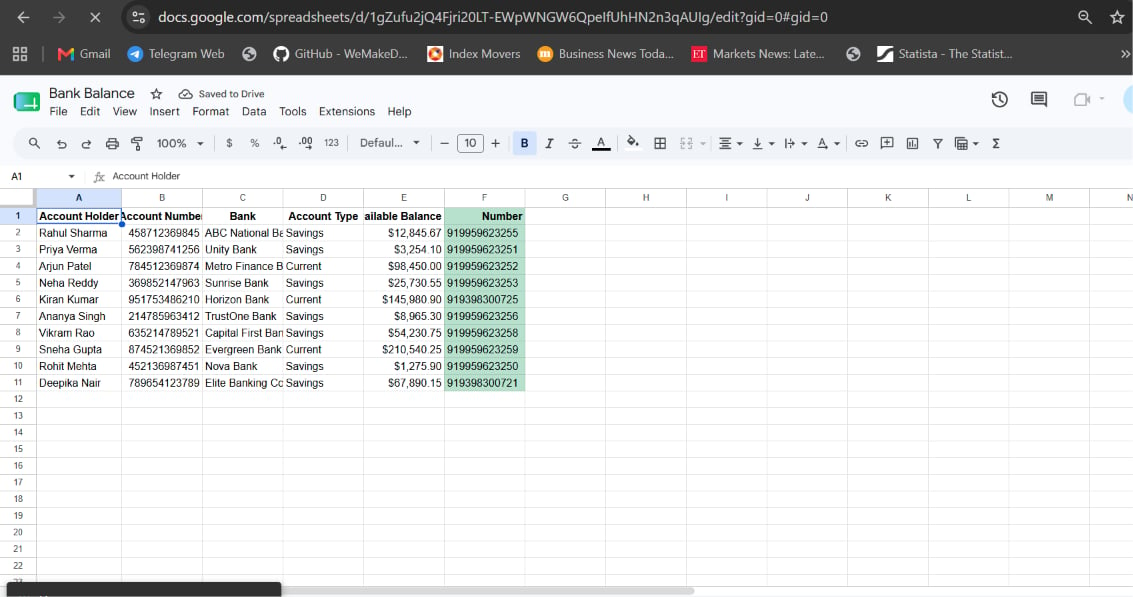
* A Google Sheet connected to that n8n workflow (not to ChatSyncs directly) with columns:
Account Holder, Account Number, Bank, Account Type, Available Balance, Phone Number.
## Implementation Guide
### Step 1 — Create the Keyword Replies flow and welcome menu
**Objective:** Greet the customer and offer a simple choice of service.
**Explanation:** [Keyword Replies](/learn/whatsapp-keyword-replies) is the flow builder this
entire project runs on. An Interactive Message with Reply Buttons gives the customer a menu
instead of requiring them to type a request in their own words.
**Actions to perform:**
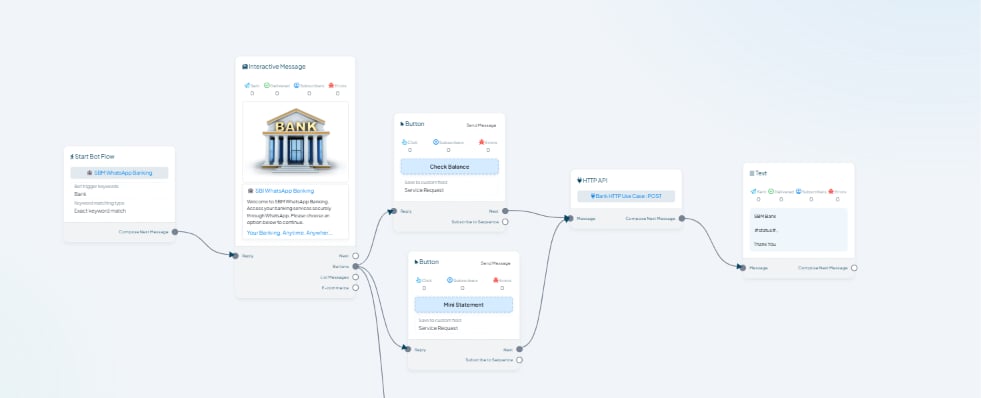
* Open **Keyword Replies** and click **Create**.
* Set the **Trigger Keywords** to `Bank`, with **Exact keyword match**.
* Drag an **Interactive Message** block onto the canvas with a bank header image and body text,
e.g. `Welcome to SBM WhatsApp Banking. Access your banking services securely through
WhatsApp. Please choose an option below to continue.`
* Add three **Reply Buttons**: `Check Balance`, `Mini Statement`, `KYC Update` — the first two
set **Save to Custom Field** to `Service Request`, so whichever one is tapped is recorded as
that subscriber's requested service.
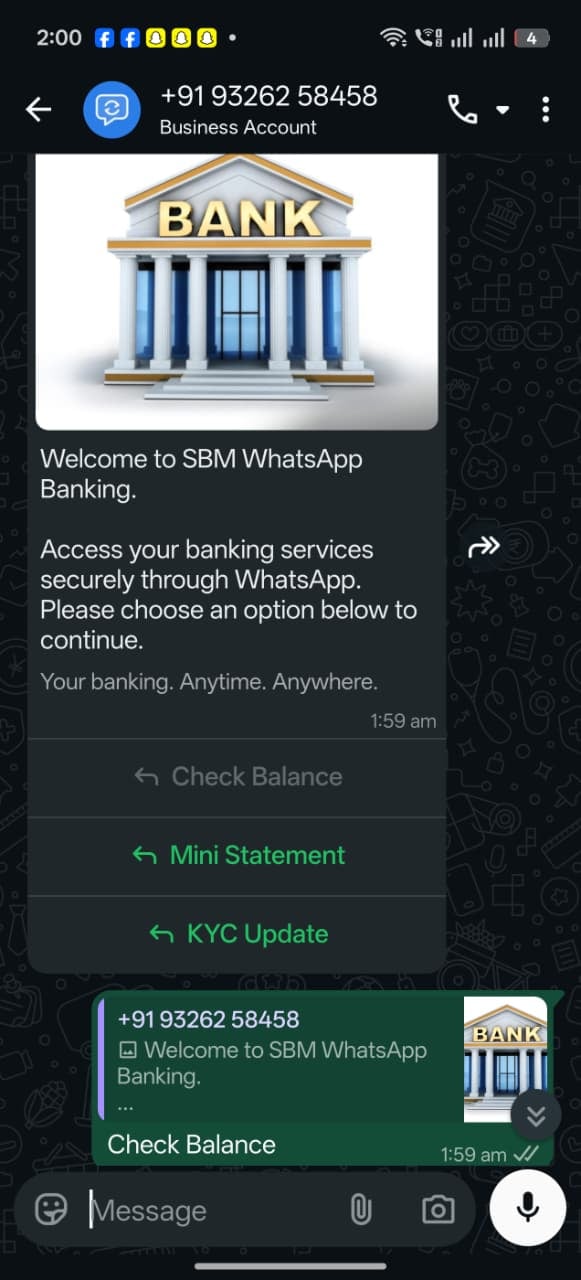
**Expected result:** Messaging "Bank" returns the welcome message with all three buttons
visible, exactly as a real customer sees it:
 **KYC Update is a third menu button visible in the live bot, but its backend isn't covered by
this guide** — only Check Balance and Mini Statement were built out with HTTP API + n8n in the
supplied material. Wire it up the same way (its own Custom Field value, its own Switch branch in
n8n) if you extend this project to a KYC flow.
### Step 2 — Configure the HTTP API call
**Objective:** Send the customer's identifying details to the bank's backend the moment they
tap **either** Check Balance or Mini Statement.
**Explanation:** [HTTP API](/learn/whatsapp-http-api-integration) connects a flow to any
external REST endpoint — here, that endpoint is the n8n workflow's Webhook trigger URL. The
request body uses dynamic variables so the actual values sent depend on who's asking.
**Actions to perform:**
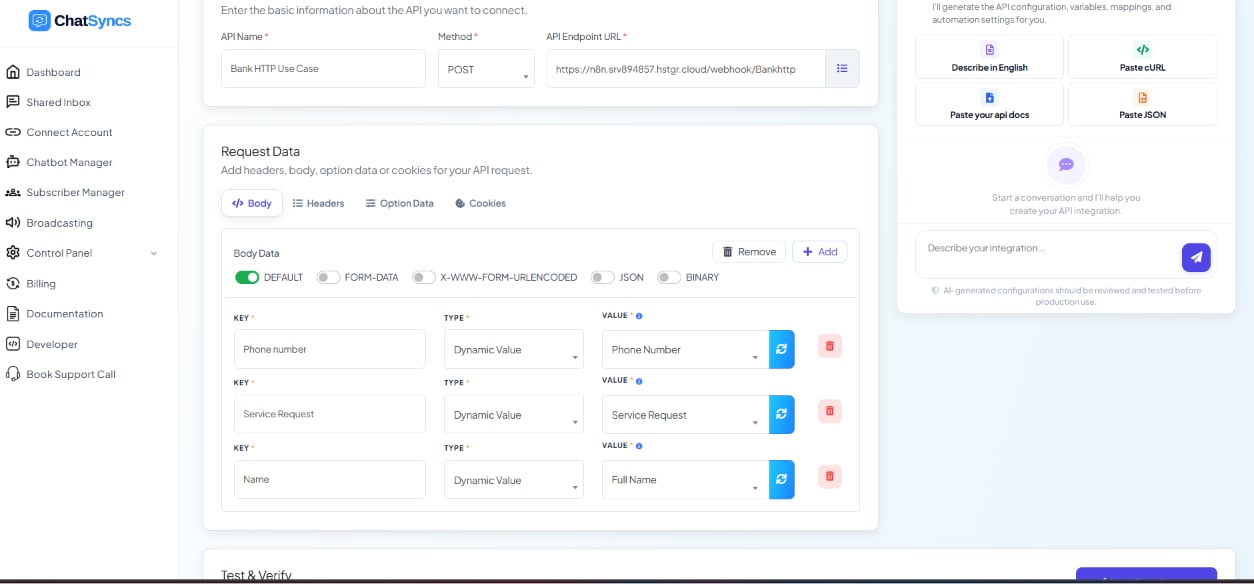
* After the buttons, connect an **HTTP API** step (named e.g. `Bank HTTP Use Case`).
* **Method:** `POST`. **API Endpoint URL:** the n8n workflow's Webhook URL, e.g.
`https:///webhook/Bankhttp`.
* **Body Data** (Default key/value format — no need for raw JSON here): add three rows —
| Key | Type | Value |
| ----------------- | ------------- | --------------- |
| `Phone number` | Dynamic Value | Phone Number |
| `Service Request` | Dynamic Value | Service Request |
| `Name` | Dynamic Value | Full Name |
**Phone Number** and **Full Name** are the subscriber's built-in values; **Service Request**
is the Custom Field the two Reply Buttons just saved into.
**KYC Update is a third menu button visible in the live bot, but its backend isn't covered by
this guide** — only Check Balance and Mini Statement were built out with HTTP API + n8n in the
supplied material. Wire it up the same way (its own Custom Field value, its own Switch branch in
n8n) if you extend this project to a KYC flow.
### Step 2 — Configure the HTTP API call
**Objective:** Send the customer's identifying details to the bank's backend the moment they
tap **either** Check Balance or Mini Statement.
**Explanation:** [HTTP API](/learn/whatsapp-http-api-integration) connects a flow to any
external REST endpoint — here, that endpoint is the n8n workflow's Webhook trigger URL. The
request body uses dynamic variables so the actual values sent depend on who's asking.
**Actions to perform:**
* After the buttons, connect an **HTTP API** step (named e.g. `Bank HTTP Use Case`).
* **Method:** `POST`. **API Endpoint URL:** the n8n workflow's Webhook URL, e.g.
`https:///webhook/Bankhttp`.
* **Body Data** (Default key/value format — no need for raw JSON here): add three rows —
| Key | Type | Value |
| ----------------- | ------------- | --------------- |
| `Phone number` | Dynamic Value | Phone Number |
| `Service Request` | Dynamic Value | Service Request |
| `Name` | Dynamic Value | Full Name |
**Phone Number** and **Full Name** are the subscriber's built-in values; **Service Request**
is the Custom Field the two Reply Buttons just saved into.
 **Expected result:** Tapping either button sends a POST request carrying the customer's phone
number, name, and requested service to n8n.
**Notes:** Use **Send Test Request** with sample data before wiring this to the live button —
see the Warning on the [HTTP API](/learn/whatsapp-http-api-integration) page.
### Step 3 — n8n receives the request and looks up the customer
**Objective:** Find the customer's account record from their phone number.
**Explanation:** This part runs entirely inside n8n, outside ChatSyncs. The **Webhook** node is
the entry point that receives ChatSyncs's POST request; the **Google Sheets** node then searches
for a row whose Phone Number column matches the incoming value.
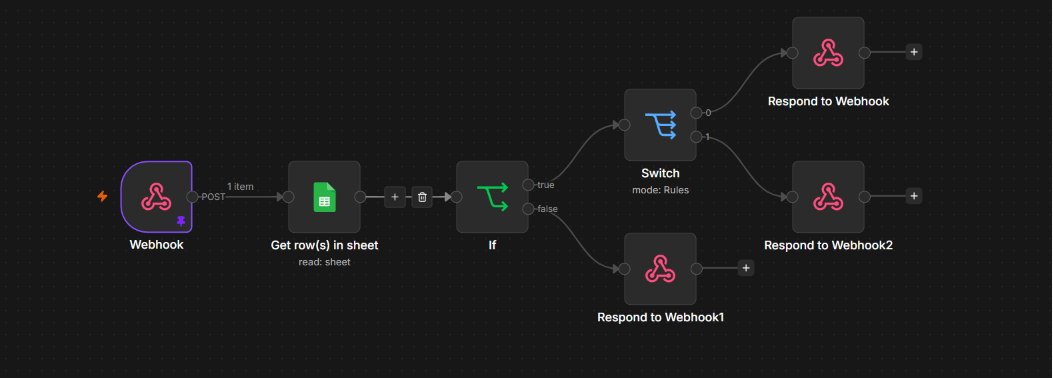
Here's the complete n8n workflow canvas — Webhook → Get row(s) in sheet → If → Switch → three
Respond to Webhook branches (found + Check Balance, found + Mini Statement, not found):
**Expected result:** Tapping either button sends a POST request carrying the customer's phone
number, name, and requested service to n8n.
**Notes:** Use **Send Test Request** with sample data before wiring this to the live button —
see the Warning on the [HTTP API](/learn/whatsapp-http-api-integration) page.
### Step 3 — n8n receives the request and looks up the customer
**Objective:** Find the customer's account record from their phone number.
**Explanation:** This part runs entirely inside n8n, outside ChatSyncs. The **Webhook** node is
the entry point that receives ChatSyncs's POST request; the **Google Sheets** node then searches
for a row whose Phone Number column matches the incoming value.
Here's the complete n8n workflow canvas — Webhook → Get row(s) in sheet → If → Switch → three
Respond to Webhook branches (found + Check Balance, found + Mini Statement, not found):
 **Actions to perform (in n8n):**
* **Webhook** node: receives the body sent by ChatSyncs's HTTP API step.
* **Google Sheets** node: looks up a row in the connected sheet where the phone number column
equals the incoming `Phone number` value.
The sheet itself needs one row per customer, with columns: Account Holder, Account Number,
Bank, Account Type, Available Balance, and a phone number column:
**Actions to perform (in n8n):**
* **Webhook** node: receives the body sent by ChatSyncs's HTTP API step.
* **Google Sheets** node: looks up a row in the connected sheet where the phone number column
equals the incoming `Phone number` value.
The sheet itself needs one row per customer, with columns: Account Holder, Account Number,
Bank, Account Type, Available Balance, and a phone number column:
 **Expected result:** The workflow either finds exactly one matching row, or finds none.
**Notes:** Store phone numbers as **text**, not a number format, in the sheet — the same
scientific-notation risk that affects [Subscriber Manager CSV
imports](/learn/whatsapp-subscriber-manager#import-subscribers-in-bulk) applies here too, and a
reformatted phone number won't match the incoming value.
### Step 4 — Validate the record and branch by service
**Objective:** Handle "customer not found" separately from a successful lookup, and route to
the right response for the requested service.
**Explanation:** An **IF** node checks whether the Google Sheets lookup returned a row. A
**Switch** node then checks the `Service Request` value — `Check Balance` or `Mini Statement` —
so one workflow already serves both services from the same welcome menu, instead of needing a
separate webhook per button.
**Actions to perform (in n8n):**
* **IF** node: `record found?` → true continues, false branches to an error response.
* **Switch** node (true branch only): route on `Service Request` — one branch for `Check
Balance`, one for `Mini Statement`.
**Expected result:** A found record continues down whichever branch matches the button the
customer tapped; a missing record skips straight to the error JSON in Step 5.
**Notes:** The Google Sheet shown in Step 3 only stores account-level fields (holder, account
number, bank, type, balance) — it doesn't have transaction-level rows. The live bot does return
real transaction lines on the Mini Statement branch, so a second data source (another sheet, a
table, or a separate API) must be wired into that branch of the Switch node to produce them —
that second source isn't part of the supplied screenshots, so its exact shape isn't covered
here.
### Step 5 — Respond to ChatSyncs with one pre-formatted field
**Objective:** Send the result back to ChatSyncs as a single ready-to-display string, not
several separate values.
**Explanation:** The **Respond to Webhook** node is what makes this call synchronous — the
customer's ChatSyncs flow is paused, waiting on this exact response, since HTTP API in
ChatSyncs is a request/response call, not fire-and-forget. In the actual built flow, n8n does
**all** of the branching and text formatting itself — success vs. not-found, Check Balance vs.
Mini Statement — and hands ChatSyncs back one field, `status`, already containing the exact
lines the customer should see. ChatSyncs doesn't branch on anything; it just drops that one
field into a fixed reply template.
**Actions to perform (in n8n):**
* On the **Check Balance** branch, **Respond to Webhook** with:
```json theme={null}
{
"status": "Hey Kiran Kumar\n\nhere your bank balance details\n\nAccount Type : Current\n\nAccount Balance : 145980.9"
}
```
* On the **Mini Statement** branch, build the same account lines plus the transaction history
into that same field:
```json theme={null}
{
"status": "Hey Kiran Kumar\n\nhere your bank balance details\n\nAccount Type : Current\n\nAccount Balance : 145980.9\n\n29/07/2026 - 12:01 - 100 Rupees\n29/07/2026 - 12:10 - 120 Rupees\n29/07/2026 - 12:20 - 140 Rupees"
}
```
* On no match, put the error message in that same field instead:
`{ "status": "We couldn't find an account linked to this number." }`.
**Expected result:** ChatSyncs's HTTP API step receives one JSON object back with a single
`status` field — already fully worded for whichever case applies.
**Notes:** Building the full message text in n8n instead of ChatSyncs means every future change
to the wording (a new line, a different greeting) only touches the n8n workflow — the ChatSyncs
flow and its template never need editing.
### Step 6 — Drop the response into the reply template
**Objective:** Turn that one `status` field into the message the customer sees.
**Explanation:** No **Condition** block is needed on the ChatSyncs side — n8n already decided
what the text should say. ChatSyncs's job is just to map the response and insert it into a
fixed **Text Message** template.
**Actions to perform:**
* Under **Response Mapping**, map the response's `status` field to a variable.
* Add a **Text Message** step with a fixed wrapper and the mapped variable inserted where the
content goes, e.g.:
```
SBM Bank
#status# ,
Thank You
```
**Expected result:** The workflow either finds exactly one matching row, or finds none.
**Notes:** Store phone numbers as **text**, not a number format, in the sheet — the same
scientific-notation risk that affects [Subscriber Manager CSV
imports](/learn/whatsapp-subscriber-manager#import-subscribers-in-bulk) applies here too, and a
reformatted phone number won't match the incoming value.
### Step 4 — Validate the record and branch by service
**Objective:** Handle "customer not found" separately from a successful lookup, and route to
the right response for the requested service.
**Explanation:** An **IF** node checks whether the Google Sheets lookup returned a row. A
**Switch** node then checks the `Service Request` value — `Check Balance` or `Mini Statement` —
so one workflow already serves both services from the same welcome menu, instead of needing a
separate webhook per button.
**Actions to perform (in n8n):**
* **IF** node: `record found?` → true continues, false branches to an error response.
* **Switch** node (true branch only): route on `Service Request` — one branch for `Check
Balance`, one for `Mini Statement`.
**Expected result:** A found record continues down whichever branch matches the button the
customer tapped; a missing record skips straight to the error JSON in Step 5.
**Notes:** The Google Sheet shown in Step 3 only stores account-level fields (holder, account
number, bank, type, balance) — it doesn't have transaction-level rows. The live bot does return
real transaction lines on the Mini Statement branch, so a second data source (another sheet, a
table, or a separate API) must be wired into that branch of the Switch node to produce them —
that second source isn't part of the supplied screenshots, so its exact shape isn't covered
here.
### Step 5 — Respond to ChatSyncs with one pre-formatted field
**Objective:** Send the result back to ChatSyncs as a single ready-to-display string, not
several separate values.
**Explanation:** The **Respond to Webhook** node is what makes this call synchronous — the
customer's ChatSyncs flow is paused, waiting on this exact response, since HTTP API in
ChatSyncs is a request/response call, not fire-and-forget. In the actual built flow, n8n does
**all** of the branching and text formatting itself — success vs. not-found, Check Balance vs.
Mini Statement — and hands ChatSyncs back one field, `status`, already containing the exact
lines the customer should see. ChatSyncs doesn't branch on anything; it just drops that one
field into a fixed reply template.
**Actions to perform (in n8n):**
* On the **Check Balance** branch, **Respond to Webhook** with:
```json theme={null}
{
"status": "Hey Kiran Kumar\n\nhere your bank balance details\n\nAccount Type : Current\n\nAccount Balance : 145980.9"
}
```
* On the **Mini Statement** branch, build the same account lines plus the transaction history
into that same field:
```json theme={null}
{
"status": "Hey Kiran Kumar\n\nhere your bank balance details\n\nAccount Type : Current\n\nAccount Balance : 145980.9\n\n29/07/2026 - 12:01 - 100 Rupees\n29/07/2026 - 12:10 - 120 Rupees\n29/07/2026 - 12:20 - 140 Rupees"
}
```
* On no match, put the error message in that same field instead:
`{ "status": "We couldn't find an account linked to this number." }`.
**Expected result:** ChatSyncs's HTTP API step receives one JSON object back with a single
`status` field — already fully worded for whichever case applies.
**Notes:** Building the full message text in n8n instead of ChatSyncs means every future change
to the wording (a new line, a different greeting) only touches the n8n workflow — the ChatSyncs
flow and its template never need editing.
### Step 6 — Drop the response into the reply template
**Objective:** Turn that one `status` field into the message the customer sees.
**Explanation:** No **Condition** block is needed on the ChatSyncs side — n8n already decided
what the text should say. ChatSyncs's job is just to map the response and insert it into a
fixed **Text Message** template.
**Actions to perform:**
* Under **Response Mapping**, map the response's `status` field to a variable.
* Add a **Text Message** step with a fixed wrapper and the mapped variable inserted where the
content goes, e.g.:
```
SBM Bank
#status# ,
Thank You
```
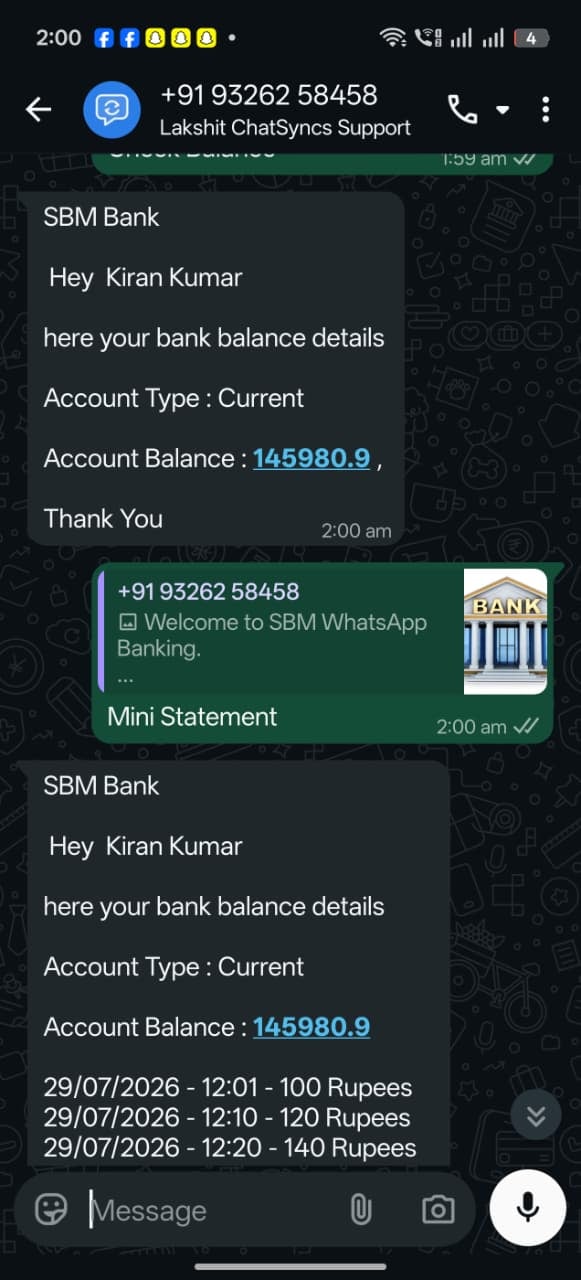 **Expected result:** A valid customer receives the reply matching whichever button they tapped;
an unrecognized number receives the same fixed template with the not-found message n8n
substituted in — one Text Message block handles every case.
**Notes:** The balance comes back as a plain number (e.g. `145980.9`), not the
`$145,980.90`-formatted string shown in the Google Sheet cell — reading a sheet through an API
returns the cell's raw value, not its display formatting. Format currency inside n8n's `status`
string if the reply should show `₹` or thousands separators.
## Download & test this flow
The exact flow used throughout this guide — Start Bot Flow, the Interactive Message, all three
Reply Buttons, the HTTP API step, and the final Text reply — is available as a real exported
flow file:
Download bank-balance-inquiry-flow\.txt
Keyword Replies' flow list has an **Export Flow Data** action (see [Keyword
Replies](/learn/whatsapp-keyword-replies#manage-your-flows)) that produces this exact file
format. Use the matching import option in your own Keyword Replies list to load it in and test
it against your own HTTP API / n8n setup, instead of rebuilding every block from these steps by
hand.
This file only contains the ChatSyncs-side flow — it has no knowledge of the n8n workflow or
Google Sheet behind the HTTP API call. Point the imported flow's **Bank HTTP Use Case** HTTP
API step at your own n8n Webhook URL before testing, or it will fail to reach anything.
## Features Used
| Feature | Purpose | Documentation |
| ----------------- | ---------------------------------------------------------------------------- | ---------------------------------------------------------------------- |
| Keyword Replies | Runs the whole conversation flow | [Keyword Replies](/learn/whatsapp-keyword-replies) |
| Reply Buttons | Welcome menu — Check Balance / Mini Statement / KYC Update | [Keyword Replies](/learn/whatsapp-keyword-replies#add-flow-components) |
| HTTP API | Calls the n8n webhook and waits for a response | [HTTP API](/learn/whatsapp-http-api-integration) |
| Dynamic Variables | Sends the subscriber's own phone number and name in the request | [HTTP API](/learn/whatsapp-http-api-integration) |
| Response Mapping | Turns the JSON response into usable bot variables | [HTTP API](/learn/whatsapp-http-api-integration) |
| Custom Fields | Stores which service (Check Balance / Mini Statement) the customer requested | [Subscriber Manager](/learn/whatsapp-subscriber-manager#custom-fields) |
## Expected Result
* A customer taps **Check Balance** and receives their real account number, account type, and
available balance within the same conversation, with no staff involved.
* A customer taps **Mini Statement** instead and gets routed through the same flow's second
branch, with no separate bot or webhook needed.
* A phone number with no matching bank record gets a clear "account not found" message instead
of a silent failure or a generic bot error, regardless of which button was tapped.
* The same pattern is ready to extend to a third service (loan status, card status, etc.) by
adding another Reply Button and another Switch branch in n8n formatting its own `status`
text — the ChatSyncs side needs no changes at all, since every branch reuses the same
Response Mapping and the same fixed Text Message template.
## FAQs
No — the balance lives in the bank's own system (via n8n and Google Sheets in this example).
ChatSyncs only holds it in memory for the length of the conversation, as a mapped response
variable used to build the reply.
They run in opposite directions. [Webhook Workflow](/learn/whatsapp-webhook-workflow) is
*inbound* — an external system calls ChatSyncs to trigger a template send. This project is
*outbound and synchronous* — ChatSyncs calls out to n8n and waits for a reply within the
same flow, which is what [HTTP API](/learn/whatsapp-http-api-integration) is built for.
The HTTP API call will time out or return no response. Always test the endpoint first with
**Send Test Request** (see the Warning on the [HTTP
API](/learn/whatsapp-http-api-integration) page), and design the n8n workflow's error path
to respond quickly rather than leaving ChatSyncs waiting.
Spreadsheet tools commonly reformat long numeric strings into scientific notation (e.g.
`9.19E+11`), which then won't match the phone number ChatSyncs sends. Storing the column as
text avoids this — the same issue documented for [Subscriber Manager CSV
imports](/learn/whatsapp-subscriber-manager#import-subscribers-in-bulk).
Both, already — the welcome menu has both Reply Buttons, both save into the same **Service
Request** Custom Field, and n8n's Switch node routes each one to its own branch. The two
services share one HTTP API call, one webhook, and the exact same ChatSyncs reply template
— only the `status` text n8n builds for each branch differs.
Yes — the live bot replies with dated transaction lines (e.g. `29/07/2026 - 12:01 - 100
Rupees`) in addition to the account details. The Google Sheet in Step 3 only holds
account-level fields, so those transaction lines come from a second data source wired into
n8n's Mini Statement branch — that source isn't part of the supplied screenshots, so its
exact shape (another sheet, a table, a separate API) isn't covered here.
Reading a Google Sheet cell through an API returns its raw underlying value, not its display
formatting — the sheet shows `$145,980.90` because of a currency format applied to the
cell, but the value handed to n8n (and then to ChatSyncs) is the plain number. Format it in
n8n or in the message text if the reply should show a currency symbol or thousands
separators.
It's a third Reply Button visible on the live welcome menu, but its backend isn't part of
the supplied material — only Check Balance and Mini Statement were built out with HTTP API
and n8n. Wiring up KYC Update would follow the same pattern: its own Custom Field value and
its own branch in n8n's Switch node.
No — from the customer's side, this is a single WhatsApp conversation with two button taps.
n8n and Google Sheets are entirely behind the scenes, on the bank's side of the integration.
That depends entirely on what's connected to n8n's Google Sheets node. In this example,
Google Sheets is described as a sample/demo data source — a production deployment would
point that same node at the bank's actual core banking system or database instead.
Not on the ChatSyncs side — the flow, HTTP API step, and Response Mapping are all
configured by filling in forms on the Keyword Replies canvas. The n8n workflow does require
building the Webhook / Google Sheets / IF / Switch / Respond to Webhook nodes, which is
low-code rather than no-code.
## Related Documentation
* [Keyword Replies](/learn/whatsapp-keyword-replies) — the flow builder this project runs on.
* [HTTP API](/learn/whatsapp-http-api-integration) — the outbound, synchronous integration this entire project is built around.
* [Subscriber Manager](/learn/whatsapp-subscriber-manager) — Custom Fields used in the request payload.
* [Webhook Workflow](/learn/whatsapp-webhook-workflow) — the inbound counterpart, for when an external system should trigger ChatSyncs instead of the other way around.
* [Message Templates](/learn/whatsapp-message-templates) — for sending the balance reply as an approved template if the conversation is outside the 24-hour window.
Start over from the beginning of this use case.
**Expected result:** A valid customer receives the reply matching whichever button they tapped;
an unrecognized number receives the same fixed template with the not-found message n8n
substituted in — one Text Message block handles every case.
**Notes:** The balance comes back as a plain number (e.g. `145980.9`), not the
`$145,980.90`-formatted string shown in the Google Sheet cell — reading a sheet through an API
returns the cell's raw value, not its display formatting. Format currency inside n8n's `status`
string if the reply should show `₹` or thousands separators.
## Download & test this flow
The exact flow used throughout this guide — Start Bot Flow, the Interactive Message, all three
Reply Buttons, the HTTP API step, and the final Text reply — is available as a real exported
flow file:
Download bank-balance-inquiry-flow\.txt
Keyword Replies' flow list has an **Export Flow Data** action (see [Keyword
Replies](/learn/whatsapp-keyword-replies#manage-your-flows)) that produces this exact file
format. Use the matching import option in your own Keyword Replies list to load it in and test
it against your own HTTP API / n8n setup, instead of rebuilding every block from these steps by
hand.
This file only contains the ChatSyncs-side flow — it has no knowledge of the n8n workflow or
Google Sheet behind the HTTP API call. Point the imported flow's **Bank HTTP Use Case** HTTP
API step at your own n8n Webhook URL before testing, or it will fail to reach anything.
## Features Used
| Feature | Purpose | Documentation |
| ----------------- | ---------------------------------------------------------------------------- | ---------------------------------------------------------------------- |
| Keyword Replies | Runs the whole conversation flow | [Keyword Replies](/learn/whatsapp-keyword-replies) |
| Reply Buttons | Welcome menu — Check Balance / Mini Statement / KYC Update | [Keyword Replies](/learn/whatsapp-keyword-replies#add-flow-components) |
| HTTP API | Calls the n8n webhook and waits for a response | [HTTP API](/learn/whatsapp-http-api-integration) |
| Dynamic Variables | Sends the subscriber's own phone number and name in the request | [HTTP API](/learn/whatsapp-http-api-integration) |
| Response Mapping | Turns the JSON response into usable bot variables | [HTTP API](/learn/whatsapp-http-api-integration) |
| Custom Fields | Stores which service (Check Balance / Mini Statement) the customer requested | [Subscriber Manager](/learn/whatsapp-subscriber-manager#custom-fields) |
## Expected Result
* A customer taps **Check Balance** and receives their real account number, account type, and
available balance within the same conversation, with no staff involved.
* A customer taps **Mini Statement** instead and gets routed through the same flow's second
branch, with no separate bot or webhook needed.
* A phone number with no matching bank record gets a clear "account not found" message instead
of a silent failure or a generic bot error, regardless of which button was tapped.
* The same pattern is ready to extend to a third service (loan status, card status, etc.) by
adding another Reply Button and another Switch branch in n8n formatting its own `status`
text — the ChatSyncs side needs no changes at all, since every branch reuses the same
Response Mapping and the same fixed Text Message template.
## FAQs
No — the balance lives in the bank's own system (via n8n and Google Sheets in this example).
ChatSyncs only holds it in memory for the length of the conversation, as a mapped response
variable used to build the reply.
They run in opposite directions. [Webhook Workflow](/learn/whatsapp-webhook-workflow) is
*inbound* — an external system calls ChatSyncs to trigger a template send. This project is
*outbound and synchronous* — ChatSyncs calls out to n8n and waits for a reply within the
same flow, which is what [HTTP API](/learn/whatsapp-http-api-integration) is built for.
The HTTP API call will time out or return no response. Always test the endpoint first with
**Send Test Request** (see the Warning on the [HTTP
API](/learn/whatsapp-http-api-integration) page), and design the n8n workflow's error path
to respond quickly rather than leaving ChatSyncs waiting.
Spreadsheet tools commonly reformat long numeric strings into scientific notation (e.g.
`9.19E+11`), which then won't match the phone number ChatSyncs sends. Storing the column as
text avoids this — the same issue documented for [Subscriber Manager CSV
imports](/learn/whatsapp-subscriber-manager#import-subscribers-in-bulk).
Both, already — the welcome menu has both Reply Buttons, both save into the same **Service
Request** Custom Field, and n8n's Switch node routes each one to its own branch. The two
services share one HTTP API call, one webhook, and the exact same ChatSyncs reply template
— only the `status` text n8n builds for each branch differs.
Yes — the live bot replies with dated transaction lines (e.g. `29/07/2026 - 12:01 - 100
Rupees`) in addition to the account details. The Google Sheet in Step 3 only holds
account-level fields, so those transaction lines come from a second data source wired into
n8n's Mini Statement branch — that source isn't part of the supplied screenshots, so its
exact shape (another sheet, a table, a separate API) isn't covered here.
Reading a Google Sheet cell through an API returns its raw underlying value, not its display
formatting — the sheet shows `$145,980.90` because of a currency format applied to the
cell, but the value handed to n8n (and then to ChatSyncs) is the plain number. Format it in
n8n or in the message text if the reply should show a currency symbol or thousands
separators.
It's a third Reply Button visible on the live welcome menu, but its backend isn't part of
the supplied material — only Check Balance and Mini Statement were built out with HTTP API
and n8n. Wiring up KYC Update would follow the same pattern: its own Custom Field value and
its own branch in n8n's Switch node.
No — from the customer's side, this is a single WhatsApp conversation with two button taps.
n8n and Google Sheets are entirely behind the scenes, on the bank's side of the integration.
That depends entirely on what's connected to n8n's Google Sheets node. In this example,
Google Sheets is described as a sample/demo data source — a production deployment would
point that same node at the bank's actual core banking system or database instead.
Not on the ChatSyncs side — the flow, HTTP API step, and Response Mapping are all
configured by filling in forms on the Keyword Replies canvas. The n8n workflow does require
building the Webhook / Google Sheets / IF / Switch / Respond to Webhook nodes, which is
low-code rather than no-code.
## Related Documentation
* [Keyword Replies](/learn/whatsapp-keyword-replies) — the flow builder this project runs on.
* [HTTP API](/learn/whatsapp-http-api-integration) — the outbound, synchronous integration this entire project is built around.
* [Subscriber Manager](/learn/whatsapp-subscriber-manager) — Custom Fields used in the request payload.
* [Webhook Workflow](/learn/whatsapp-webhook-workflow) — the inbound counterpart, for when an external system should trigger ChatSyncs instead of the other way around.
* [Message Templates](/learn/whatsapp-message-templates) — for sending the balance reply as an approved template if the conversation is outside the 24-hour window.
Start over from the beginning of this use case.