> ## Documentation Index
> Fetch the complete documentation index at: https://docs.chatsyncs.com/llms.txt
> Use this file to discover all available pages before exploring further.
# Availability-Based Conversation Assignment — Implementation Guide
> Step-by-step implementation guide for setting up Round Robin conversation assignment in ChatSyncs — creating a Team Role, adding team members, triggering assignment from a bot flow or an AI Agent intent, agent online/offline status, and confirming the result in the Shared Inbox. Use this when a customer is ready to actually build Round Robin conversation assignment.
## Prerequisites
* A WhatsApp number connected to ChatSyncs — see
[Connect WhatsApp](/learn/connect-whatsapp-embedded).
* A Keyword Replies bot flow already handling the customer's first message — read
[Keyword Replies](/learn/whatsapp-keyword-replies) first; this guide only covers the
assignment-specific part of that flow.
## Implementation Guide
### Step 1 — Create a Team Role in User Permission
**Objective:** Define the role that will group the rotating agents together, before any agent
exists to assign it to.
**Explanation:** [User Permission](/learn/control-panel-user-permission) creates the Team Role
packages that [User Manager](/learn/control-panel-user-manager) later assigns to each team
member — the role has to exist first, since creating a team member asks you to pick one.
**Actions to perform:**
* Go to **Control Panel → User Permission → Create**.
* Name the role for this rotation, e.g. `Sales Team` or `HR Team`.
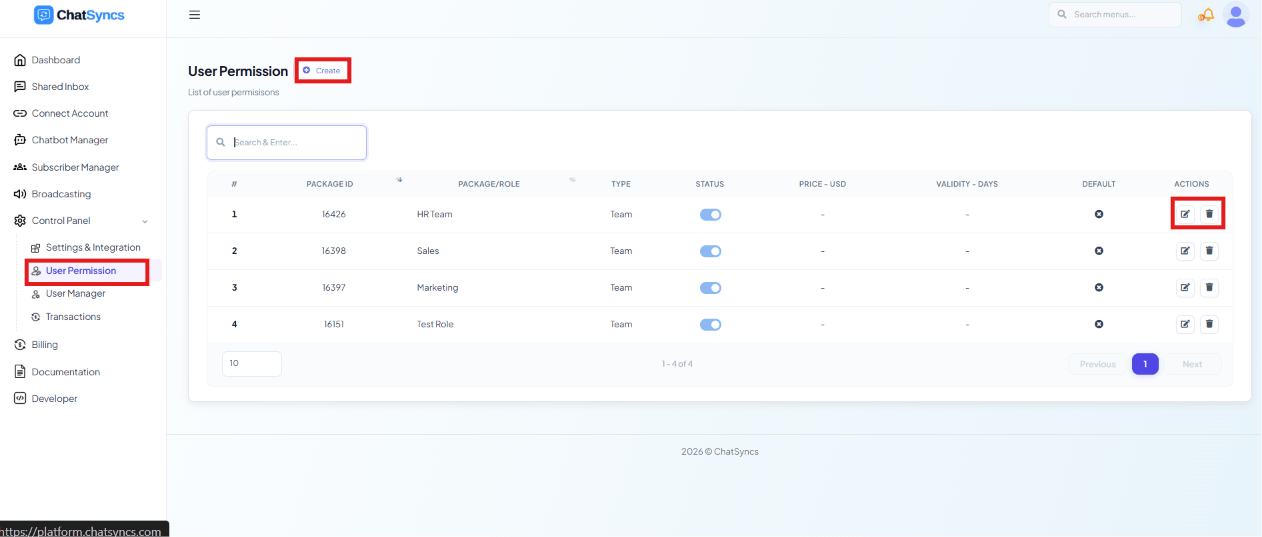 **Expected result:** A new Team Role exists and is ready to be assigned to team members.
**Notes:** The permission toggles on this role only control what the agent can access — they
don't affect Round Robin itself. What matters for the rotation is simply that every agent meant
to rotate together shares this same role.
### Step 2 — Create the team members
**Objective:** Get every agent who should take a turn in the rotation into ChatSyncs.
**Explanation:** Round Robin only rotates among users who exist as team members in
[User Manager](/learn/control-panel-user-manager) — there's nothing to rotate across until the
agents themselves are created.
**Actions to perform:**
* Go to **Control Panel → User Manager → Create**.
* Add each agent who should take part in the rotation, e.g. `Rahul Reddy` and `Lakshit Ukani`.
**Expected result:** A new Team Role exists and is ready to be assigned to team members.
**Notes:** The permission toggles on this role only control what the agent can access — they
don't affect Round Robin itself. What matters for the rotation is simply that every agent meant
to rotate together shares this same role.
### Step 2 — Create the team members
**Objective:** Get every agent who should take a turn in the rotation into ChatSyncs.
**Explanation:** Round Robin only rotates among users who exist as team members in
[User Manager](/learn/control-panel-user-manager) — there's nothing to rotate across until the
agents themselves are created.
**Actions to perform:**
* Go to **Control Panel → User Manager → Create**.
* Add each agent who should take part in the rotation, e.g. `Rahul Reddy` and `Lakshit Ukani`.
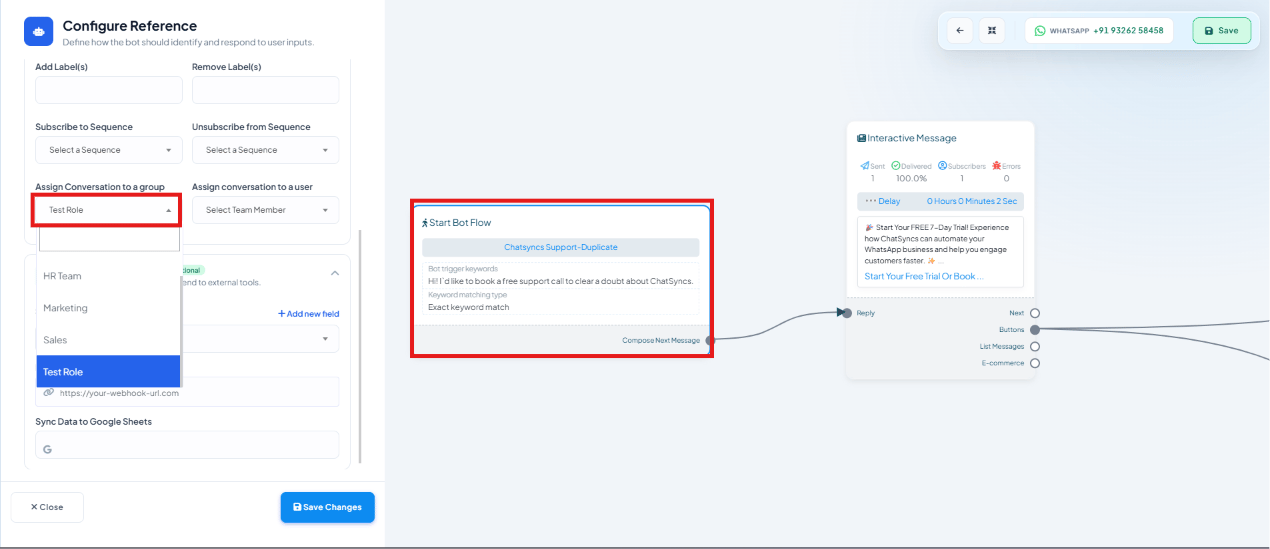 **Expected result:** Every rotating agent appears as an enabled team member in User Manager.
**Notes:** A user must be **Status: Enabled** to receive conversations at all — a disabled user
never enters the rotation, online or not.
### Step 3 — Assign every agent the same Team Role
**Objective:** Group the rotating agents together so Round Robin knows who shares the rotation.
**Explanation:** Round Robin identifies "the group" by **Team Role** — every user assigned the
same role (created in [User Permission](/learn/control-panel-user-permission), applied to each
user in User Manager) becomes part of the same rotation pool.
**Actions to perform:**
* In User Manager, edit each team member and set their **Team Role** to the shared role for this
rotation, e.g. `Sales Team`, `HR Team`, or a custom role name like `Test Role`.
Example:
| Team Member | Team Role |
| ------------- | --------- |
| Rahul Reddy | Test Role |
| Lakshit Ukani | Test Role |
**Expected result:** All the agents who should rotate together now share one Team Role.
**Notes:** The role's name doesn't change the behavior — what matters is that every agent meant
to rotate together carries the exact same Team Role.
### Step 4 — Configure the bot flow to assign into that group
**Objective:** Connect the customer-facing bot flow to the rotation you just set up.
**Explanation:** In [Keyword Replies](/learn/whatsapp-keyword-replies#automation-actions)'
**Automation Actions**, the **Assign Conversation to a Group** field hands the conversation to a
Team Role the moment the flow reaches that block.
**Actions to perform:**
* Open the bot flow, then its **Automation Actions** panel.
* Set **Assign Conversation to a Group** to the shared Team Role from Step 3.
* Click **Save Changes**.
**Expected result:** Every rotating agent appears as an enabled team member in User Manager.
**Notes:** A user must be **Status: Enabled** to receive conversations at all — a disabled user
never enters the rotation, online or not.
### Step 3 — Assign every agent the same Team Role
**Objective:** Group the rotating agents together so Round Robin knows who shares the rotation.
**Explanation:** Round Robin identifies "the group" by **Team Role** — every user assigned the
same role (created in [User Permission](/learn/control-panel-user-permission), applied to each
user in User Manager) becomes part of the same rotation pool.
**Actions to perform:**
* In User Manager, edit each team member and set their **Team Role** to the shared role for this
rotation, e.g. `Sales Team`, `HR Team`, or a custom role name like `Test Role`.
Example:
| Team Member | Team Role |
| ------------- | --------- |
| Rahul Reddy | Test Role |
| Lakshit Ukani | Test Role |
**Expected result:** All the agents who should rotate together now share one Team Role.
**Notes:** The role's name doesn't change the behavior — what matters is that every agent meant
to rotate together carries the exact same Team Role.
### Step 4 — Configure the bot flow to assign into that group
**Objective:** Connect the customer-facing bot flow to the rotation you just set up.
**Explanation:** In [Keyword Replies](/learn/whatsapp-keyword-replies#automation-actions)'
**Automation Actions**, the **Assign Conversation to a Group** field hands the conversation to a
Team Role the moment the flow reaches that block.
**Actions to perform:**
* Open the bot flow, then its **Automation Actions** panel.
* Set **Assign Conversation to a Group** to the shared Team Role from Step 3.
* Click **Save Changes**.
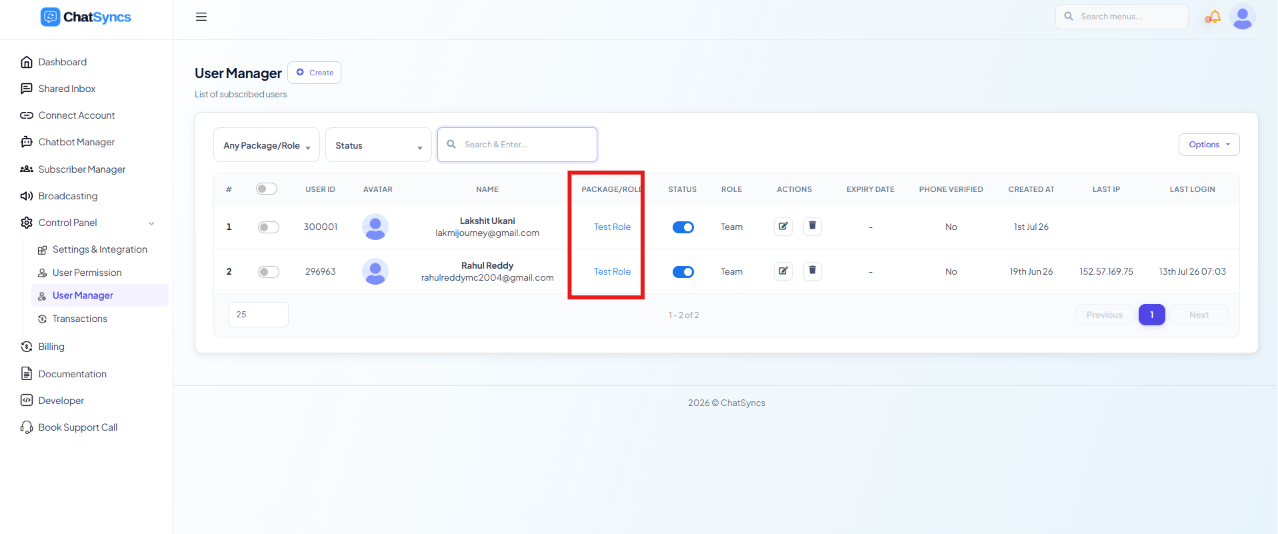 **Expected result:** Any conversation that reaches this block in the flow is now handed to the
group, and Round Robin takes over from there.
**Notes:** Double-check the group selected here exactly matches the Team Role you assigned in
Step 3 — a mismatched name means no one in the rotation ever receives the conversation.
### Step 5 — Or trigger it from an AI Agent intent instead
**Objective:** Feed the same group from an AI-driven conversation, not just a Keyword Replies
bot flow.
**Explanation:** [AI Agents and Intent Detection](/learn/whatsapp-ai-agent#agent-assignment)
has its own **Agent Assignment** action — when a customer's message matches a defined intent
(e.g. `Test Role - assignment`, triggered by phrases like "I want to buy" or "price detail"), it
hands the conversation straight to a Team/Department instead of answering it, and Round Robin
picks the next available agent from there exactly as it would from a bot flow.
**Actions to perform:**
* In **Chatbot Manager → AI → AI Agents and Intent Detection**, create or open an intent.
* Under **Choose an action**, enable **Agent Assignment**.
* Set **Assign to a Team or Department** to the same shared Team Role from Step 3, and write an
**Automated Message for Agent Assignment**.
**Expected result:** Any conversation that reaches this block in the flow is now handed to the
group, and Round Robin takes over from there.
**Notes:** Double-check the group selected here exactly matches the Team Role you assigned in
Step 3 — a mismatched name means no one in the rotation ever receives the conversation.
### Step 5 — Or trigger it from an AI Agent intent instead
**Objective:** Feed the same group from an AI-driven conversation, not just a Keyword Replies
bot flow.
**Explanation:** [AI Agents and Intent Detection](/learn/whatsapp-ai-agent#agent-assignment)
has its own **Agent Assignment** action — when a customer's message matches a defined intent
(e.g. `Test Role - assignment`, triggered by phrases like "I want to buy" or "price detail"), it
hands the conversation straight to a Team/Department instead of answering it, and Round Robin
picks the next available agent from there exactly as it would from a bot flow.
**Actions to perform:**
* In **Chatbot Manager → AI → AI Agents and Intent Detection**, create or open an intent.
* Under **Choose an action**, enable **Agent Assignment**.
* Set **Assign to a Team or Department** to the same shared Team Role from Step 3, and write an
**Automated Message for Agent Assignment**.
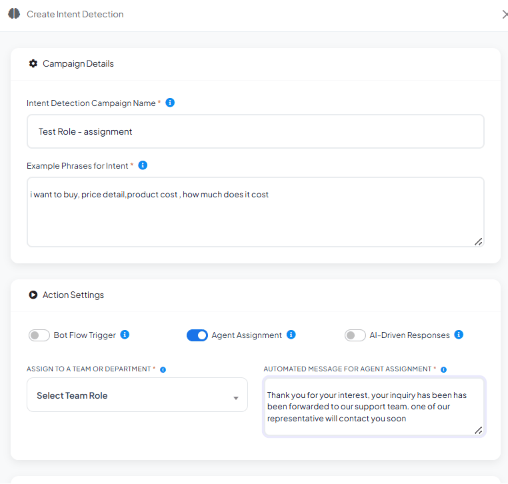 **Expected result:** A message matching that intent is handed to the group the same way a bot
flow's Assign Conversation to a Group action would — Round Robin then rotates it the same way.
**Notes:** Use whichever trigger fits the conversation — a Keyword Replies flow for a scripted
journey, or an Intent Detection campaign when you want the AI to recognize the request in
free-form text first.
### Step 6 — Set each agent's online / offline status
**Objective:** Make sure Round Robin only assigns conversations to agents who are actually
available.
**Explanation:** Round Robin checks availability before assigning. An **online** agent is
eligible for the next conversation; an **offline** agent is skipped and the next agent in the
rotation is checked instead.
**Actions to perform:**
* From the Shared Inbox settings menu, toggle **Go Offline** (or back online) to control your own
availability.
**Expected result:** A message matching that intent is handed to the group the same way a bot
flow's Assign Conversation to a Group action would — Round Robin then rotates it the same way.
**Notes:** Use whichever trigger fits the conversation — a Keyword Replies flow for a scripted
journey, or an Intent Detection campaign when you want the AI to recognize the request in
free-form text first.
### Step 6 — Set each agent's online / offline status
**Objective:** Make sure Round Robin only assigns conversations to agents who are actually
available.
**Explanation:** Round Robin checks availability before assigning. An **online** agent is
eligible for the next conversation; an **offline** agent is skipped and the next agent in the
rotation is checked instead.
**Actions to perform:**
* From the Shared Inbox settings menu, toggle **Go Offline** (or back online) to control your own
availability.
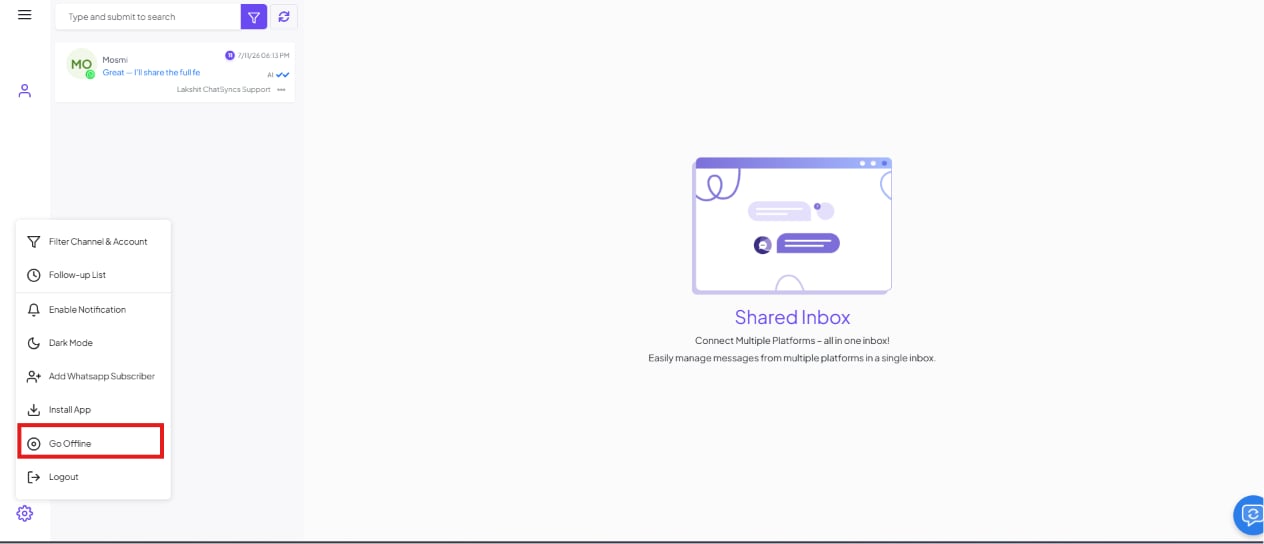 **Expected result:** Conversations skip any agent currently marked offline and go to the next
online agent in the rotation.
**Notes:** If **every** agent in the group happens to be offline when a conversation arrives, it
doesn't get dropped — it waits unassigned, and Round Robin hands it to the first one of those
agents to come back online.
### Step 7 — Confirm the assignment in the Shared Inbox
**Objective:** Verify a real customer conversation actually lands with the expected agent.
**Explanation:** Once a customer messages in and triggers the bot flow, the resulting
conversation shows up in the [Shared Inbox](/learn/whatsapp-shared-inbox#automation--flow) with
its **Assigned Agent** clearly labeled.
**Actions to perform:**
* Send a test message to the connected WhatsApp number to trigger the bot flow.
**Expected result:** Conversations skip any agent currently marked offline and go to the next
online agent in the rotation.
**Notes:** If **every** agent in the group happens to be offline when a conversation arrives, it
doesn't get dropped — it waits unassigned, and Round Robin hands it to the first one of those
agents to come back online.
### Step 7 — Confirm the assignment in the Shared Inbox
**Objective:** Verify a real customer conversation actually lands with the expected agent.
**Explanation:** Once a customer messages in and triggers the bot flow, the resulting
conversation shows up in the [Shared Inbox](/learn/whatsapp-shared-inbox#automation--flow) with
its **Assigned Agent** clearly labeled.
**Actions to perform:**
* Send a test message to the connected WhatsApp number to trigger the bot flow.
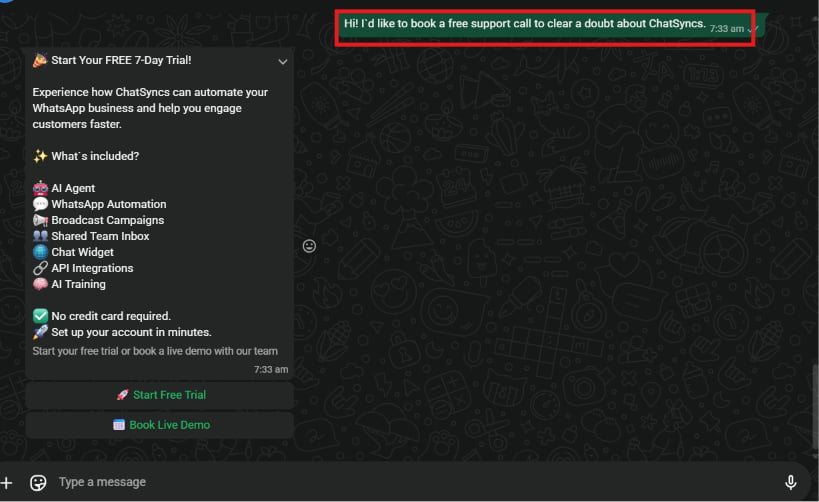 * Open the conversation in the Shared Inbox and check who it was assigned to.
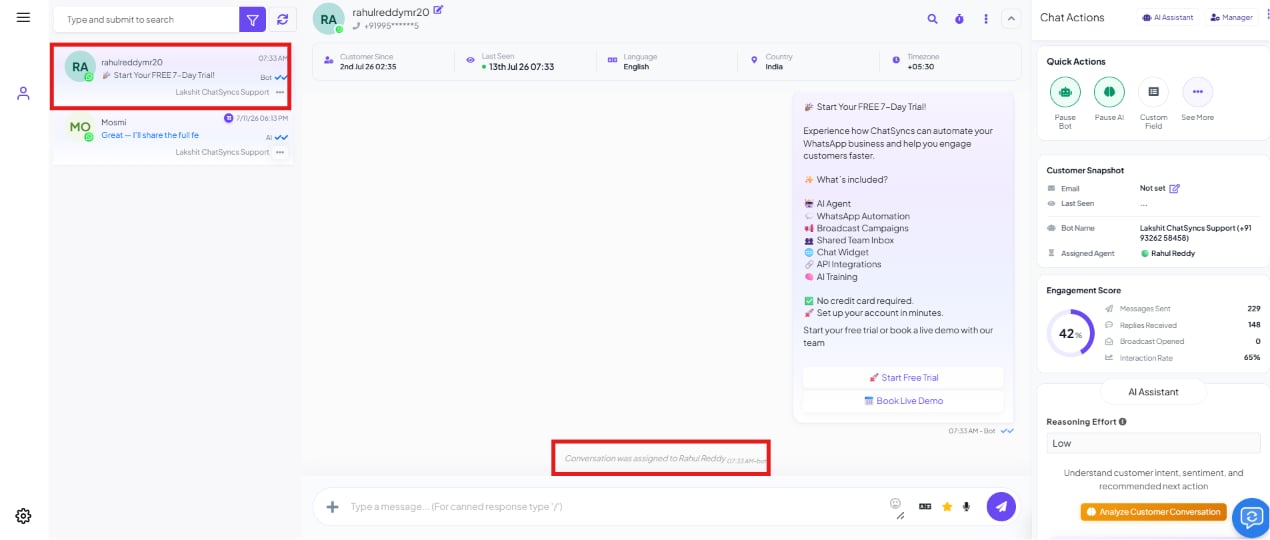 **Expected result:** The conversation shows a system message confirming who it was assigned to,
and the **Customer Snapshot** / **Automation & Flow** panel lists that same agent as the
**Assigned Agent**.
**Notes:** Send a few more test messages to confirm the rotation actually moves to the next
online agent each time, instead of assigning everything to one person.
## Features Used
| Feature | Purpose | Documentation |
| ------------------------------------------------- | ------------------------------------------------------------------------------------------------- | --------------------------------------------------------------------------- |
| User Manager | Create team members and assign each one a shared Team Role | [User Manager](/learn/control-panel-user-manager) |
| User Permission | Define the Team Role that groups the rotating agents together | [User Permission](/learn/control-panel-user-permission) |
| Keyword Replies — Automation Actions | Hand the conversation to the group at the right point in a bot flow | [Keyword Replies](/learn/whatsapp-keyword-replies#automation-actions) |
| AI Agents and Intent Detection — Agent Assignment | Hand the conversation to the same group when an AI-detected intent matches, instead of a bot flow | [AI Agents and Intent Detection](/learn/whatsapp-ai-agent#agent-assignment) |
| Shared Inbox | View the assigned conversation and confirm the Assigned Agent | [Shared Inbox](/learn/whatsapp-shared-inbox#automation--flow) |
## Expected Result
* Incoming conversations rotate automatically across the team, with no manual assignment.
* Offline agents are skipped, so conversations only reach agents who can actually respond.
* If a whole group is offline, the conversation waits and goes to the first agent who comes
back online — nothing is silently dropped.
* The Shared Inbox always shows a clear, visible owner for every conversation.
## FAQs
It cycles through the online agents who share the Team Role selected in **Assign Conversation
to a Group**, one at a time, in sequence — the same agent doesn't get picked again until
everyone else in the group has had a turn.
The conversation waits unassigned rather than going to no one permanently. As soon as any
agent from that group comes back online, Round Robin assigns it to them.
Yes — point different bot flows (or different branches of the same flow) at different Team
Roles. For example, a Sales-triggered flow assigns to `Sales Team`, while a support keyword
assigns to `Support Team`, and a billing keyword assigns to `Billing Team`.
Yes — any team member with access can reassign a conversation from the Shared Inbox's
**Assigned Agent** field under [Automation & Flow](/learn/whatsapp-shared-inbox#automation--flow),
the same way you'd hand a chat to someone directly.
No — assignment is internal. The customer just sees replies coming from the business number;
the **Assigned Agent** label is only visible to your team in the Shared Inbox.
| | Round Robin | Manual Assignment |
| ---------------- | ------------------------------ | --------------------------------- |
| Assignment | Automatic | Someone has to decide each time |
| Workload balance | Equal across the group | Depends on who's paying attention |
| Speed | Immediate | Waits on a manager or teammate |
| Scalability | Add a member to the role, done | Gets harder as the team grows |
No — Round Robin is just one automation action (**Assign Conversation to a Group**) inside
whichever [Keyword Replies](/learn/whatsapp-keyword-replies) flow already greets the
customer. There's nothing extra to build beyond that one field.
Yes — [AI Agents and Intent Detection](/learn/whatsapp-ai-agent#agent-assignment)'s
**Agent Assignment** action hands a conversation to a Team/Department the moment a customer's
message matches a defined intent, with no bot flow involved. Point it at the same shared
Team Role and Round Robin rotates it exactly the same way.
## Related Documentation
* [User Manager](/learn/control-panel-user-manager) — create and manage team members.
* [User Permission](/learn/control-panel-user-permission) — define the Team Role used to group
rotating agents.
* [Keyword Replies](/learn/whatsapp-keyword-replies) — the bot flow builder that triggers the
assignment.
* [AI Agents and Intent Detection](/learn/whatsapp-ai-agent) — trigger the same assignment from
an AI-detected intent instead of a bot flow.
* [Shared Inbox](/learn/whatsapp-shared-inbox) — where assigned conversations are viewed and
handled.
Start over from the beginning of this use case.
**Expected result:** The conversation shows a system message confirming who it was assigned to,
and the **Customer Snapshot** / **Automation & Flow** panel lists that same agent as the
**Assigned Agent**.
**Notes:** Send a few more test messages to confirm the rotation actually moves to the next
online agent each time, instead of assigning everything to one person.
## Features Used
| Feature | Purpose | Documentation |
| ------------------------------------------------- | ------------------------------------------------------------------------------------------------- | --------------------------------------------------------------------------- |
| User Manager | Create team members and assign each one a shared Team Role | [User Manager](/learn/control-panel-user-manager) |
| User Permission | Define the Team Role that groups the rotating agents together | [User Permission](/learn/control-panel-user-permission) |
| Keyword Replies — Automation Actions | Hand the conversation to the group at the right point in a bot flow | [Keyword Replies](/learn/whatsapp-keyword-replies#automation-actions) |
| AI Agents and Intent Detection — Agent Assignment | Hand the conversation to the same group when an AI-detected intent matches, instead of a bot flow | [AI Agents and Intent Detection](/learn/whatsapp-ai-agent#agent-assignment) |
| Shared Inbox | View the assigned conversation and confirm the Assigned Agent | [Shared Inbox](/learn/whatsapp-shared-inbox#automation--flow) |
## Expected Result
* Incoming conversations rotate automatically across the team, with no manual assignment.
* Offline agents are skipped, so conversations only reach agents who can actually respond.
* If a whole group is offline, the conversation waits and goes to the first agent who comes
back online — nothing is silently dropped.
* The Shared Inbox always shows a clear, visible owner for every conversation.
## FAQs
It cycles through the online agents who share the Team Role selected in **Assign Conversation
to a Group**, one at a time, in sequence — the same agent doesn't get picked again until
everyone else in the group has had a turn.
The conversation waits unassigned rather than going to no one permanently. As soon as any
agent from that group comes back online, Round Robin assigns it to them.
Yes — point different bot flows (or different branches of the same flow) at different Team
Roles. For example, a Sales-triggered flow assigns to `Sales Team`, while a support keyword
assigns to `Support Team`, and a billing keyword assigns to `Billing Team`.
Yes — any team member with access can reassign a conversation from the Shared Inbox's
**Assigned Agent** field under [Automation & Flow](/learn/whatsapp-shared-inbox#automation--flow),
the same way you'd hand a chat to someone directly.
No — assignment is internal. The customer just sees replies coming from the business number;
the **Assigned Agent** label is only visible to your team in the Shared Inbox.
| | Round Robin | Manual Assignment |
| ---------------- | ------------------------------ | --------------------------------- |
| Assignment | Automatic | Someone has to decide each time |
| Workload balance | Equal across the group | Depends on who's paying attention |
| Speed | Immediate | Waits on a manager or teammate |
| Scalability | Add a member to the role, done | Gets harder as the team grows |
No — Round Robin is just one automation action (**Assign Conversation to a Group**) inside
whichever [Keyword Replies](/learn/whatsapp-keyword-replies) flow already greets the
customer. There's nothing extra to build beyond that one field.
Yes — [AI Agents and Intent Detection](/learn/whatsapp-ai-agent#agent-assignment)'s
**Agent Assignment** action hands a conversation to a Team/Department the moment a customer's
message matches a defined intent, with no bot flow involved. Point it at the same shared
Team Role and Round Robin rotates it exactly the same way.
## Related Documentation
* [User Manager](/learn/control-panel-user-manager) — create and manage team members.
* [User Permission](/learn/control-panel-user-permission) — define the Team Role used to group
rotating agents.
* [Keyword Replies](/learn/whatsapp-keyword-replies) — the bot flow builder that triggers the
assignment.
* [AI Agents and Intent Detection](/learn/whatsapp-ai-agent) — trigger the same assignment from
an AI-detected intent instead of a bot flow.
* [Shared Inbox](/learn/whatsapp-shared-inbox) — where assigned conversations are viewed and
handled.
Start over from the beginning of this use case.