> ## Documentation Index
> Fetch the complete documentation index at: https://docs.chatsyncs.com/llms.txt
> Use this file to discover all available pages before exploring further.
# Send Template Message
> Send an approved WhatsApp message template to a phone number via the ChatSyncs API — generated end-to-end from the API Developer Console, no hand-written fields. Use when a developer asks how to message someone outside the 24-hour window, or how to send a specific template programmatically.
Sends an approved [WhatsApp template](/learn/whatsapp-message-templates) to a phone number —
the way to message someone **outside** the 24-hour session window, where
[Send Text Message](/developer-api/whatsapp/send-text-message) won't work.
**You can't send a template message from this page.** Every template needs different fields —
one might just need a name and phone number, another needs a checkout link, a price, or a
button URL — so there's no single request that works for all of them, and the Playground below
can't test one either. Follow the steps below to generate and run your exact request from the
**[API Developer Console](https://platform.chatsyncs.com/api/developer/console)** instead.
## Generate the request
You never need to guess `template_id`, variable names, or field formats — the console builds
the whole request for you, already filled in. The only thing you type at the end is the
recipient's phone number.
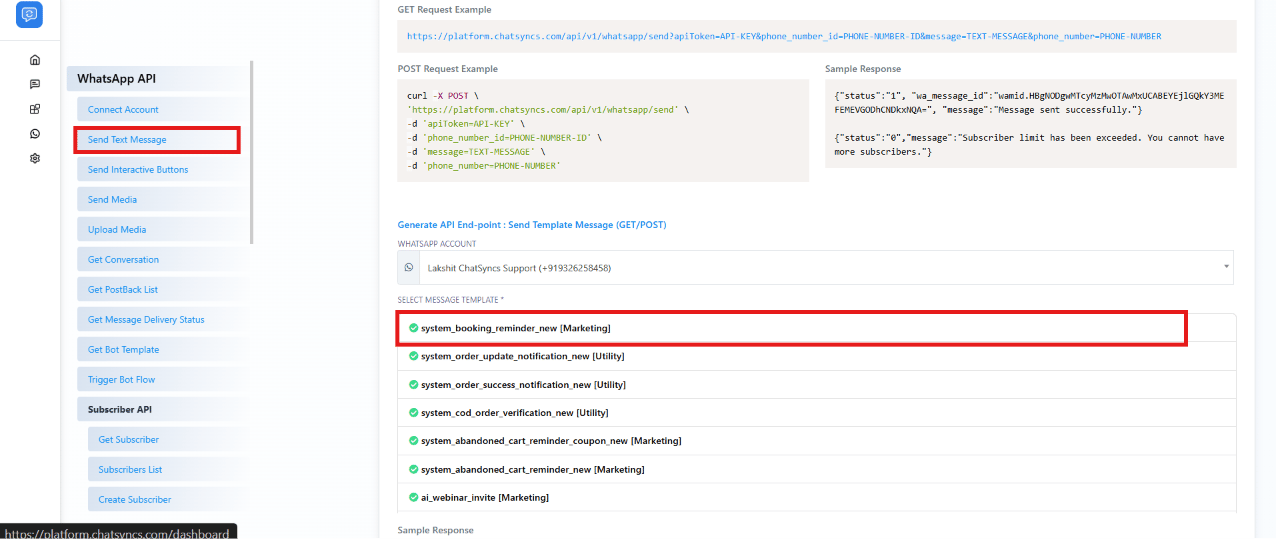
Go to the **[API Developer Console](https://platform.chatsyncs.com/api/developer/console)**
and click **Send Text Message** in the sidebar. The template generator lives further down
on this same page — it isn't under Chatbot Manager.
Scroll down to **Generate API End-point: Send Template Message**, choose the WhatsApp
account to send from, then click the approved template you want to send.
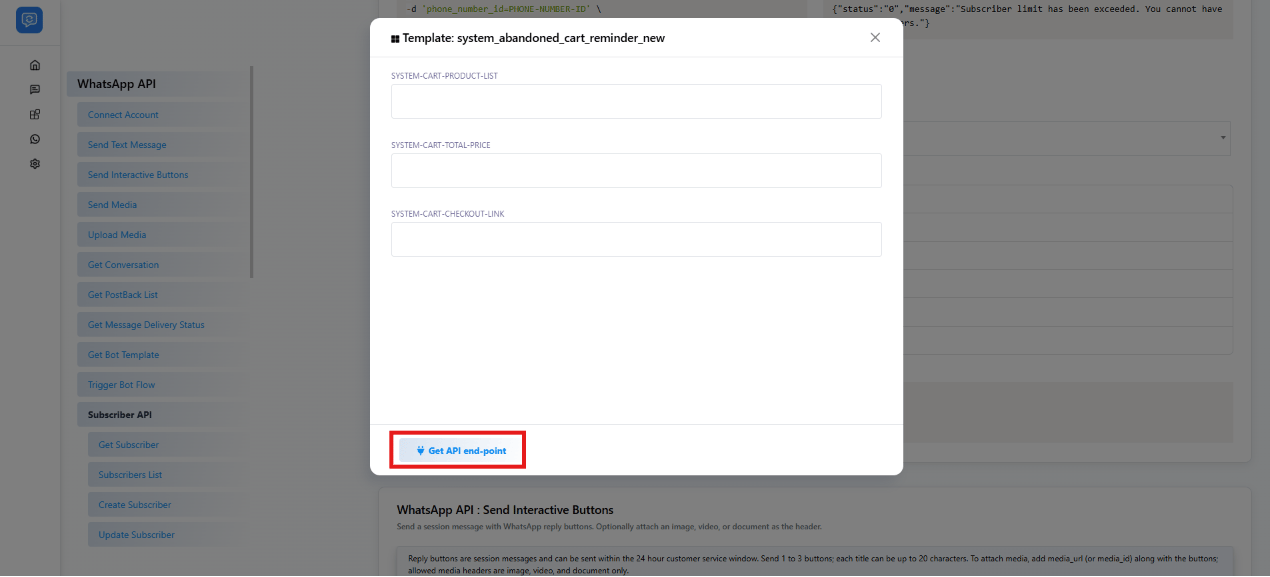
 A popup lists every variable the template needs — none of them come pre-filled. Type a real
value into each one: a product list, a price, a checkout link, a button URL, whatever that
specific template calls for.
A popup lists every variable the template needs — none of them come pre-filled. Type a real
value into each one: a product list, a price, a checkout link, a button URL, whatever that
specific template calls for.
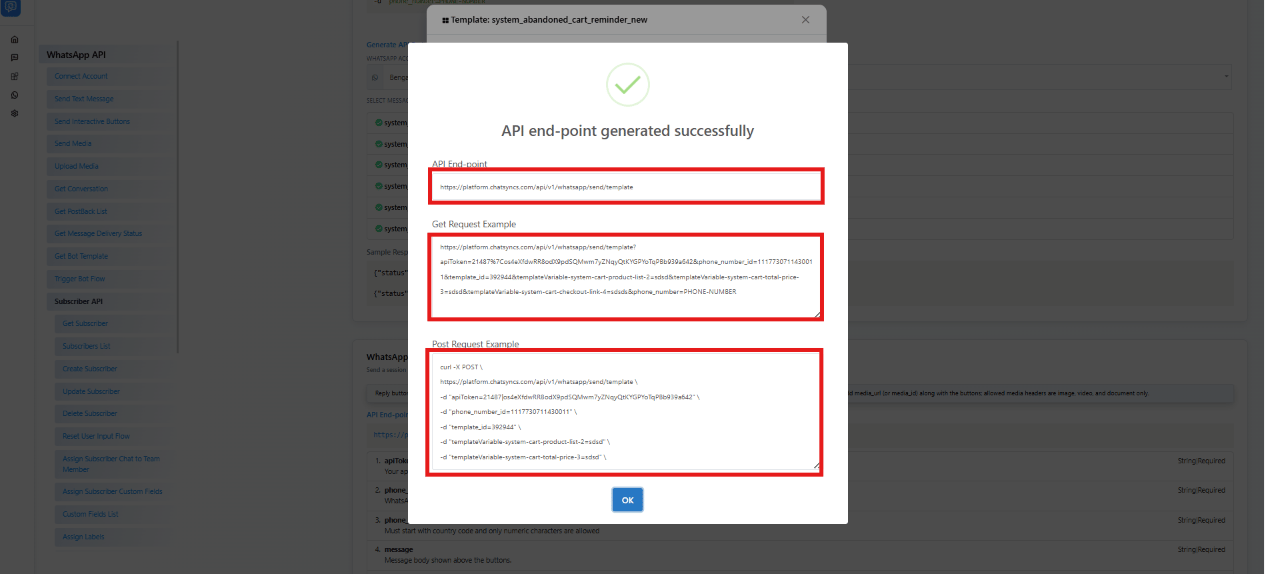
 The console generates the exact GET URL and POST curl for that template — `apiToken`,
`phone_number_id`, `template_id`, and every variable you just typed are already filled in.
The only placeholder left in either request is `phone_number`.
The console generates the exact GET URL and POST curl for that template — `apiToken`,
`phone_number_id`, `template_id`, and every variable you just typed are already filled in.
The only placeholder left in either request is `phone_number`.
 Copy the POST curl (or the GET URL) out of that popup — `apiToken`, `phone_number_id`,
`template_id`, and every variable are already inside it, so there's nothing left to look up.
Replace `phone_number` with the recipient's number (country code first, digits only, no `+`,
e.g. `91XXXXXXXXXX` for an Indian number), then run it from a terminal or a tool like
[Postman](https://www.postman.com/) or [Insomnia](https://insomnia.rest/).
## OpenAPI
````yaml POST /whatsapp/send/template
openapi: 3.1.0
info:
title: ChatSyncs Developer API
version: 1.0.0
description: >-
REST API for sending WhatsApp messages and managing subscribers through
ChatSyncs.
servers:
- url: https://platform.chatsyncs.com/api/v1
security: []
paths:
/whatsapp/send/template:
post:
tags:
- WhatsApp API
summary: Send Template Message
description: >-
Sends an approved WhatsApp message template to a phone number, using the
template_id of a specific template. Some templates also need header
media or button values -- exact field names for those depend on the
template and are not yet confirmed; see the page notes.
operationId: sendTemplateMessage
requestBody:
required: true
content:
application/x-www-form-urlencoded:
schema:
type: object
properties:
apiToken:
type: string
description: >-
Your ChatSyncs API key (not a WhatsApp/Meta access token).
[Where to find
it](/developer-api/finding-ids#api-token-apitoken).
example: API-KEY
phone_number_id:
type: string
description: >-
The WhatsApp account's phone number ID. [Where to find
it](/developer-api/finding-ids#phone-number-id-phone_number_id).
example: PHONE-NUMBER-ID
template_id:
type: string
description: >-
The template to send. Get this from Bot Template Get, or
from the template generator in the API Developer Console ->
Send Text Message page. [Where to find
it](/developer-api/finding-ids#template-id-template_id).
example: '396098'
phone_number:
type: string
description: The recipient phone number, with country code, digits only.
example: PHONE-NUMBER
required:
- apiToken
- phone_number_id
- template_id
- phone_number
responses:
'200':
description: >-
Standard ChatSyncs response. status is "1" on success and "0" on
failure.
content:
application/json:
schema:
type: object
properties:
status:
type: string
description: '"1" = success, "0" = failure.'
message:
type: string
description: Human-readable result message.
examples:
success:
summary: Success
value:
status: '1'
message: Template message sent successfully.
error:
summary: Subscriber limit exceeded
value:
status: '0'
message: >-
Subscriber limit has been exceeded. You cannot have more
subscribers.
headerMismatch:
summary: Missing/wrong header format
value:
status: '0'
message: 'header: Format mismatch, expected IMAGE, received UNKNOWN'
````
Copy the POST curl (or the GET URL) out of that popup — `apiToken`, `phone_number_id`,
`template_id`, and every variable are already inside it, so there's nothing left to look up.
Replace `phone_number` with the recipient's number (country code first, digits only, no `+`,
e.g. `91XXXXXXXXXX` for an Indian number), then run it from a terminal or a tool like
[Postman](https://www.postman.com/) or [Insomnia](https://insomnia.rest/).
## OpenAPI
````yaml POST /whatsapp/send/template
openapi: 3.1.0
info:
title: ChatSyncs Developer API
version: 1.0.0
description: >-
REST API for sending WhatsApp messages and managing subscribers through
ChatSyncs.
servers:
- url: https://platform.chatsyncs.com/api/v1
security: []
paths:
/whatsapp/send/template:
post:
tags:
- WhatsApp API
summary: Send Template Message
description: >-
Sends an approved WhatsApp message template to a phone number, using the
template_id of a specific template. Some templates also need header
media or button values -- exact field names for those depend on the
template and are not yet confirmed; see the page notes.
operationId: sendTemplateMessage
requestBody:
required: true
content:
application/x-www-form-urlencoded:
schema:
type: object
properties:
apiToken:
type: string
description: >-
Your ChatSyncs API key (not a WhatsApp/Meta access token).
[Where to find
it](/developer-api/finding-ids#api-token-apitoken).
example: API-KEY
phone_number_id:
type: string
description: >-
The WhatsApp account's phone number ID. [Where to find
it](/developer-api/finding-ids#phone-number-id-phone_number_id).
example: PHONE-NUMBER-ID
template_id:
type: string
description: >-
The template to send. Get this from Bot Template Get, or
from the template generator in the API Developer Console ->
Send Text Message page. [Where to find
it](/developer-api/finding-ids#template-id-template_id).
example: '396098'
phone_number:
type: string
description: The recipient phone number, with country code, digits only.
example: PHONE-NUMBER
required:
- apiToken
- phone_number_id
- template_id
- phone_number
responses:
'200':
description: >-
Standard ChatSyncs response. status is "1" on success and "0" on
failure.
content:
application/json:
schema:
type: object
properties:
status:
type: string
description: '"1" = success, "0" = failure.'
message:
type: string
description: Human-readable result message.
examples:
success:
summary: Success
value:
status: '1'
message: Template message sent successfully.
error:
summary: Subscriber limit exceeded
value:
status: '0'
message: >-
Subscriber limit has been exceeded. You cannot have more
subscribers.
headerMismatch:
summary: Missing/wrong header format
value:
status: '0'
message: 'header: Format mismatch, expected IMAGE, received UNKNOWN'
````