> ## Documentation Index
> Fetch the complete documentation index at: https://docs.chatsyncs.com/llms.txt
> Use this file to discover all available pages before exploring further.
# Finding Your IDs & API Token
> Where to find every ID the ChatSyncs Developer API asks for — apiToken, phone_number_id, template_id, bot_flow_unique_id, label_id, team_member_id, sequence_id, whatsapp_catalog_id, order_unique_id, and package_id — with a screenshot of exactly where each one lives in the dashboard. Use when a developer has an endpoint open and doesn't know what value to paste into a required field.
Almost every endpoint in this API needs at least one ID copied out of the ChatSyncs dashboard —
this page is a single place to find every one of them.
## API Token (`apiToken`)
Every request needs this. Go to **[API Developer Console](https://platform.chatsyncs.com/api/developer/console)**.
Treat your API token like a password — anyone with it can send messages and read subscriber
data on your account. Never commit it to a public repo or paste it into a support ticket.
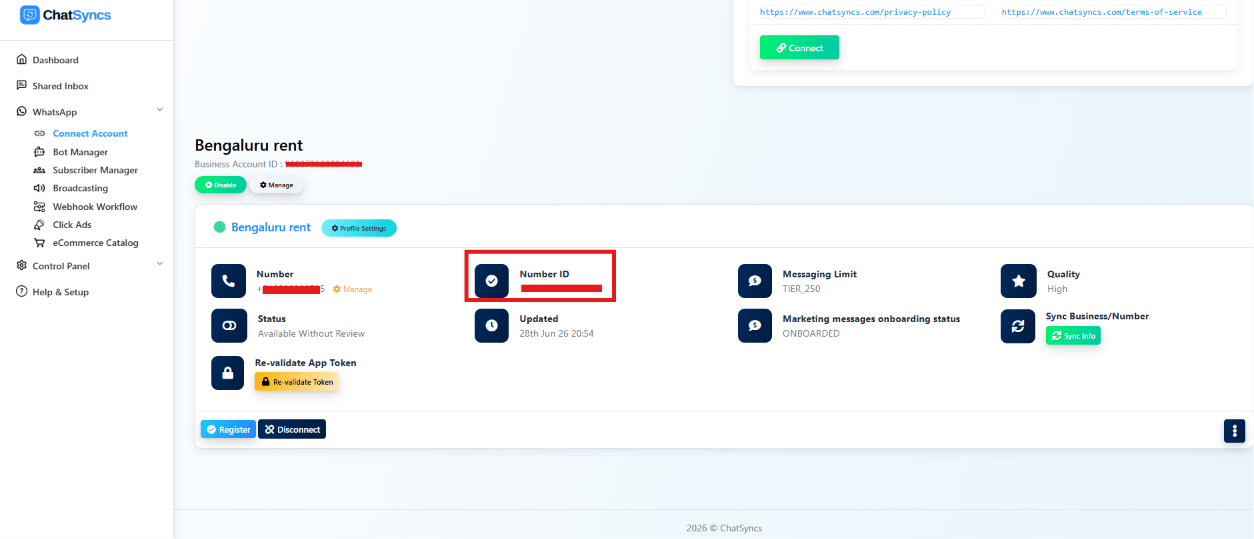
## Phone Number ID (`phone_number_id`)
Identifies which connected WhatsApp number a request acts on — required by almost every
endpoint. Go to **[WhatsApp → Connect Account](https://platform.chatsyncs.com/whatsapp/bot/connect)**
and look for **Number ID** on your bot's card.
 ## Business Account ID (`whatsapp_business_account_id`)
It's the **same card** as Phone Number ID above — go to
**[WhatsApp → Connect Account](https://platform.chatsyncs.com/whatsapp/bot/connect)** and look
for **Business Account ID**, shown just under the bot's name. This is only visible **after**
the WABA is already connected. If you're connecting it for the **first time** via
[Account Connect](/developer-api/whatsapp/account-connect), you don't have this yet — get it
from Meta instead, see
[Meta Developer Account Setup](/meta-api/concepts/meta-developer-account-setup).
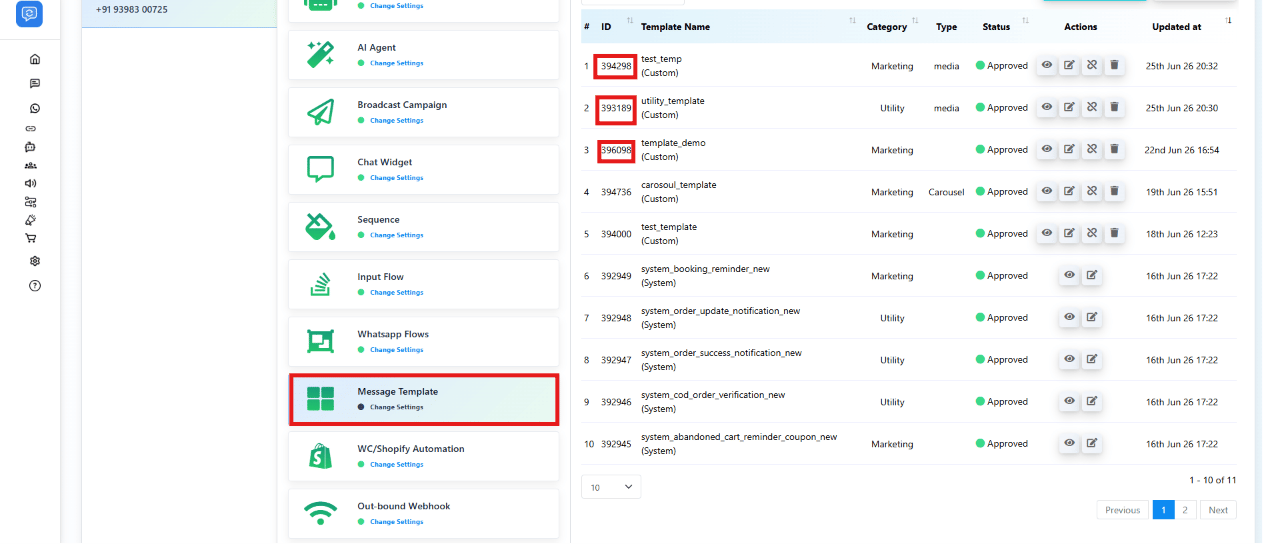
## Template ID (`template_id`)
Identifies a specific approved WhatsApp template, needed by
[Send Template Message](/developer-api/whatsapp/send-template-message). Go to
**[Chatbot Manager → Message Template](https://platform.chatsyncs.com/whatsapp/bot/manager)** —
the **ID** column lists every template's `template_id`.
## Business Account ID (`whatsapp_business_account_id`)
It's the **same card** as Phone Number ID above — go to
**[WhatsApp → Connect Account](https://platform.chatsyncs.com/whatsapp/bot/connect)** and look
for **Business Account ID**, shown just under the bot's name. This is only visible **after**
the WABA is already connected. If you're connecting it for the **first time** via
[Account Connect](/developer-api/whatsapp/account-connect), you don't have this yet — get it
from Meta instead, see
[Meta Developer Account Setup](/meta-api/concepts/meta-developer-account-setup).
## Template ID (`template_id`)
Identifies a specific approved WhatsApp template, needed by
[Send Template Message](/developer-api/whatsapp/send-template-message). Go to
**[Chatbot Manager → Message Template](https://platform.chatsyncs.com/whatsapp/bot/manager)** —
the **ID** column lists every template's `template_id`.
 You can also call [Bot Template Get](/developer-api/whatsapp/get-template-list) to list
templates programmatically instead of opening the dashboard.
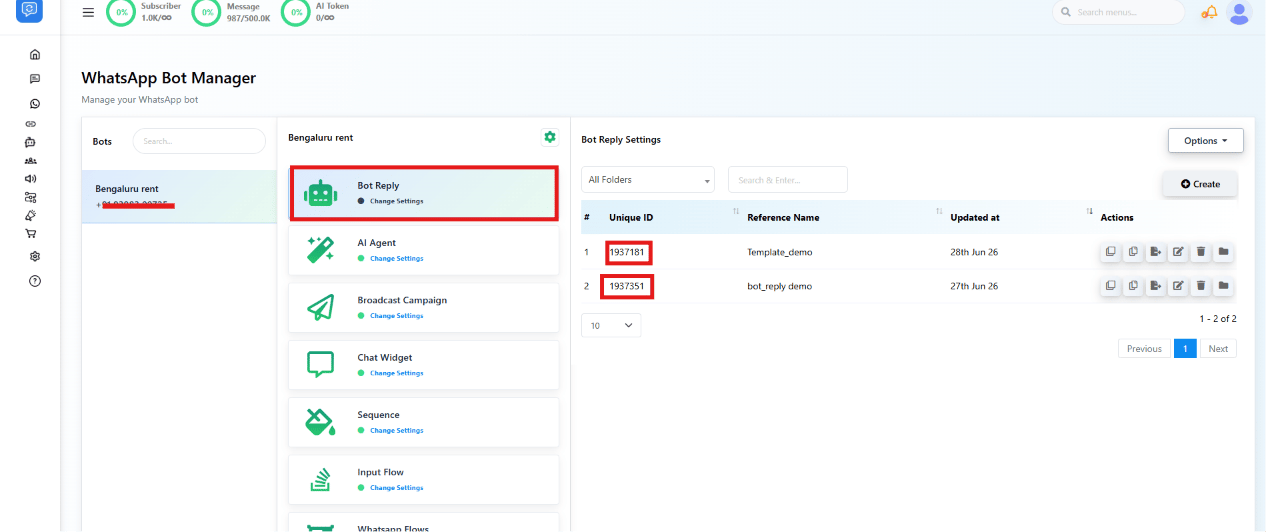
## Bot Flow and WhatsApp Bot ID (`bot_flow_unique_id`)
Identifies a specific Keyword Replies flow, needed by
[Trigger Bot Flow](/developer-api/whatsapp/trigger-bot-flow). Go to
**[Chatbot Manager → Keyword Replies](https://platform.chatsyncs.com/whatsapp/bot/manager)** — the
**Unique ID** column lists each flow's ID.
You can also call [Bot Template Get](/developer-api/whatsapp/get-template-list) to list
templates programmatically instead of opening the dashboard.
## Bot Flow and WhatsApp Bot ID (`bot_flow_unique_id`)
Identifies a specific Keyword Replies flow, needed by
[Trigger Bot Flow](/developer-api/whatsapp/trigger-bot-flow). Go to
**[Chatbot Manager → Keyword Replies](https://platform.chatsyncs.com/whatsapp/bot/manager)** — the
**Unique ID** column lists each flow's ID.
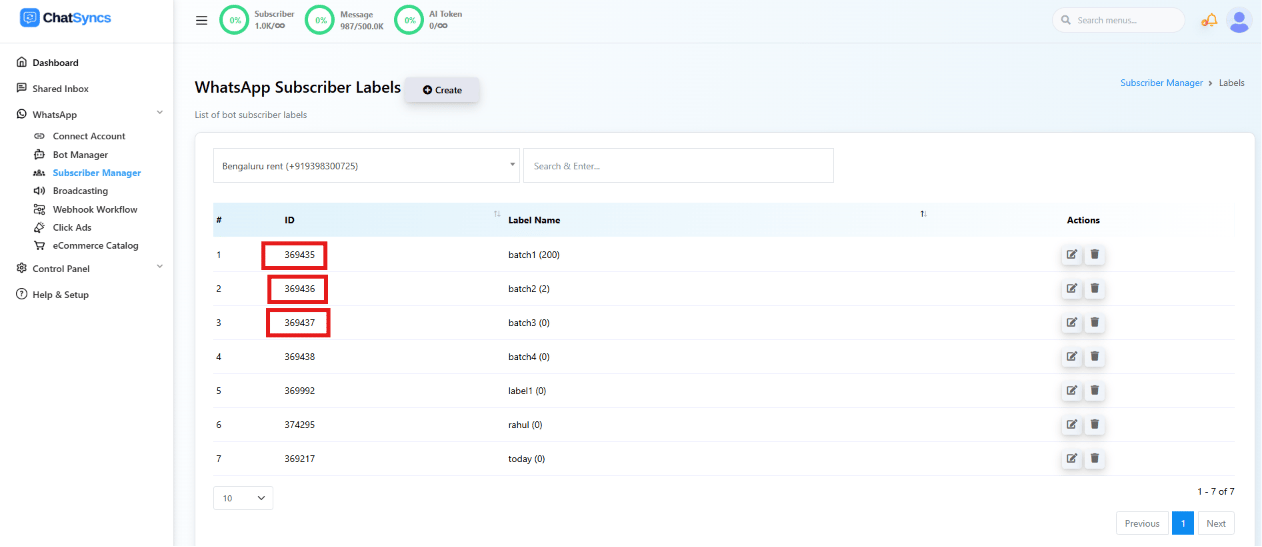
 ## Label ID (`label_id`)
Identifies a label for [Assign Labels](/developer-api/subscriber/assign-labels) and
[Remove Labels](/developer-api/subscriber/remove-labels). Go to
**[Subscriber Manager → Labels](https://platform.chatsyncs.com/whatsapp/subscriber/label/list)**
— the **ID** column lists each label's ID.
## Label ID (`label_id`)
Identifies a label for [Assign Labels](/developer-api/subscriber/assign-labels) and
[Remove Labels](/developer-api/subscriber/remove-labels). Go to
**[Subscriber Manager → Labels](https://platform.chatsyncs.com/whatsapp/subscriber/label/list)**
— the **ID** column lists each label's ID.
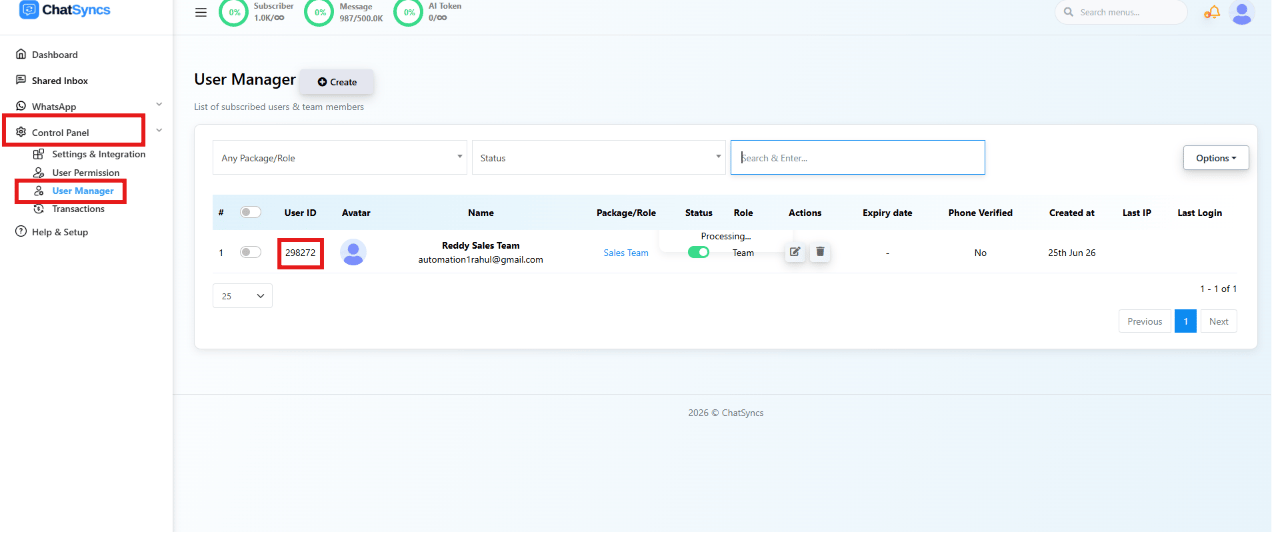
 ## Team Member ID (`team_member_id`)
Identifies a team member for
[Assign Chat to Team Member](/developer-api/subscriber/assign-chat-to-team-member). Go to
**[Control Panel → User Manager](https://platform.chatsyncs.com/user/list)** — the **User ID**
column lists each member's ID.
## Team Member ID (`team_member_id`)
Identifies a team member for
[Assign Chat to Team Member](/developer-api/subscriber/assign-chat-to-team-member). Go to
**[Control Panel → User Manager](https://platform.chatsyncs.com/user/list)** — the **User ID**
column lists each member's ID.
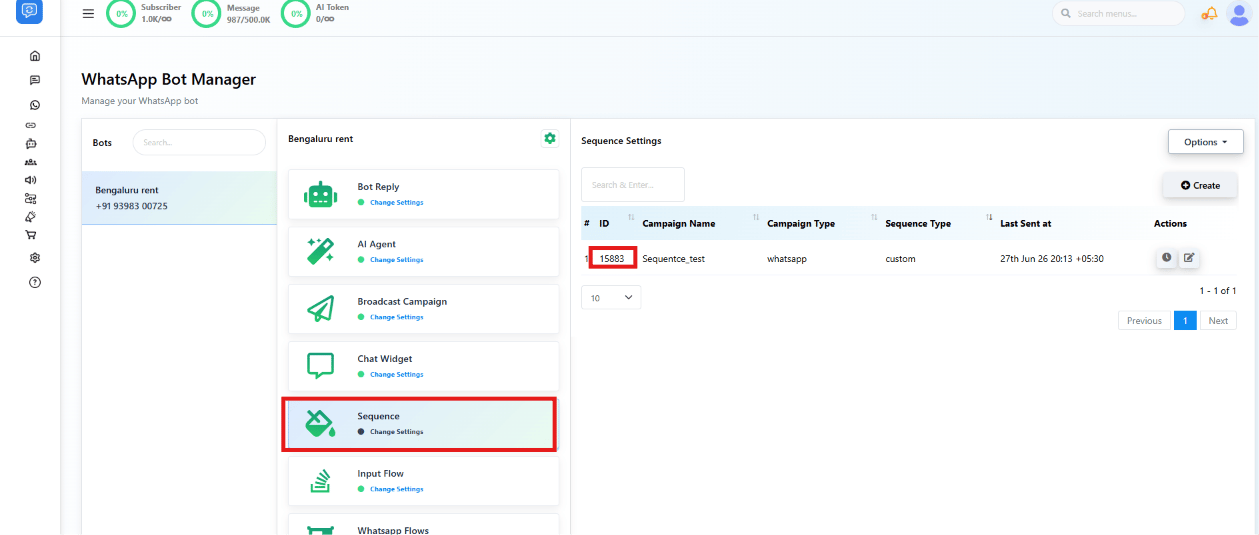
 ## Sequence ID (`sequence_id`)
Identifies a sequence for [Assign Sequence](/developer-api/subscriber/assign-sequence) and
[Remove Sequence](/developer-api/subscriber/remove-sequence). Go to
**[Chatbot Manager → Sequence](https://platform.chatsyncs.com/whatsapp/bot/manager)** — the **ID**
column lists each sequence's ID.
## Sequence ID (`sequence_id`)
Identifies a sequence for [Assign Sequence](/developer-api/subscriber/assign-sequence) and
[Remove Sequence](/developer-api/subscriber/remove-sequence). Go to
**[Chatbot Manager → Sequence](https://platform.chatsyncs.com/whatsapp/bot/manager)** — the **ID**
column lists each sequence's ID.
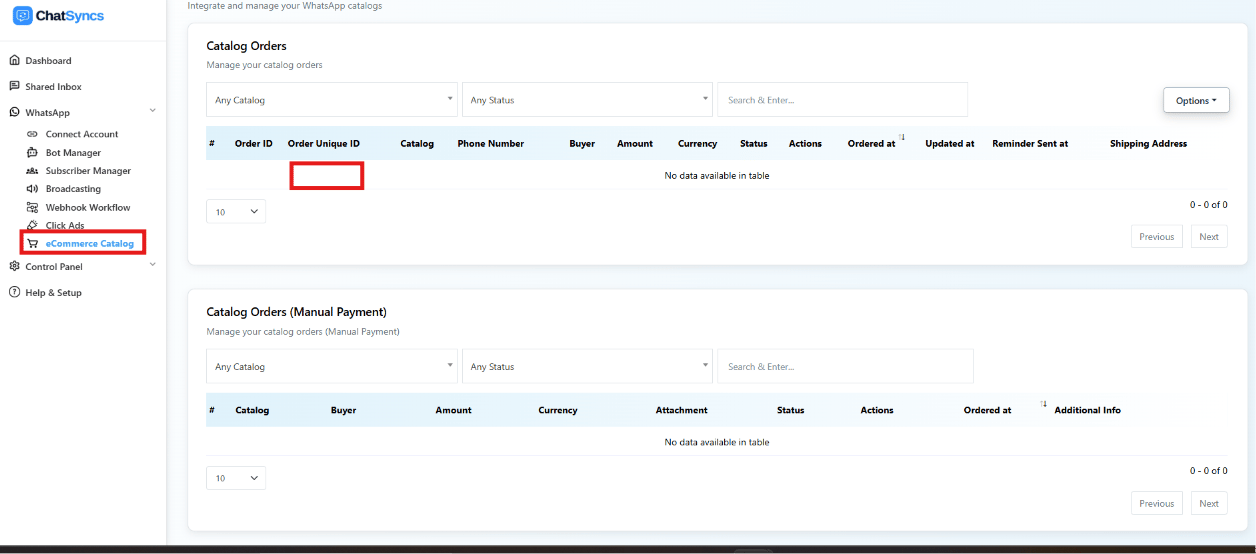
 ## Catalog ID and Order Unique ID (`whatsapp_catalog_id`, `order_unique_id`)
`whatsapp_catalog_id` identifies a connected product catalog;
`order_unique_id` identifies one order inside it — both used by the
[Catalog API](/developer-api/catalog/list-orders). Go to
**[WhatsApp → eCommerce Catalog](https://platform.chatsyncs.com/whatsapp/catalog)** — **Catalog
Orders** lists the **Order Unique ID** column, and the catalog filter at the top lists your
connected catalogs.
## Catalog ID and Order Unique ID (`whatsapp_catalog_id`, `order_unique_id`)
`whatsapp_catalog_id` identifies a connected product catalog;
`order_unique_id` identifies one order inside it — both used by the
[Catalog API](/developer-api/catalog/list-orders). Go to
**[WhatsApp → eCommerce Catalog](https://platform.chatsyncs.com/whatsapp/catalog)** — **Catalog
Orders** lists the **Order Unique ID** column, and the catalog filter at the top lists your
connected catalogs.
 You can also call [Catalog List](/developer-api/catalog/list-catalogs) to fetch
`whatsapp_catalog_id` programmatically instead of opening the dashboard.
## Cart Status (`cart_status`)
Not an ID you look up — it's a status **you set** on
[Catalog Order Status Change](/developer-api/catalog/update-order-status). Use one of:
| Value | Meaning |
| ----------- | ----------------------------------- |
| `Approved` | Order confirmed, not yet processed. |
| `Completed` | Order fully processed. |
| `Shipped` | Order has left for delivery. |
| `Delivered` | Order reached the customer. |
| `Refunded` | Order was refunded. |
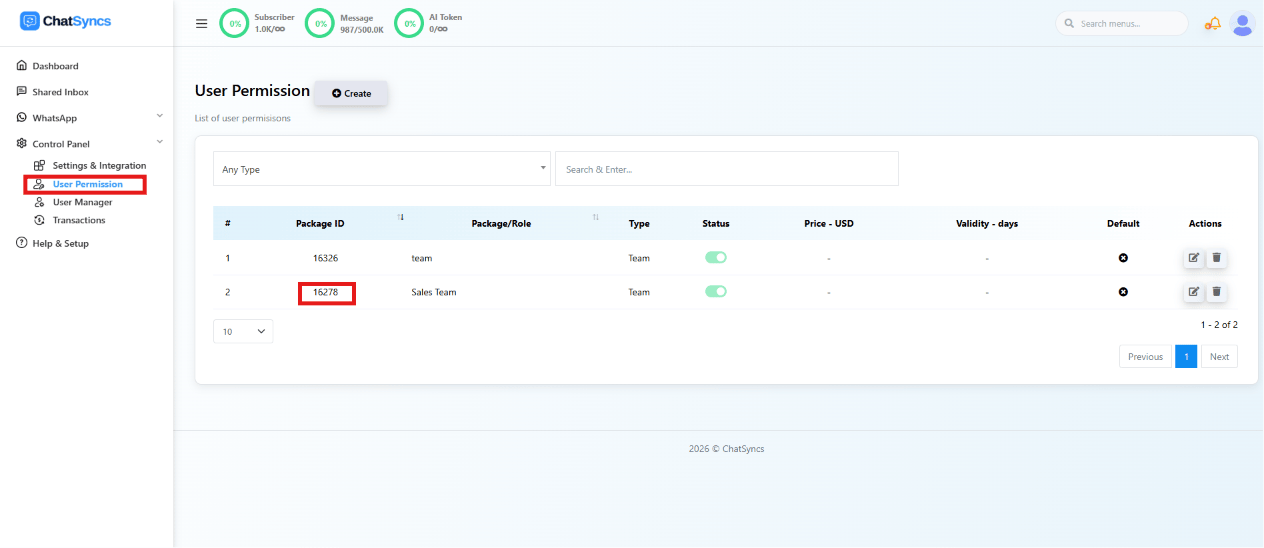
## Package ID (`package_id`)
Identifies a subscription package — needed when creating a new user via
[Get Direct Login URL](/developer-api/user/direct-login-url). Go to
**[Control Panel → User Permission](https://platform.chatsyncs.com/package/list)** — the
**Package ID** column lists each package's ID.
You can also call [Catalog List](/developer-api/catalog/list-catalogs) to fetch
`whatsapp_catalog_id` programmatically instead of opening the dashboard.
## Cart Status (`cart_status`)
Not an ID you look up — it's a status **you set** on
[Catalog Order Status Change](/developer-api/catalog/update-order-status). Use one of:
| Value | Meaning |
| ----------- | ----------------------------------- |
| `Approved` | Order confirmed, not yet processed. |
| `Completed` | Order fully processed. |
| `Shipped` | Order has left for delivery. |
| `Delivered` | Order reached the customer. |
| `Refunded` | Order was refunded. |
## Package ID (`package_id`)
Identifies a subscription package — needed when creating a new user via
[Get Direct Login URL](/developer-api/user/direct-login-url). Go to
**[Control Panel → User Permission](https://platform.chatsyncs.com/package/list)** — the
**Package ID** column lists each package's ID.
 ## Frequently asked
**[API Developer Console](https://platform.chatsyncs.com/api/developer/console)**. Treat it
like a password — never commit it to a repo.
Use `template_id` — see the note on [Bot Template Get](/developer-api/whatsapp/get-template-list)
for why that endpoint returns two ID-looking fields.
Both come from **Chatbot Manager → Keyword Replies**, in the same **Unique ID** column — they refer to
the same flow ID, just named differently across endpoints.
You don't find it — you set it. It's one of `Approved`, `Completed`, `Shipped`,
`Delivered`, or `Refunded`, picked by you when calling Catalog Order Status Change.
## Frequently asked
**[API Developer Console](https://platform.chatsyncs.com/api/developer/console)**. Treat it
like a password — never commit it to a repo.
Use `template_id` — see the note on [Bot Template Get](/developer-api/whatsapp/get-template-list)
for why that endpoint returns two ID-looking fields.
Both come from **Chatbot Manager → Keyword Replies**, in the same **Unique ID** column — they refer to
the same flow ID, just named differently across endpoints.
You don't find it — you set it. It's one of `Approved`, `Completed`, `Shipped`,
`Delivered`, or `Refunded`, picked by you when calling Catalog Order Status Change.